What should you check before choosing?
Start with where your files live, then choose a destination and backup method you can actually restore from. An external drive, cloud account and home NAS need different checks; a USB stick is more suited to deliberate copies of selected files than an automatic household-wide routine.
| Priority |
What to check |
Your needs |
| Independent recovery copy |
Choose a destination separate from the original device. Check whether a local drive will be disconnected after backup or whether another copy is held elsewhere; the National Cyber Security Centre advises keeping removable backup media separate from the computer or network to reduce exposure during a ransomware incident. |
I want to retrieve family photos even if the original computer is lost, damaged or affected by malware. |
| Content covered |
List the photos, documents, messages, settings and folders to protect. Apple says content already synchronised with iCloud is not included in iCloud Backup; Microsoft says File History covers libraries, so check other folders separately. |
Seeing my photos in a cloud library is not enough: I need to know how I would recover the files and device data that matter to me. |
| Routine and devices |
Check when backups run, which phones or computers can use the destination, and whether a drive must be connected. Microsoft says File History makes regular copies to an external drive or network location once enabled. |
With files spread across household devices, I need a routine that does not depend on remembering to copy every new photo by hand. |
| Storage capacity |
Compare the selected files and expected growth with usable drive space or cloud allowance. Google says account storage is shared across Drive, Gmail and Photos; check what happens when a service reaches its limit. |
Our photo and video collection is growing, so I want to know that new backups will still fit. |
| Access and restoration |
Check account-recovery options, enable two-step verification for important cloud accounts, and try restoring a small file. For Android, Google says some data, including app data, settings and messages, can only be restored during device setup. |
If a phone needs replacing, I want to understand the restore steps before the old device is unavailable. |
| Local connection |
For an external drive or USB stick, check the device port, required cable or adapter, formatting and intended backup software. For a home NAS, confirm the backup method on each household device and plan a copy independent of the NAS. |
I want local storage that works with the computers and phones we actually use, not just a place to move files manually. |
Which platforms and storage brands are relevant?
These references help you check particular backup workflows and products; they do not imply that every product from a brand covers the same devices or data.
Apple
For households backing up iPhone or iPad data through iCloud or a computer.
- Apple says an iPhone or iPad can be backed up using both iCloud and a computer.
- Apple says content already synchronised with iCloud is handled separately from iCloud Backup. Check how photos and other important items will be restored.
Google
For Android device backups and account-linked storage for photos and files.
- Google documents Android backup and restoration during device setup.
- Google says some data can only be restored during setup, while account storage is shared across Drive, Gmail and Photos.
Microsoft
For Windows households considering File History or OneDrive folder backup.
- Microsoft says File History regularly copies covered files to an external drive or network location.
- Check which libraries and folders your chosen Windows or OneDrive method covers rather than assuming every file is included.
Synology
For households considering a BeeStation home destination for computer files and backups.
- Synology describes Time Machine backup for Mac and PC backup through an included Acronis licence on BeeStation.
- Synology specifies one three-year Acronis True Image Essentials licence for one computer. Check the licence conditions and keep a separate copy of irreplaceable files.
Samsung
For households considering a portable SSD as a local file-copy destination.
- Samsung UK lists USB 3.2 Gen 2 connectivity for its T7 Shield 1 TB MU-PE1T0S model.
- Check the host connection, formatting and backup method for the exact model; portable storage alone does not establish an automatic restore routine.
Joybuy options for local file copies
These external drives offer local destinations to consider for a computer-based archive; the USB flash drive is an option for selected-file copies. Check your device connection and backup workflow before relying on any of them, and retain an independent copy of irreplaceable files.
 No image available
Western Digital My Passport Ultra 5 TB portable hard drive, blue
For a computer-based photo archive, this 5 TB portable external hard drive provides a local storage destination. Check its connection, formatting and backup software against your computer, including how you would restore files.
View on Joybuy
 No image available
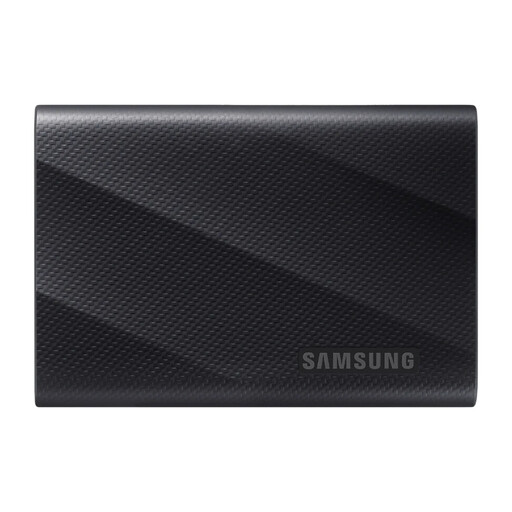
Samsung MU-PG1T0B 1 TB USB-C 3.2 Gen 2x2, black
This 1 TB USB-C option is a local destination to consider for portable computer-file copies. Check your device’s connection and the software you would use for scheduled backups, file versions and restoration.
View on Joybuy
 No image available
Samsung Portable SSD T7 2 TB USB-C 3.2 Gen 2, grey
The 2 TB capacity makes this portable SSD an option for a computer archive that needs that amount of local space. Confirm the host connection, formatting and backup software, and check how you would recover an older or deleted file.
View on Joybuy
 No image available
Samsung MU-PE1T0S 1 TB USB-C 3.2 Gen 2, black
This 1 TB USB-C model is an option for a portable local copy of computer files. Samsung UK identifies the matching MU-PE1T0S model as a T7 Shield; check device compatibility and the backup and restore method you intend to use.
View on Joybuy
 No image available
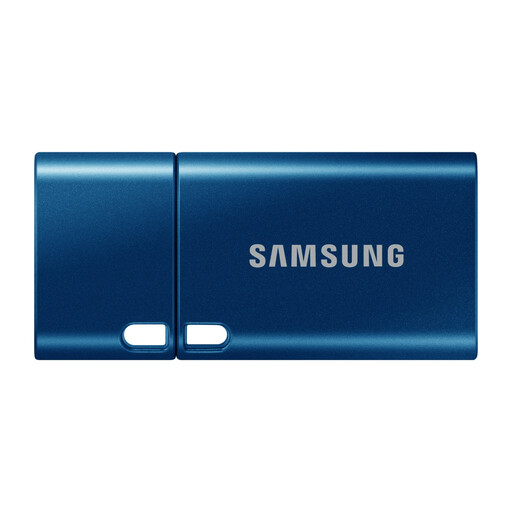
Samsung MUF-512DA 512 GB USB-C 3.2 Gen 1 flash drive, blue
Use this 512 GB USB-C flash drive as an option for deliberate copies of selected documents or photos, rather than assuming it will run a household backup automatically. Check the device port and that you can open the copied files, then store the drive separately.
View on Joybuy
Questions about household backups
Is synchronising photos to iCloud the same as a full iPhone backup?
No. Apple says content already synchronised with iCloud, including iCloud Photos when enabled, is not included in iCloud Backup. Check how photos, files, messages and device data are each stored and restored.
Can Google restore all Android data after a phone is set up?
Not all of it. Google says some data, including app data, settings and messages, can only be restored during device setup. Check the restore steps before replacing or resetting a phone.
What matters when choosing an external drive for Windows backups?
Check the connection, capacity, folders covered and restoration method. Microsoft says File History can make regular copies to an external drive or network location; confirm that the files you care about are in its backup set.
Is a home NAS enough on its own for family photos?
Do not assume one home NAS covers every loss scenario. Keep an independent copy of irreplaceable photos and check that you can restore from it; the National Cyber Security Centre advises keeping removable backup media separate from a computer or network to reduce exposure during a ransomware incident.
What should I check before relying on cloud storage?
Check what is backed up, the available allowance, account access and what happens when storage fills or a plan changes. Google says its account allowance is shared across Drive, Gmail and Photos; Apple advises downloading or removing content above a reduced iCloud allowance before downgrading or cancelling.


