Daily-import organisers
If you import and sort many images during the trip, allow local space for the files, catalogue, previews and a separate backup. For Lightroom Classic users, Adobe recommends at least 16 GB of memory and a fast SSD.


Choose a laptop around the task most likely to interrupt your photo-archive workflow: storing daily imports, carrying and charging the computer, or connecting cards and backup drives. If you use Lightroom Classic, Adobe recommends at least 16 GB of memory and a fast SSD; choose storage capacity for your files and check your exact software, accessories and backup plan before travelling.
If you import and sort many images during the trip, allow local space for the files, catalogue, previews and a separate backup. For Lightroom Classic users, Adobe recommends at least 16 GB of memory and a fast SSD.
If most of your work is reviewing, culling and captioning between locations, consider the weight of the laptop and charging equipment alongside the screen area you need.
If equipment moves frequently between locations, consider screen visibility, usable connections, a protective case and how you would access the archive if the laptop needed repair.
Start with the space needed for imports and backups, then decide how much carrying weight, connection convenience and recovery planning matter to your trip.
| Concern | What to check | Who this matters to |
|---|---|---|
| Archive space and file handling | Allow SSD space for images, catalogues, previews and working files. If you use Lightroom Classic, compare memory and storage with Adobe’s recommendation of at least 16 GB of memory and a fast SSD. | If I import images each day, I need room to sort them without clearing the working archive mid-trip. Around 31% of consumers put local capacity and file handling first. |
| Carrying and charging | Compare the exact configuration’s weight, charger and supported charging connection. Treat advertised battery figures as test-condition figures, not photo-workflow runtime. | When I move between locations, I need a setup I can carry and recharge without disrupting the day. Carrying and charging are the primary concern for around 31% of consumers. |
| Reviewing and importing | Check the chosen screen and the connections required by your camera cards, reader, drives and display. Ports can differ between sizes in the same laptop line. | I want to review images and move files from my cards without juggling unsuitable connections. Around 23% of consumers prioritise that reviewing and importing setup. |
| Protection and recovery | Check service arrangements for your travel area, use protective carrying equipment and plan a separate, verified archive copy. | If the laptop fails or is damaged, I still need access to my photographs. Recovery and support come first for around 15% of consumers. |
Manufacturer figures may describe web use or video playback rather than importing photographs with external drives attached.
Plan how you will charge on the trip, and test the intended workload before departure.
Microsoft lists microSD for the cited 15-inch Surface Laptop, while Apple lists two Thunderbolt 4 USB-C ports for the cited MacBook Air configuration. Neither description settles what your particular cards and cables require.
Check the exact model against your card format, drive cables, display connection and charging needs.
A separate reader, adapter or hub may add equipment to carry.
Support and resilience claims do not protect the only copy of an archive from every loss or equipment failure.
Carry the laptop protectively, keep a separate verified copy of the photographs and check repair arrangements for your destination.
The UK Civil Aviation Authority says laptops should normally be taken in the cabin. Accompanying batteries and power banks also need attention when packing.
Check current airline requirements for the laptop and any power bank before you travel.
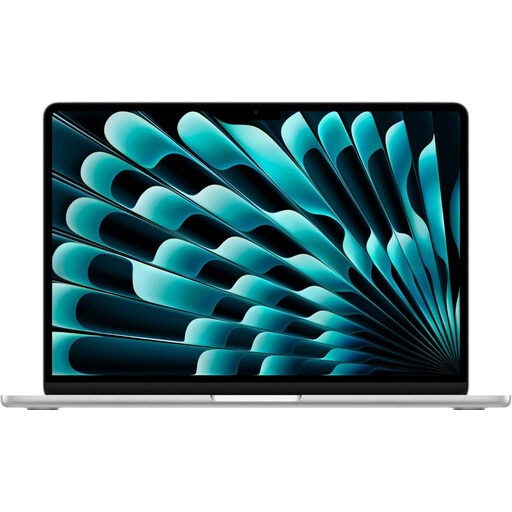
MacBook Air offers a macOS route for organising an archive with SSD storage and USB-C connections.
ThinkPad X1 Carbon is a Windows-oriented line to consider when carrying weight, an anti-glare screen and business support shape the choice.
Surface Laptop offers Windows models with a 3:2 display and both USB-C and USB-A connections.
These laptops offer different screen sizes, memory and storage configurations for organising photographs while travelling. Match each one to your software, import equipment and backup routine rather than choosing by a single specification.
 No image available
Consider this configuration if keeping a sizeable working archive on the laptop matters more than choosing the smallest screen. It has a 15.6-inch display and an Intel Core 5 120U processor; check its connections against your reader and drives, and plan charging around your photo workload.
 No image available
The two-screen format is worth considering if you want images visible alongside catalogue work. This model has an Intel Core Ultra 7 255H processor. Confirm the supplied display resolution before relying on it for image review, and test battery life with your intended setup.
 No image available
The 2-in-1 format may suit reviewing photographs in more than one position while travelling. This Windows 11 Home configuration has local storage for a working archive; confirm its exact display resolution and allow for charging during photo work.
 No image available
The 14-inch format offers a more compact choice for a working archive than a larger-screen laptop. Before choosing this Snapdragon Windows configuration, confirm that your photo software, plug-ins, camera utilities and peripherals work with it; plan storage and charging for your daily imports.
 No image available
Consider this macOS configuration if you want a 15-inch screen and room for a substantial local working archive. Check your photo software, plug-ins, card reader and drive format against macOS, as well as the connections and charging setup you will take on the trip.
The UK Civil Aviation Authority says laptops should normally travel in the cabin. Check your airline’s current baggage requirements before departure, particularly if you are carrying drives and other equipment alongside the laptop.
Check the power bank’s capacity and your airline’s current rules before packing it. The UK Civil Aviation Authority’s guidance addresses where power banks must be carried and places conditions on their use and capacity; do not assume that a power bank suitable for charging your laptop can automatically travel without restrictions.