What should you check before choosing?
Start with the files you need to recover and where each copy will live; then choose the capacity, transfer method and folder controls that fit your routine.
| Priority | What to check | Your needs |
|---|
| Separate copies |
Check that a backup is stored away from the computer and that at least one local copy can be disconnected. Restore a test file. The UK Department for Education Cyber Security Hub’s 3-2-1 guidance calls for an off-site copy and recommends disconnecting at least one backup. |
My photos or documents would be difficult to replace, so I do not want the computer and every copy exposed to the same incident. |
| Capacity |
Measure the folders to be protected and allow room for new files. Compare that total with the drive capacity or cloud plan’s storage allowance. |
A growing collection of videos and photos needs space beyond what it occupies today. |
| Transfers and portability |
For a drive, compare its stated interface with your computer’s port and cable. Consider physical size and how often you will move large folders; the drive alone does not determine transfer speed. |
If I carry my backup and update sizeable folders often, compact storage and transfer time matter. For an occasional local archive, capacity may matter more. |
| Folder selection |
Check which computer folders the app backs up or syncs, whether syncing has completed and how to restore a file. For travel, check the offline-file setting. |
I want selected files available on another device without having to remember every manual copy, but I also need the right folders included. |
| Security and recovery |
Check the exact drive’s encryption features or the cloud account’s security controls. For a cloud service, check its deleted-file and earlier-version recovery terms before relying on sync alone. |
Accidental changes or account access worry me, so I need to know both how files are protected and how I would recover them. |
Relevant brands and services
These brands illustrate different backup routes; their features apply to the named products or services, not automatically to every device or plan from the same brand.
Western Digital
Its My Passport portable and My Book desktop lines are external HDD references for local backups.
- PCMag UK’s 2026 external-hard-drive roundup selects My Passport for portable use and My Book for desktop use.
- Check the capacity, connection and features of the exact model you are considering.
Crucial
The Crucial X10 is an external SSD reference for a compact local copy.
- PCMag UK identifies the X10 as its external SSD pick for most buyers in its 2026 roundup.
- Check security features on the exact variant rather than assuming an SSD includes hardware encryption.
Microsoft OneDrive
OneDrive is a cloud route for selected computer folders and access across devices.
- Microsoft lists 1TB of cloud storage for one person with Microsoft 365 Personal.
- Turn on backup for the folders you need; do not assume every file location is included.
Apple iCloud+
iCloud+ provides cloud storage for Apple-device backups, photos and files.
- Apple lists 50GB, 200GB and 2TB storage tiers. Its stated automatic iPhone and iPad backup runs when the device is connected to power and Wi-Fi.
- That mobile-device backup condition does not establish that every folder on a Mac or Windows computer is backed up.
Dropbox
Dropbox Plus is a cloud option for selected computer folders and files.
- Dropbox states that Plus includes 2TB of storage and a 30-day window to restore deleted files; Dropbox Help describes backup for key computer folders and an external drive.
- Check which folders are selected and whether the recovery window meets your needs.
Google One / Google Drive
Google Drive for desktop offers file sync and offline-file controls; Google One provides expanded account storage.
- Google says accounts include up to 15GB of storage and that Drive for desktop supports offline files.
- Check which folders sync and which files are kept locally before depending on offline access.
Joybuy storage options
These options cover portable local drives and a diskless home network-storage setup. A local device needs a separate off-site destination if that is part of your backup plan.
 No image available
Western Digital My Passport 2TB portable HDD, black
A portable local copy for photos and documents. The listing states 2TB capacity, USB 3.2 Gen 1, scheduled-backup software, password protection and 256-bit AES hardware encryption. Select the folders for scheduled backups; the drive alone is not an off-site copy.
View on Joybuy
 No image available
Western Digital My Passport Ultra for Mac 5TB HDD, silver
A portable local-copy option for a Mac-oriented setup. The listing states 5TB capacity, USB-C, password protection and 256-bit AES hardware encryption. It describes macOS 11+ support and says Windows use requires a downloadable HFS+ driver; confirm compatibility and the applicable warranty before buying.
View on Joybuy
 No image available
Samsung MU-PE1T0S 1TB USB Type-C SSD, black
A compact local-copy option when transfer time and portability matter. The listing states USB 3.2 Gen 2 and read/write speeds up to 1,050/1,000 MB/s; actual transfers also depend on the connection. It lists IP65 protection but warns against submerging the drive. Confirm the backup workflow and encryption features if you need unattended backups or protected files.
View on Joybuy
 No image available
Western Digital Elements portable 4TB HDD, black
A portable 4TB local-copy option for a sizeable file collection. The listing states USB 3.2 Gen 1, includes a USB-A cable and describes plug-and-play use with Windows 10+. Mac or other-system use may require reformatting; check compatibility, backup software and encryption features for your intended setup.
View on Joybuy
 No image available
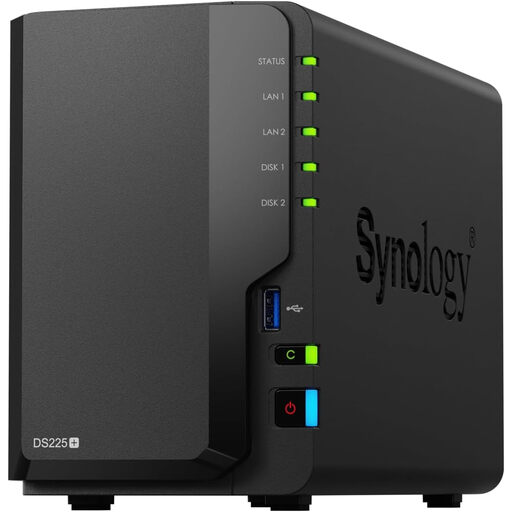
Synology DS225+ two-bay diskless NAS
A home network-storage setup for people prepared to configure their backup destinations. The listing describes automated backup to cloud services, external drives and remote NAS devices. It is diskless, so confirm compatible drives and the setup required; a separate cloud destination is needed for cloud backup.
View on Joybuy
Backup questions answered
Should an external drive be my only backup?
Use another copy in a separate location for files you cannot replace. The UK Department for Education Cyber Security Hub describes a 3-2-1 approach: three copies on two forms of storage or separate devices, with one off site. It is resilience guidance, not a legal requirement for personal files.
How can I make computer-folder backup automatic?
Set up the provider’s desktop app, select the folders you need and confirm that backup or syncing completes. Microsoft’s OneDrive controls let you turn on folder backup; Dropbox Help describes automatic backup for key computer folders and an external drive. Restore a test file before relying on the setup.
Can I use cloud-stored files without an internet connection?
Yes, if the files you need are kept locally. Google Drive for desktop supports offline files and offers mirrored or streamed modes; check the relevant offline setting and files before travelling.
What should I check before uploading sensitive files?
Review the service’s encryption description, available account-security controls and recovery terms for the files you intend to store. Dropbox states that Plus storage is encrypted and offers multi-factor authentication and 30-day deleted-file recovery. Apple says iCloud data is encrypted, while only certain categories are end-to-end encrypted; check which protections apply to your files.


