What to check before transferring
Start by measuring the files you need to move, then check how both computers connect and whether your account-based route covers the information you expect it to.
| Priority |
What to check |
Your needs |
| Complete file migration |
Measure files across folders and drives; identify app-specific data; check the migration method for each important application. |
I want documents, photos and videos moved without overlooking files stored outside the usual folders or data held by an application. |
| Capacity and connections |
Compare stated capacity with the measured total; check USB-A and USB-C ports on both PCs; check the drive, cable and computer USB requirements together. |
The storage needs to connect directly to both computers and hold the intended transfer without relying on an unsuitable port or headline speed. |
| Account and cloud route |
Confirm that you use a personal Microsoft account; check whether an existing backup changes the Windows workflow; allow for cloud storage and upload time. |
I want to know whether signing in and using cloud storage is practical before I depend on it for a replacement-PC move. |
| Privacy and retirement |
Consider encryption for sensitive files on removable storage; keep the drive secure; remove personal information before selling, gifting or recycling the old PC. |
I want to reduce the exposure of personal files if a transfer drive is misplaced and avoid leaving information on the old computer. |
Joybuy storage options
Joybuy product options for a local file-transfer route between an old and new Windows PC. Match the stated capacity, ports, cables and security features to your own transfer plan.
 No image available
Samsung MU-PE1T0S 1TB USB Type-C SSD
A local option for a substantial file collection where both PCs can use the supplied cable arrangement.
Stated 1TB capacity, USB 3.2 Gen 2 and USB-C-to-C plus USB-C-to-A cables. Password protection and AES-256-bit hardware encryption require Samsung Portable SSD Software; measure your files and check both PCs’ USB capability before relying on the stated transfer rate.
Joybuy
 No image available
Western Digital My Passport 2TB External Hard Drive
A portable local-copy option for a sizeable collection of files that would be inconvenient to upload.
Stated 2TB capacity, USB 3.2 Gen 1, Windows 10+ formatting and a supplied USB-A-to-Micro-B cable. The listing states 256-bit AES hardware encryption and password protection through its companion utility; check whether the new PC has USB-A or needs a compatible adapter.
Joybuy
 No image available
Western Digital Elements 4TB External Hard Drive
A higher-capacity local route for extensive photo, video or archive folders.
Stated 4TB capacity, USB 3.2 Gen 1 and an included USB-A-to-Micro-B cable. Check that both PCs can use USB-A or that you have a compatible adapter; the listing advises avoiding shocks and states that the drive is not waterproof or dustproof.
Joybuy
 No image available
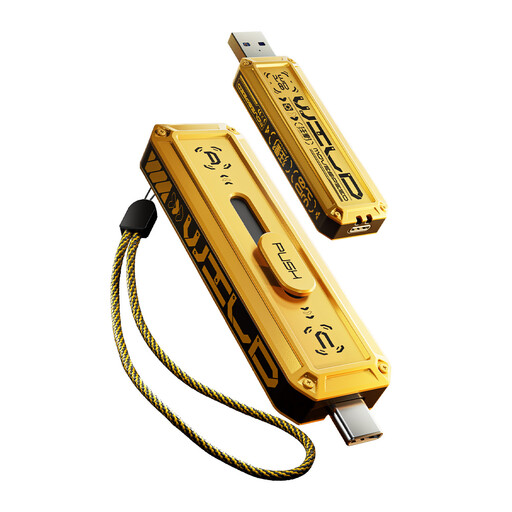
MOVESPEED 1TB Dual USB-A and USB-C Flash Drive
A compact physical hand-off option when the measured transfer fits on a flash drive and the two PCs use different common USB ports.
Stated 1TB capacity with USB-A and USB-C interfaces in a portable flash-drive format. Compare the capacity with the full migration total and check security options if sensitive files will be carried.
Joybuy
 No image available
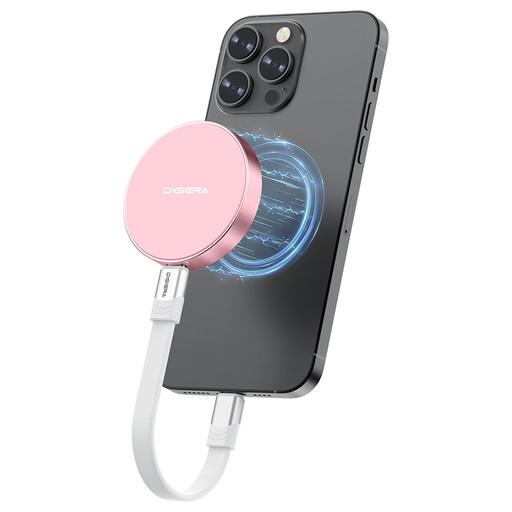
DigiEra LPS2000M-3 1TB USB-C Portable SSD
A small local-transfer option for a replacement PC setup where USB-C is available on both computers.
Stated 1TB capacity, USB-C interface and USB 3.2 Gen 2×2 support, with quoted read and write rates up to 2,000MB/s and 1,800MB/s. Check the cable, both PCs’ ports and supported USB mode, and confirm security options for sensitive files.
Joybuy
Frequently asked questions
How do I choose the capacity of a transfer drive?
Measure the files you intend to move before buying, including folders outside Documents, Pictures and Desktop. Choose a drive whose stated capacity accommodates that total, as Microsoft Support notes that files saved across folders or drives can be transferred.
Should I choose USB-A, USB-C or a dual-connector flash drive?
Check the actual ports on both PCs first. A USB-C-only drive needs compatible USB-C devices, while a dual USB-A and USB-C model can connect directly to computers with different port types; also confirm the exact model has sufficient capacity.
Will copying my files move my apps, email and settings too?
Not necessarily. Microsoft Support documents files, settings and preferences in supported Windows transfer routes, but Windows Backup covers certain files and folders, settings, credentials and apps rather than every application state. Check each important app separately; Outlook .ost files, for example, are recreated after the email account is added.
What should I do before resetting, selling or recycling the old PC?
Back up the information you need, then confirm key files open on the new PC before starting a reset. Microsoft Support recommends removing personal information before a PC is sold, donated or recycled, and advises removing or unlinking the device from your Microsoft account after backup and reset.
Are there UK data-protection rules for moving my own files?
The Information Commissioner’s Office says the UK GDPR does not apply to processing carried out purely for personal or household activities. Files handled for an employer, client, school or another organisation may be subject to that organisation’s data-handling rules; for sensitive files on a removable drive, encryption can help if the drive is lost or stolen.


