Who needs portable file storage?
The devices at either end of a journey matter as much as the files being carried.
Home-to-work and home-to-study file carriers
If you take documents, presentations or project folders between computers, check the ports and file formats at both locations before choosing a drive. That matters particularly when one computer is managed by an employer or place of study.
People moving large collections or changing computers
A portable SSD is worth assessing for large photo or video folders and replacement-computer transfers. Its advertised speed is not the speed you will necessarily get: the computer port and connection also matter.
People using both USB-A and USB-C devices
A dual-connector flash drive can reduce the need to carry an adapter between older USB-A computers and USB-C devices. If a phone or tablet is part of the route, confirm that the exact device can use external storage.
What should you check before choosing?
Start with the devices and files involved, then compare drive specifications against the connection you will actually use.
| Priority | What to check | Your needs |
|---|
| Connectors |
Identify the ports on both devices. For an SSD, check which cables are supplied; for a flash drive, check whether it has USB-A, USB-C or both. Confirm phone or tablet storage support separately. |
I move files between devices with different ports and would rather not rely on an adapter I might leave behind. |
| File format |
Check that every device can read and write the drive’s file system and handle the intended file sizes. Apple Support identifies ExFAT as Windows-compatible and recommends it in Mac Disk Utility for disks over 32GB; confirm support on any other device in the route. |
My files need to open on both a Mac and a Windows PC, or on a compatible mobile device as well. |
| Transfer speed |
Compare stated read and write speeds for the exact model, not just its connector shape. The USB Implementers Forum identifies USB 3.2 signalling rates of 5, 10 and 20Gbps and says a connection operates at its lowest common speed capability. |
Large folders are a regular part of my transfer, so I need to check the drive, port, cable and any hub rather than relying on one advertised maximum. |
| Capacity |
Allow room for the files you intend to carry, including any collection being moved to a replacement computer. Check the capacity of the exact variant rather than assuming every model in a range is the same. |
I want to carry my current files together without choosing capacity solely from the size of one document or folder. |
| Transport and removal |
Check any protection claim against the exact model and its stated conditions. After copying, check the destination files and eject the drive before unplugging it; Microsoft advises safe removal to help avoid data loss. |
I carry the drive between locations and need a sensible routine for protecting the files, not just a portable casing. |
Which brand ranges are relevant?
These ranges illustrate different connector and portable-SSD options; specifications and protection claims belong to particular models, not every drive from a brand.
Kingston
Kingston’s DataTraveler range includes flash drives for USB-A, USB-C and mixed-port use.
- Kingston Technology describes the DataTraveler Duo as having both USB-A and USB-C connectors, useful to check when transferring files between those ports.
- Connector arrangement, capacity and stated write performance depend on the selected DataTraveler model.
Samsung
Samsung’s T7 range is relevant when considering a portable SSD for large or repeated transfers.
- Samsung UK states maximum read and write figures of up to 1,050 and 1,000MB/s for its 2TB T7, provided the host and cable support USB 3.2 Gen 2 and UASP is enabled.
- Check protection features against the exact model: claims made for a T7 Shield should not be assumed for a standard T7.
SanDisk
SanDisk’s Extreme PRO Portable SSD range is another option to assess for carrying large file collections.
- The SanDisk UK Store describes an Extreme PRO Portable SSD range with USB 3.2 Gen 2x2 and capacities up to 4TB.
- Check the exact drive revision, cable and computer port before treating Gen 2x2 support as a usable speed advantage.
Joybuy options for carrying files
These options cover dual-connector flash drives for mixed USB-A and USB-C ports and portable SSDs for carrying larger collections. Match the exact drive and connection to your devices before choosing.
 No image available
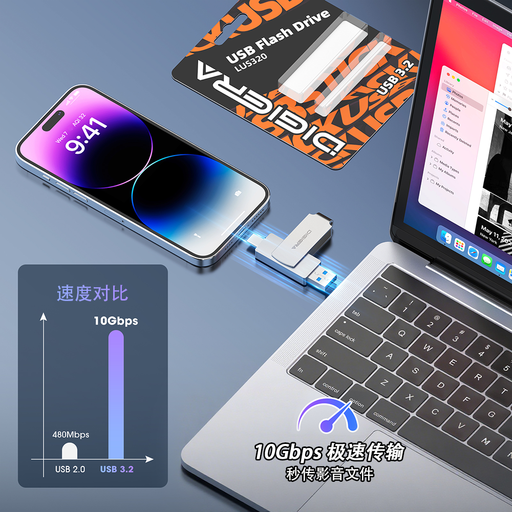
DigiEra LUS320 128GB dual USB-A/USB-C flash drive
The two connectors make this 128GB drive worth considering for transfers between USB-A and USB-C ports. Its title specifies USB 3.2 and a swivel design; check the file format and storage support on every device you plan to use.
View on Joybuy
 No image available
Samsung T7 1TB portable SSD, blue
This 1TB USB 3.2 Gen 2 SSD is an option for carrying larger folders between computers. Check the cable and port you will use, as well as the drive’s file format; a Gen 2 label alone does not establish the speed of the whole connection.
View on Joybuy
 No image available
Samsung T7 Shield 1TB portable SSD, blue
Consider this 1TB USB 3.2 Gen 2 model if you are comparing portable SSDs for frequent travel with files. Confirm its model-specific protection conditions, the connection you will use and the file format required by your devices.
View on Joybuy
 No image available
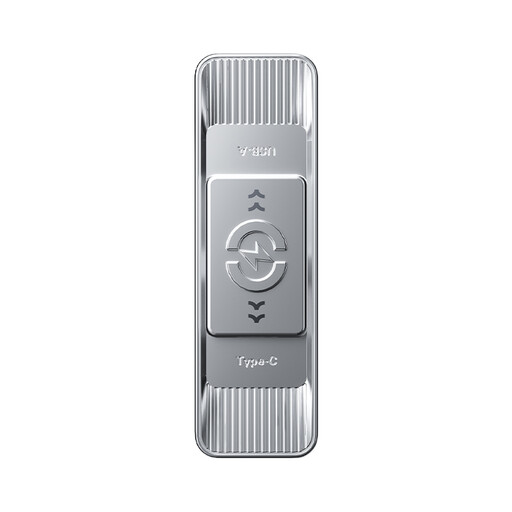
MOVESPEED YSUSP05-512GSR 512GB dual USB-A/USB-C flash drive, silver
The dual connectors suit a route involving both USB-A and USB-C devices, while the 512GB capacity gives room to assess it for a larger collection of files. Its title specifies USB 3.2 Gen 1; confirm file-format and mobile-device compatibility where relevant.
View on Joybuy
 No image available
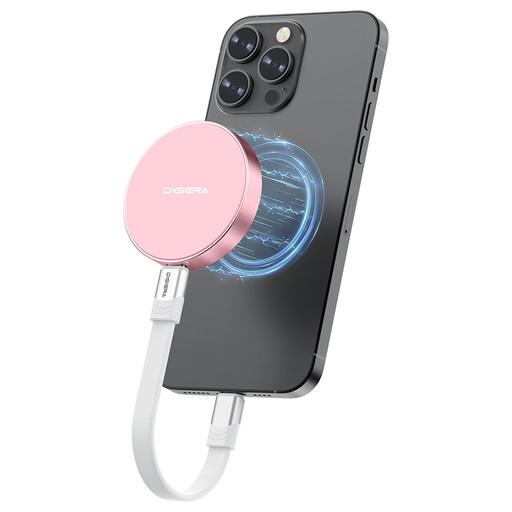
DigiEra LPS2000M-3 1TB magnetic portable SSD, pink
This 1TB USB-C SSD is an option for moving large files with compatible devices. Its title specifies USB 3.2 Gen 2x2 and names the iPhone 15/16 series; check the exact phone, cable, computer port and file format before relying on that setup.
View on Joybuy
Questions about moving files
What format should a drive use between a Mac and Windows PC?
ExFAT is a starting point to check: Apple Support identifies it as Windows-compatible and recommends it in Mac Disk Utility for disks over 32GB. Confirm that every other device in your transfer route supports the format, and copy existing files elsewhere before reformatting a drive.
Is a USB-C flash drive necessarily faster?
No. USB-C identifies a connector, while transfer capability also depends on the drive, port and any cable or hub. The USB Implementers Forum distinguishes USB 3.2 signalling rates of 5, 10 and 20Gbps and says the connection operates at its lowest common speed capability.
Can I move files with a USB drive on an Android device?
A compatible Android device can use USB media as portable storage for temporary file transfer, as described by the Android Open Source Project. Check the exact phone or tablet’s port, external-storage support, power needs and file-format compatibility before buying a drive or adapter.
How should I disconnect a drive after copying files in Windows?
Check that the copied files are present, then use Eject or Safely Remove Hardware before unplugging the drive. Microsoft advises safe removal of USB flash drives and external hard drives to help avoid lost or corrupted files.


