Choose a device around the games your child wants to play and the account controls that matter most to your family. Consoles, tablets and PCs use different control systems, and no single setting covers every game, chat or payment route, so check the child account, game-level settings and any online-play subscription before buying.
Who this guide is for
Parents prioritising safer multiplayer
If your child wants to play with others, consider who can contact them and whether chat settings also cover the individual games they play. Ofcom advises parents to check account ages, discuss who children play with and review settings.
Parents managing spending and routines
If you want purchase approvals or limits alongside play-time rules, check which controls apply to the device, store and game. Nintendo, Apple, Google and the console platforms document different account and purchase settings.
Parents choosing between device ecosystems
If you are weighing a console, tablet or PC, start with the child’s intended games and other uses, then check the account setup for that device. Ofcom notes that parental controls vary between devices.
What to check before buying
Games consoles
Consider when: your child’s intended games and friends are on a particular console platform and you want its dedicated family settings.
Trade-off: communication, spending and play-time settings differ by platform, and some online features require a subscription.
Tablets
Consider when: the intended games are available on the tablet and you also want a portable device for other uses.
Trade-off: store approvals apply to eligible transactions through the relevant store or billing system, not necessarily every payment inside a game.
PC gaming
Consider when: the required games or other computer uses make a Windows PC a suitable fit, and you can set up the relevant child and platform accounts.
Trade-off: operating-system controls do not necessarily cover every launcher, game, account or payment route.
| Concern |
What to check when buying |
Who this matters to |
| Communication and contact |
Check multiplayer permissions and voice or text chat in both the child’s platform account and the intended game. Check Switch 2 GameChat separately. |
If my child plays with others, I want to decide who can contact them and what chat remains available. Around 25% of consumers put communication and contact first. |
| Spending and payments |
Check the payment method, store permissions, subscriptions and the game’s payment route. On Switch, set supervised Nintendo Account eShop restrictions separately from console controls. |
I want to review store charges and in-game payments without blocking purchases my child is allowed to make. Around 20% of consumers put spending controls first. |
| Play-time routines |
Check whether the setting limits a device, account or individual game. On Switch, decide whether to use Suspend Software rather than relying only on a time-up notification. |
If a regular stopping time matters at home, I want a limit that applies to the device or games my child actually uses. Around 20% of consumers put play-time management first. |
| Age and content access |
Set up the child’s own account with their correct age, then review content filters, exceptions and each intended game’s online features. |
I want the games and apps my child can access to reflect their age, while still checking each game’s separate online features. Around 20% of consumers put age and content access first. |
| Game fit and ongoing requirements |
List the intended games and friends’ platforms, then check device compatibility, online-play requirements and whether physical discs matter. |
If a particular game or friend group is the reason for buying, I want the device and any required online features to fit that choice. Around 15% of consumers put game fit and the whole setup first. |
Buying pitfalls
-
Assuming console time limits also control purchases
Nintendo manages console restrictions and eShop purchase restrictions in different places.
For a Switch or Switch 2, set the console limits and the supervised Nintendo Account spending restrictions separately.
Allow time to review both sets of settings when you first configure the child’s account.
-
Treating app-store approval as a block on every game payment
Apple’s Ask to Buy applies to eligible transactions, while Google Play purchase approvals apply to purchases through Google Play’s billing system.
Check the payment method and purchase flow in each game as well as the device store.
-
Comparing device prices without checking the intended online feature
Subscription requirements depend on the game and platform. Most PS4 and PS5 online multiplayer requires PlayStation Plus, while Xbox subscription requirements vary by game and feature.
Check the named game’s online-play requirements and recurring terms before choosing a device.
A subscription may add an ongoing cost where the chosen game or feature requires one.
-
Buying an all-digital console for games on disc
Xbox Series S consoles do not use disc-based games, so an existing physical collection cannot be played on them.
Check the exact console variant and whether your child’s intended games are physical or digital.
Relevant brands to consider
Nintendo
Relevant if your child’s intended games are on Switch or Switch 2 and you want Nintendo’s console and account controls.
- Nintendo documents play-time and game restrictions, with eShop purchase restrictions managed through supervised Nintendo Account settings.
- Nintendo says general communication restrictions do not configure Switch 2 GameChat, which has separate settings.
Sony PlayStation
Relevant when the intended games are on PlayStation and you want child-account settings for content, communication, play time and spending.
- PlayStation Support documents family management settings and a Family app.
- A child must be added to a family group for parental controls, and most PS4 and PS5 online multiplayer requires PlayStation Plus.
Microsoft Xbox
Relevant if your child’s games are on Xbox or Windows and you want Microsoft family settings for supported activity.
- Microsoft documents content, screen-time, communication and multiplayer settings, as well as purchase approval.
- Purchase approval is not needed to use Xbox currency or gift cards, so check how the child’s account is funded.
Apple
Relevant when the intended games are available on iPad and you want to use Apple Family Sharing and Screen Time.
- Apple documents app, content and time controls, plus Ask to Buy for eligible transactions.
- The child’s own Apple Account and family setup matter; store approval does not establish control over every game’s chat or payment route.
Google
Relevant for compatible Android tablets and Chromebooks using a supervised child Google Account.
- Google documents device or app time limits and Google Play purchase approvals, subject to device and account requirements.
- Google Play approvals apply only to purchases through Google Play’s billing system; check individual games separately.
Joybuy product choices for child gaming
These Joybuy options cover child-focused tablets and Nintendo Switch consoles for gaming. The right fit still depends on your child’s intended games and the account and game settings you need.
 No image available
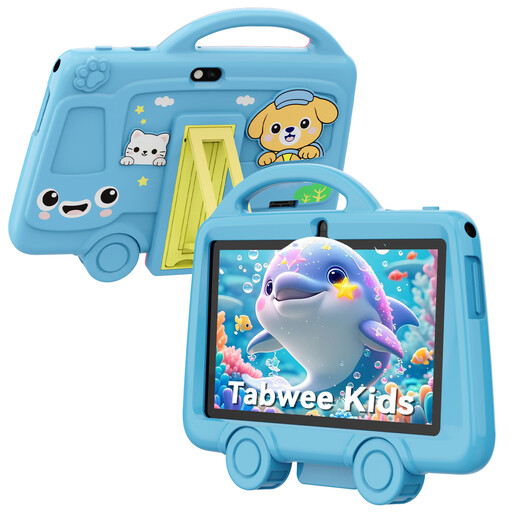
TABWEE K8 Kids’ Tablet, 7-inch, 3 GB RAM, 32 GB storage, blue
A child-focused tablet option for gaming apps; check that your child’s intended games and required controls are available on its software.
Listed specifications include a 7-inch screen, 3 GB RAM, 32 GB storage and 2.4 GHz Wi-Fi.
Joybuy
 No image available
HONOR X8A Kids 11-inch Wi-Fi tablet, 128GB, Space Grey
For a tablet-based setup, check how its child account and controls cover the games, communication and payment routes your family intends to use.
The listed variant is an 11-inch Wi-Fi tablet with 128GB storage.
Joybuy
 No image available
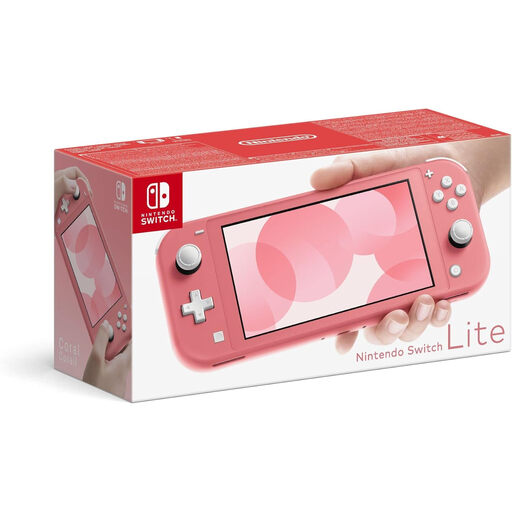
Nintendo Switch Lite, Coral
Consider this handheld-console option if your child’s games are compatible with handheld play and TV output is not required.
The listed model is handheld-only: it has no TV output, kickstand or detachable controllers. Check the chosen game’s online-play and account settings.
Joybuy
 No image available
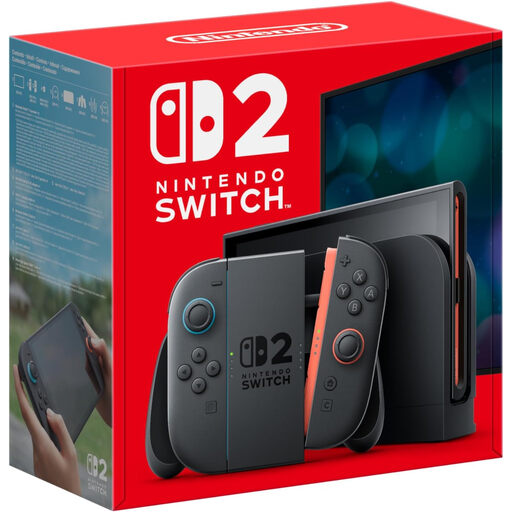
Nintendo Switch 2 Console (UK Version)
Consider it if your child’s intended games suit this console and you are prepared to configure communication and purchase settings separately.
Nintendo documents 256 GB of system memory. Its general communication restrictions do not configure GameChat, and eShop purchase restrictions use supervised Nintendo Account settings.
Joybuy
 No image available
Alldocube Kido Children’s Tablet, 8 Inch, Android 15, 3GB+32GB, blue case, no Adapter
The product title identifies a child lock; check which apps, accounts and payment routes its controls cover before relying on them.
The listed variant is an 8-inch Android 15 tablet with 3GB+32GB storage. The AC adapter is sold separately.
Joybuy
Frequently asked questions
Will one device setting stop unwanted contact in every online game?
No single setting is established as covering every game. Check the child’s platform communication settings and the intended game’s own chat controls; Nintendo says its general Switch communication restrictions do not configure Switch 2 GameChat.
What accounts should I set up before my child plays?
Use the child’s correct age when setting up their account, then follow the platform’s family requirements. PlayStation uses a family group, Apple recommends the child’s own Apple Account in Family Sharing, Nintendo eShop restrictions use a supervised Nintendo Account, and Family Link manages a child’s Google Account.
Does online play require a subscription?
It depends on the game, platform and feature. PlayStation says most PS4 and PS5 online multiplayer requires PlayStation Plus. Nintendo Switch 2 GameChat now requires Nintendo Switch Online, and its free introductory offer ended in March 2026. Xbox requirements also vary: some free-to-play online games need no Xbox subscription, while online Minecraft play on Xbox requires at least Game Pass Essential.
Do app-store purchase approvals cover every payment inside a game?
No. Apple Ask to Buy covers eligible transactions, while Google Play purchase approvals apply to purchases made through Google Play’s billing system. Check the payment route in each intended game as well as the device store.


