Parents of first-time online players
You need to decide who can contact your child and how to manage the games they can access before enabling online play.


Start with the games your child wants to play and where their friends play, then choose a device whose child-account and game-level controls you can set up before online play. A console, tablet and family-managed computer offer different ways to play and manage accounts, but none removes the need to check each game’s chat and spending settings.
You need to decide who can contact your child and how to manage the games they can access before enabling online play.
Your child has particular games or friends in mind, so device compatibility and the controls inside those games matter alongside hardware settings.
You need workable arrangements for playtime and spending across a child’s account and, potentially, several devices or users.
Consider it when: your child’s intended games and friends’ platforms are known, and console gaming is the main use.
Trade-off: controls can apply to the whole console or to an account, depending on the platform; check both the console and each game.
Consider it when: the intended games are available as tablet apps and portable use beyond gaming matters.
Trade-off: store purchase controls do not necessarily cover every payment route or a game’s own social features.
Consider it when: your child also needs computer-based activities and the intended games work with the chosen operating system.
Trade-off: compatibility and family controls depend on the game, account and supported device or browser.
| Concern | What to check when buying | Who this matters to |
|---|---|---|
| Online contact and chat | Check console communication settings, the game’s account controls and any separate voice-chat setup. | If my child will use voice or text chat, I want to know who can contact them without unnecessarily blocking play with friends. Around 33% of consumers put contact and chat controls first. |
| Intended games and access | Confirm each game supports the exact device or operating system, then check its age rating and account settings. | When my child has specific games in mind, I want to confirm they will run and that access settings suit our family. Around 27% of consumers prioritise game fit and age-appropriate access. |
| Playtime and shared use | Check whether limits apply to a child’s account, particular apps or everyone using the device. | If a device is shared or gaming needs a routine, I want limits that fit how each child uses it. Around 20% of consumers put playtime and shared-device management first. |
| Purchases and ongoing costs | Check the store’s purchase approvals, the game’s payment routes and any online-service requirements. | When I need to manage downloads, in-game spending or recurring services, I want to know which controls cover each payment route. Around 20% of consumers prioritise spending and ongoing costs. |
Ofcom’s UK reporting highlights parental concerns about contact with strangers, bullying, inappropriate content and pressure to make in-game purchases. Controls differ by platform and can change with the model, software and account settings, so check the current setup for the device and games you are considering.
Nintendo says general Switch and Switch 2 restrictions apply to everyone using the console, while eShop purchase restrictions are managed separately through a supervised account.
For a shared Switch, check both console settings and the child’s supervised-account settings against your family’s needs.
Games and services can have their own accounts, communication options and payment routes. Google Play purchase approvals, for example, apply to purchases made through Google Play billing.
Check the intended game, its linked account, chat options and payment route as well as the device settings.
The Xbox Series S 512 GB and PS5 Digital Edition do not include a disc drive, so disc games are not usable on those configurations.
Before choosing a digital-only model, confirm how the household will obtain each intended game.
Online play and services can have game- and platform-specific requirements. Nintendo lists online play among the benefits of Nintendo Switch Online.
Check the named games’ current online-play requirements and any applicable service terms before deciding.
Switch and Switch 2 consoles are relevant if your family’s intended games are available on Nintendo hardware.
PS5 consoles are relevant when the child’s intended games are on PlayStation and you want family management for their account.
Xbox consoles may suit families whose intended games and social play fit the Xbox platform.
An iPad is a tablet option for compatible app-based games and other tablet uses.
A Chromebook example for families considering supported browser or Chromebook games alongside other computer use.
These options include gaming laptops, children’s tablets and handheld game consoles. Before enabling online play, check age, chat, multiplayer and spending controls on the exact device, account and game; a product category or title alone does not establish which controls are available.
 No image available
A Windows gaming laptop option if the intended games work on the computer and you want to set up family controls for the child’s account.
AMD Ryzen 7 170 processor; 16GB RAM; 1TB SSD; GeForce RTX 5050; 15.6-inch 144Hz FHD display; Windows 11.
 No image available
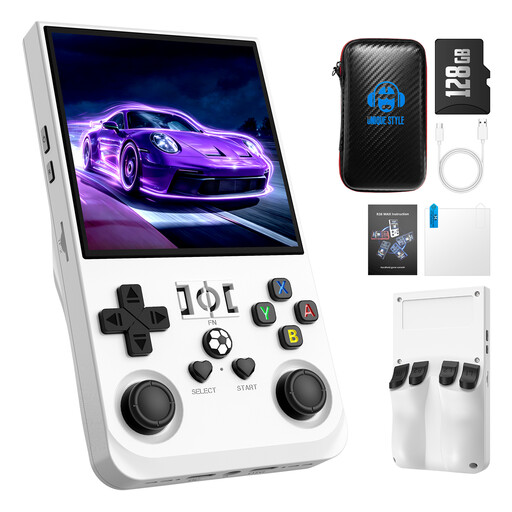
A portable handheld option; verify its account, online-play and parental-control arrangements before considering it for a child’s online gaming.
4.0-inch IPS display; 720 × 720 resolution; Linux system; 128GB storage; 4000mAh battery.
 No image available
A Windows 11 Home gaming laptop option if the games your child wants are compatible and you can configure the relevant account controls.
AMD Ryzen AI 9 HX 370; 14-inch WQXGA+ display; 32GB LPDDR5x RAM; 2TB SSD; NVIDIA GeForce RTX 5070 Ti; Windows 11 Home; German Grey.
 No image available
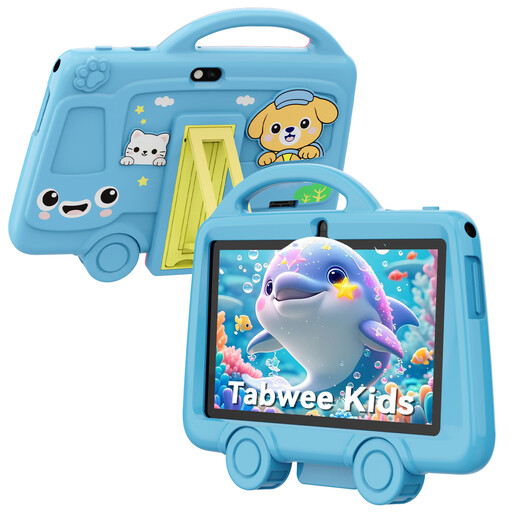
A children’s tablet option if the intended games are available for the device and you can configure the relevant child-account and game settings.
7-inch display; 3GB RAM; 32GB storage; 3000 mAh battery; 2.4 GHz Wi-Fi; Bluetooth 4.2; 285 grams.
 No image available
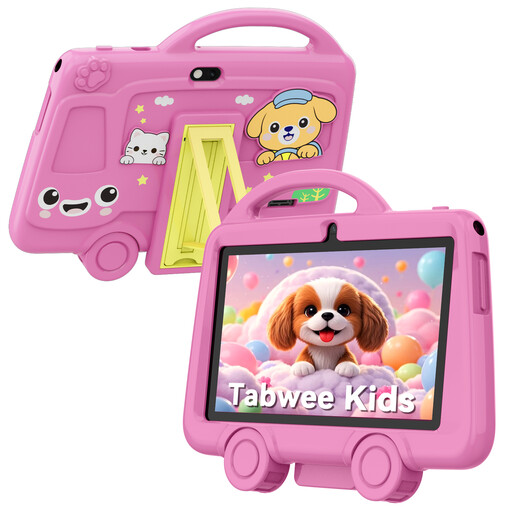
A children’s tablet option if the intended games are available for the device and you can configure the relevant child-account and game settings.
7-inch display; 2GB RAM; 32GB storage; 3000 mAh battery; 2.4 GHz Wi-Fi; Bluetooth 4.2; 285 grams.
Yes: set the child’s correct age where controls depend on it, add the account to the platform’s family arrangement and check that the child is signed in. PlayStation says sign-in is needed for its parental controls to be effective; check a separate game account as well.
Do not assume they will. Check the console settings, the specific game’s communication controls and any separate service account. Switch 2 GameChat has additional parental setup, and Roblox documents its own linked parent-account controls.
Check whether each restriction applies to an account or to the whole device. Nintendo says general Switch and Switch 2 parental restrictions apply to everyone using the console, while supervised Nintendo Accounts have separate eShop restrictions. Review the setup when users or games change.
There is no single subscription rule for every game and platform. Nintendo describes online play as a Nintendo Switch Online membership benefit; check the exact game’s current requirements and service terms before budgeting.
UK government guidance says games rated PEGI 12, 16 or 18 cannot be sold or hired to someone below the stated age. This is a restriction on selling or hiring rated games, not a claim that buying a console requires a licence or that a device’s age filter alone makes every online interaction suitable.