Start with the games the child wants to play and where their friends play, then choose a platform on which you can manage a separate child account. Compare its controls for content, communication, purchases and playtime, including the conditions under which they work. Consoles, tablets and computers need different account and device setups, and platform controls do not replace checking each game’s own settings.
Who is choosing the device?
Parents prioritising online social play
If the deciding issue is who can contact the child, look at communication, friend and privacy settings before enabling online games. Ofcom identifies contact with strangers and bullying behaviour among parents’ concerns about online gaming.
Parents managing a child’s first digital purchases
A separate child account and controls for games, apps and spending matter when the child may encounter downloads or in-game purchases. The relevant approval settings differ between PlayStation, Nintendo, Apple and Google family systems.
Families coordinating routines across devices
Playtime limits and family-account management may matter alongside game access when the child also uses a shared device or a computer for schoolwork. Microsoft, Apple and Google each tie some controls to their own account and device setups.
What matters before choosing a platform?
A console, tablet or computer must first accommodate the child’s intended games and online friends. Then compare the family-account setup and the particular controls you need; an account tool is part of that setup, not a substitute for checking game settings.
Games console
Consider it: When the child’s games and friends are on PlayStation, Xbox or Nintendo and you can set up that platform’s child account or parental controls.
Allow for: Store purchases and individual games’ social features may need settings beyond the main console controls.
Tablet
Consider it: When the intended games are mobile games and the family also wants a device for other apps.
Allow for: Device, app-store and game settings can have different account requirements and payment coverage.
Gaming-capable computer
Consider it: When the child needs computer games or also uses the device for schoolwork, and you can manage a separate child account.
Allow for: Microsoft’s web filtering has browser and sign-in conditions; other game services need their own review.
| Concern |
What to check |
Who this matters to |
| Online communication |
Check the child-account settings for messages and contacts, then check chat and friend requests within the intended games. |
If I want my child to play with friends but limit contact from strangers, I need to review how both the platform and the game handle communication. Around 33% of consumers would put that need first. |
| Age-appropriate content |
Check the intended games’ PEGI ratings and whether the family account can restrict access or let a parent review requests. |
If a game my child wants is outside the access I have chosen for them, I need a way to review it without handing over an adult account. Roughly 27% of consumers would make content suitability their primary concern. |
| Purchases |
Check approvals or spending restrictions and whether they cover the store and payment methods the child will use. |
When a game offers downloads or in-game items, I want to know which purchases need my approval. Around 20% of consumers would prioritise spending control. |
| Playtime and device access |
Check time-limit options and whether the child’s account and intended devices can join the same family system. |
If gaming shares time with schoolwork or other device use, I need limits that fit our household routine. About 20% of consumers would put time and device management first. |
Common mistakes to avoid
-
Choosing a device before checking the games and friends
A family-control setup cannot make a game or a friend group available on a platform that does not support them.
List the intended games and where friends play. Check any required online account, membership, cross-platform play and game-specific chat settings before choosing the device.
-
Expecting one dashboard to cover every service
Microsoft’s web filtering depends on supported browser and sign-in conditions. Google limits its stated Family Link purchase approvals to Google Play billing, while Nintendo manages eShop purchase restrictions through Nintendo Account settings.
After setting up the family account, review the games, stores, browsers and payment routes the child will actually use.
-
Letting a child play through an adult account
Child-account controls depend on the child using the account or family setup to which those controls apply. Ofcom also advises registering the child’s correct age.
Create a separate child account with accurate age information, and keep the parent’s password and control PIN private.
-
Leaving payment details on the child’s device
The Gambling Commission warns that saved payment details can make accidental purchases easy; approval settings can also differ by payment route.
Avoid saving a payment card on the child’s device. Check purchase approvals and how the chosen platform handles store credit, gift cards and in-game currency.
Platform brands to consider
PlayStation
Relevant when the child’s games or friends are on PlayStation and a parent can manage a child account through a PlayStation family.
- PlayStation lists family controls for games and apps, online communication, playtime and spending.
- Some functions, including certain online-content age filters, may vary by country or region; check the settings available to the child’s account.
Xbox
Relevant when the child plays on Xbox, particularly if the household also manages connected Windows devices in a Microsoft family group.
- Xbox and Microsoft family tools cover account, content, privacy and device-time settings.
- Microsoft’s web and search filtering requires its supported browser and sign-in setup; it does not filter every browser or service.
Nintendo
Relevant when Nintendo games and a portable or TV-connected console fit the child’s plans.
- Nintendo lists age-rating, communication and playtime restrictions, with purchase restrictions available through Nintendo Account settings.
- The most extensive console controls require the parental-controls app and an internet connection. Console-level restrictions apply to everyone using that console.
Apple
Relevant to families considering an iPad for mobile games and other apps, with a separate child Apple Account in Family Sharing.
- Apple’s Screen Time includes controls for content, communication, device-use time and approval requests.
- Available controls vary by device, and Apple says the newest controls require compatible, updated devices in Family Sharing.
Google
Relevant to an Android-tablet or Chromebook route using a supervised child Google Account and Family Link.
- Google describes app management, some browsing-related settings and screen-time limits for supported child devices.
- Google’s stated purchase-approval settings apply to Google Play billing; check payment systems used inside individual games.
Joybuy device choices for these routes
These choices include Nintendo Switch 2 consoles for families considering Nintendo games and an Android tablet for families considering mobile games. Check the child’s intended games and the relevant account controls before choosing between them.
 No image available
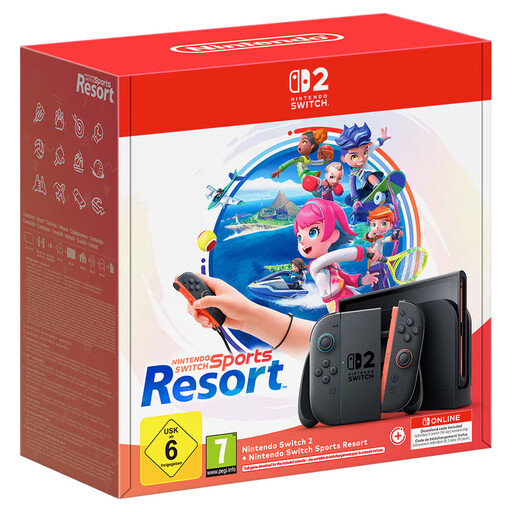
Nintendo Switch 2 Console + Nintendo Switch Sports Resort
Consider this listed console and game bundle if the child’s intended games and friends fit Nintendo Switch 2.
Nintendo says its most extensive parental controls require the companion app and an internet connection; eShop purchase restrictions are managed separately through Nintendo Account settings. Check the game’s online features and any account or membership requirements before enabling play.
View on Joybuy
 No image available
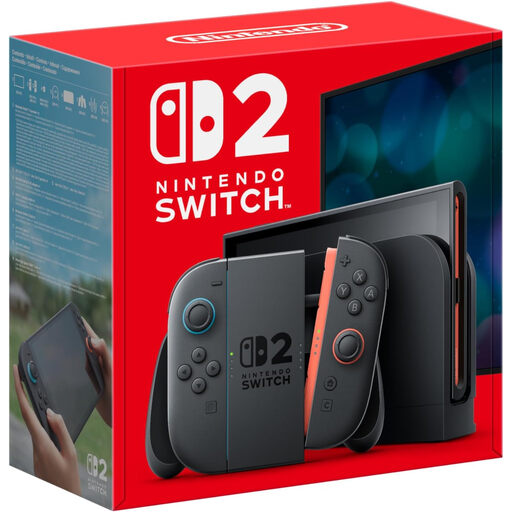
Nintendo Switch 2 Console (UK Version)
Consider this console when the child’s intended games and online friends are on Nintendo Switch 2.
Nintendo’s family setup can restrict content, communication and playtime, subject to its app and connection requirements; eShop restrictions use Nintendo Account settings. Check each intended game’s availability, online account requirements and social settings.
View on Joybuy
 No image available
Alldocube Kido 8-inch Android 15 tablet, 3GB + 32GB, blue case
Consider this tablet route if the child needs mobile games and other apps, provided the intended games work on the device.
The title lists a child lock, Unisoc T310 processor and 5000mAh battery, and says no adapter is included. Check what the child lock controls in practice, how to set up a child account, and whether the intended games’ communication and payment features can be managed as needed.
View on Joybuy
Questions parents ask
Do parental controls make online gaming completely safe for a child?
No. Platform controls can restrict particular content, purchases or communication features, but their coverage depends on the account and game. Ofcom advises parents to check settings, register the child’s correct age and keep talking about who they play with and any upsetting interactions.
Should my child use my adult gaming account?
Use a separate child account where the platform supports one, rather than sharing an adult account. PlayStation links child-account controls to a managed family, and Apple advises giving a child their own Apple Account in Family Sharing.
Will a device setting stop every in-game purchase?
Not necessarily: purchase controls have different scopes. Google says Family Link purchase approvals apply to Google Play billing, while Nintendo places eShop purchase restrictions in Nintendo Account settings. Check how the intended game handles its own payments before enabling purchases.
What should I set up before my child starts playing online?
Set up the child’s own account in the relevant family system, enter their correct age and review content, communication, spending and playtime settings. Protect the parent account and control PIN, then check the intended game’s chat, friend and payment options separately.


