Parents of younger first-device users
A child-oriented tablet may suit you if a protective case, managed profile and age-guided entertainment matter most. Check that any school activities your child needs will work on the device.


Choose a child’s first device around the work it needs to handle: a child-oriented tablet suits younger children’s parent-managed entertainment, while a standard tablet with a separate child account offers a different route for families who want access to mainstream apps. If regular typing and documents matter more than touch-first use, consider a compatible keyboard or a Chromebook, and confirm the school’s account and software requirements before buying.
A child-oriented tablet may suit you if a protective case, managed profile and age-guided entertainment matter most. Check that any school activities your child needs will work on the device.
A standard tablet may suit a child who needs mainstream apps or school websites, provided you can set up a separate child account and the approval and screen-time controls you intend to use. Apple, Amazon and Google each describe different account and control arrangements.
If stories, presentations or documents are frequent tasks, consider a compatible tablet keyboard or a keyboard-first Chromebook. Check the school’s platforms and whether its accounts can be used on the chosen device.
For a child’s first personal device, decide whether managed access, schoolwork, a guided first-device setup or flexible touch use is the main priority. A keyboard is an accessory or form-factor choice as well as a schoolwork consideration, so check it against the exact device.
Consider it when: A younger child needs a managed profile and guided entertainment from the outset.
Check before choosing: School-required apps and websites must work on the exact tablet.
Consider it when: The child needs mainstream apps alongside a separate, parent-managed account.
Allow for: Account setup and an exact-model keyboard check if typing becomes a regular task.
Consider it when: Regular typing and browser-based schoolwork take priority over a touch-first tablet.
Check before choosing: School-account rules and required software matter; Microsoft says its Windows and Mac desktop Office apps cannot be installed on a Chromebook.
| Concern | What to check | Who this matters to |
|---|---|---|
| Parent-managed access | Check the child-account setup and whether the controls you need cover app approval, websites and screen time. | If I want to approve downloads without sharing my own account, the child’s account setup comes first. Roughly 29% of consumers put parent-managed access first. |
| Schoolwork and typing | Ask the school about required platforms, account access and offline work; check whether a keyboard is included or compatible. | When my child regularly writes documents or presentations, touch input alone may not suit the task. Schoolwork and typing come first for around 29% of consumers. |
| Guided first use and protection | Check the stated age range, included case and parent-profile features of the exact bundle. | For a younger child, I want a protected device with content I can manage from the start. About 24% of consumers prioritise this guided first-device setup. |
| Flexible touch use | Check the apps needed for creative tasks and whether any later keyboard or stylus will fit the exact model. | Drawing, media and occasional homework all matter to my child, but I do not yet need a keyboard-first device. Flexible touch use is the main concern for roughly 18% of consumers. |
A child-oriented tablet may suit managed entertainment but still be the wrong homework device if a required school tool, account or document workflow cannot be used on it.
Ask the school which websites, apps and account types the child needs, including any offline tasks, then check them against the exact device.
Apple’s app-approval arrangement relies on the child having their own Apple Account in Family Sharing; Google supervision is tied to the child’s Google Account.
Set up the appropriate separate child account and family controls before handing over the device.
A keyboard can change how practical a tablet is for longer assignments, but compatibility varies by model and it may be a separate accessory.
Check the precise tablet and keyboard models, what the bundle includes and whether a detachable Chromebook already includes its keyboard.
Ofcom cautions that children may encounter unwanted content even when PINs and filters are in place.
Configure the available controls and discuss what your child should do if something online upsets or surprises them.
The Fire Kids route centres on a child profile and parent-managed entertainment.
An iPad can be set up with a separate child Apple Account, Family Sharing and Screen Time.
A Chromebook is a keyboard-first route to consider for browser-based schoolwork.
Lenovo’s 83HH003EUK Duet is an example of a detachable-keyboard Chromebook, rather than a specification shared by all Lenovo models.
These choices span child-oriented tablets, a standard tablet for a child-account setup and a keyboard-first Chromebook. Match each device to the child’s school requirements and the controls your family intends to use.
 No image available
For a child using one tablet for schoolwork and entertainment, check the school’s required apps and the child-account controls before choosing it.
11-inch display, Wi-Fi and 128 GB storage.
 No image available
For a child-oriented first device, check how its child lock is set up and whether required school apps will work.
Android 15, Unisoc T310, 3 GB RAM and 32 GB storage. A blue protective case is included; a power adapter is not included.
 No image available
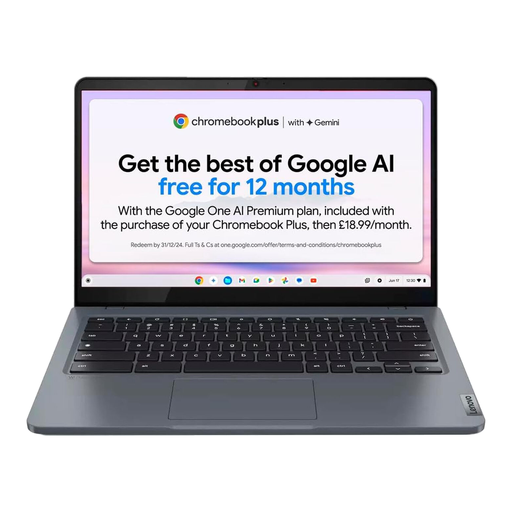
For regular typing and browser-based schoolwork, check the school’s platforms and account rules before choosing this Chromebook.
14-inch display, Intel Core i3 N305, 8 GB RAM and 256 GB eMMC storage. Google’s Family Link support depends on ChromeOS version and account setup.
No. Ofcom says children may still encounter content a parent would prefer them not to see, even with PINs and filters. Set up the child’s controls and agree what they should do if they encounter upsetting content.
Set up the child’s own Apple Account in Family Sharing and enable Ask to Buy. Apple says a parent or guardian can then approve or decline requests for eligible downloads, purchases and in-app purchases.
Yes, if the Chromebook and account meet Google’s setup requirements. Google says Family Link can manage website access in Chrome and supervise app use on supported Chromebooks; school-account settings may also be controlled by the education administrator.
No. Microsoft says Chromebook users access Word, Excel, PowerPoint, OneNote and OneDrive through the web, rather than installing the Windows or Mac desktop apps. Check whether the school accepts web-based work and whether the required editing features need a Microsoft 365 subscription.