What to check before buying
Apple iPad route
Consider it when: the recipient or regular helper already uses Apple devices and can support Apple Account setup.
Keep in mind: VoiceOver changes ordinary gestures, and a recovery contact requires compatible Apple software, iMessage and two-factor authentication.
Android tablet route
Consider it when: the household already uses Google or Samsung services and can help with the same account and settings.
Keep in mind: accessibility features, software versions and app availability can differ between models.
Amazon Fire route
Consider it when: the daily routine is simple and every essential calling, banking and service app has been checked for Fire OS.
Keep in mind: Google Play is not supported on Fire tablets, so Android app assumptions do not automatically apply.
Start with the recipient’s daily routine and available support, then compare the device settings, connectivity and account plan needed to make that routine manageable.
| Priority |
What to check |
Your needs |
| Confidence and practical help |
Prepare a simple home screen with core apps and contacts. Check who can help with setup and practise calls before handover. |
I want a small, repeatable routine rather than a tablet full of unfamiliar choices. A named helper or local support option can make practising easier. |
| Readable controls |
Test font and icon size, brightness, sound, magnification and spoken feedback. Confirm whether alternative touch, voice or switch controls are available on the exact model. |
I need to see labels, hear calls and use the necessary gestures comfortably. Larger text or magnification may matter more than screen size alone. |
| Connectivity for calls |
Check broadband and mobile availability for the postcode with Ofcom’s coverage checker. Compare Wi-Fi-only hardware with a cellular plan only where internet away from home is genuinely needed. |
I want video calls to work where the tablet will be used without relying on an unsuitable mobile-data allowance. Age UK advises connecting to Wi-Fi where possible for video calls. |
| Account recovery |
Set up recovery phone numbers, email addresses or an eligible recovery contact. Turn on appropriate account protection and keep recovery details accessible to the recipient. |
I want the recipient to control their own account while having a safe plan for a forgotten password. Passwords and one-time verification codes should not be shared. |
| Calling and service apps |
List the required calling, banking and service apps before purchase. Confirm that they work on the exact operating system and install the essential ones during setup. |
I need the tablet to support the family’s chosen way of calling and the online services the recipient expects to use. |
Joybuy tablet options
Joybuy tablet options for a first personal device used at home for communication, video calls and everyday online services, with accessible setup and family support in mind.
 Image unavailable
Apple iPad Air 11-Inch (2026, M4) Wi-Fi 128GB
Consider this iPad where a regular helper already uses Apple devices and can practise accessibility settings and account recovery with the recipient.
Listed with an 11-inch Liquid Retina display, 128GB storage, USB-C and Wi-Fi. Check home Wi-Fi reliability, the intended calling app and the correct fitted stand case before buying.
Joybuy
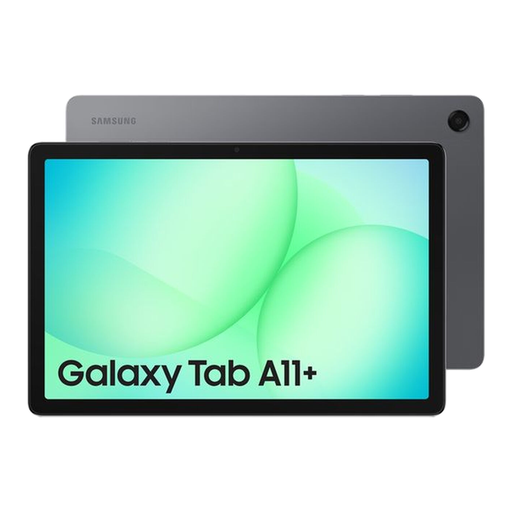 Image unavailable
Samsung Galaxy Tab A11+ 8GB 256GB WiFi
A possible fit for a Google or Samsung household that can support display and interaction settings during setup.
Listed with an 11-inch 1920×1200 display, Wi-Fi, 5MP front camera, 256GB storage and microSD expansion. A compatible charging adaptor is sold separately; confirm the delivered software settings and required apps.
Joybuy
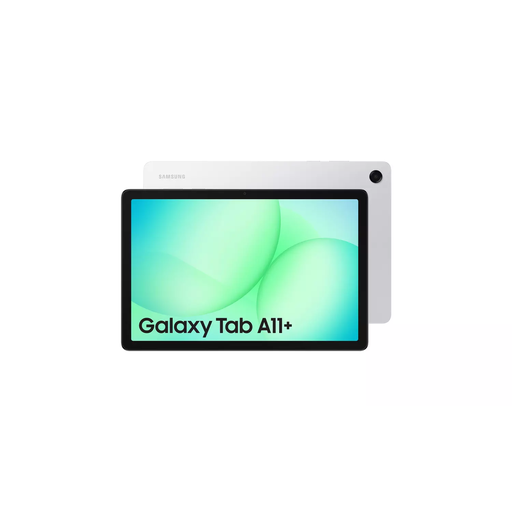 Image unavailable
Samsung Tab A11+ SM-X230 6GB 128GB
This Android tablet is worth considering where the recipient can test its larger-format screen and calling setup with a helper.
Listed with an 11-inch 1920×1200 display, Wi-Fi 5, 5MP front camera, stereo speakers, headphone socket and 128GB storage with microSD expansion. A 25W charger is sold separately, and the tablet is not water-resistant.
Joybuy
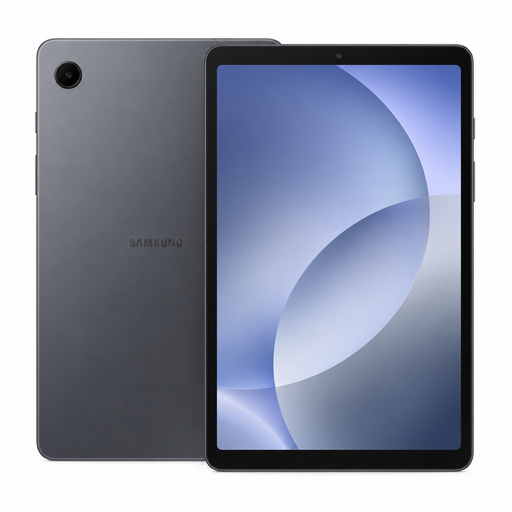 Image unavailable
Samsung Galaxy Tab A11 WiFi 64GB
A lighter option to test where a larger device feels tiring to hold, provided the smaller display remains comfortable with enlarged text.
Listed with an 8.7-inch display, Wi-Fi 5, 5MP front camera, dual speakers, headphone jack and an approximate weight of 335g. The travel adaptor is not included.
Joybuy
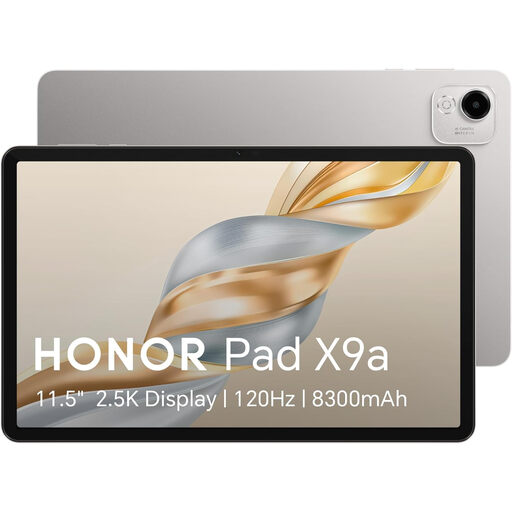 Image unavailable
HONOR Pad X9a 11.45-Inch WiFi 128GB
Consider this Android option where a helper can prepare a Google account, core apps and readable display settings before handover.
Listed with an 11.45-inch 2K display, 128GB storage, Wi-Fi, Bluetooth, four speakers, Google Mobile Services and Play Store support. It has no SIM slot, so confirm home Wi-Fi and the correct model-specific stand case.
Joybuy
Frequently asked questions
Should you choose a bigger screen for an older relative?
Do not choose by screen size alone. Test whether the recipient can read labels and use the tablet at a comfortable angle; larger text, icons, contrast, magnification and audio settings may matter more than a larger or heavier device. Samsung and Android settings can vary by model and software version.
Should the first tablet be Wi-Fi-only or cellular?
Choose Wi-Fi-only when the tablet will normally stay in a home with usable Wi-Fi. Consider a cellular model and suitable data plan only when it will routinely be used away from Wi-Fi, after checking the postcode and intended network with Ofcom. Age UK notes that video calls can use substantial mobile data and may lead to charges when an allowance is exceeded.
How can account recovery be set up without taking over the relative’s account?
Create an account belonging to the recipient, record recovery details securely and explain where they are kept. Apple Support UK says an eligible recovery contact can provide a recovery code without account access; Google says recovery may require the account name, recovery phone number or recovery email, and passwords or verification codes should not be shared.
Can a family member provide remote support safely?
Yes, if a support routine is agreed before problems arise. Use a known contact method, do not share passwords or one-time verification codes, and pause if an unexpected caller or message asks for access. The National Cyber Security Centre recommends securing accounts, using two-step verification and protecting devices and personal data.


