For a fixed home-working desk, start with the part that addresses your main constraint: a monitor for crowded screen space, a stand and separate inputs for laptop positioning, or a webcam if the built-in camera does not suit your meeting setup. Choose a dock or hub only after checking that your laptop supports the video, charging and peripheral functions you need; if it is a work-issued device, check your employer’s policy too.
Who is a fixed home workstation for?
Document-heavy home workers
When documents, messages and meeting windows compete for space, a separate display may make the desk layout easier to organise. The Health and Safety Executive’s posture guidance also discusses using a separate screen or raising a laptop with separate keyboard and mouse.
Multi-device laptop users
If you reconnect a laptop to a display and several desk peripherals, check that the specific laptop supports the dock’s intended video and charging functions. Lenovo describes display and charging functions for its ThinkPad Universal USB-C Dock 40AY, but compatibility depends on the notebook.
People using work-issued laptops
Before buying or connecting peripherals, check whether your employer permits the device, interface or any required software. The National Cyber Security Centre advises organisations to assess connections through external interfaces; Acas recommends agreeing equipment, repairs and technical support arrangements.
What should you prioritise when choosing a home workstation?
For a permanent or semi-permanent desk around an existing work device, decide which limitation matters most before comparing individual products. The Office for National Statistics tracks working arrangements in Great Britain; the equipment choices below focus on the practical needs of a desk-based setup.
| Concern |
What to check when buying |
Who this matters to |
| Screen space |
Compare the display’s size, resolution, stand adjustment and video inputs with your desk and laptop output. |
When documents and meeting windows feel cramped, I would prioritise a suitably positioned display. Around 29% of consumers put screen space first. |
| Connections and laptop power |
Check the laptop’s video output, supported display configuration, charging needs and the dock or hub’s power requirements. |
If I reconnect several desk devices, I need the intended ports and charging to work with my exact laptop. Around 23% of consumers prioritise reliable connections and laptop power. |
| Screen and input position |
Consider screen height and distance, keyboard and mouse position, and the desk space left for documents. |
For prolonged desk use, I want the screen raised without making the built-in keyboard awkward to reach. Around 18% of consumers prioritise comfortable positioning. |
| Video meetings |
Assess your existing camera, intended camera position, available connection and any workplace restrictions. |
If the laptop camera does not suit my fixed meeting position, I would consider a separate or integrated camera. Around 12% of consumers prioritise meeting equipment. |
| Employer approval |
Ask about permitted peripherals, interfaces, software installation, equipment provision, repairs and support. |
With a managed work device, I need to know what my employer allows and supports before buying. Around 18% of consumers put employer approval and support first. |
Buying pitfalls to avoid
-
Assuming every USB-C port supports a one-cable workstation
USB-C video and charging depend on the functions supported by both the laptop and the accessory. Dell specifies that the P2425H’s downstream USB-C port is for data only, while Philips sets conditions for USB-C video and charging on the 24B1U5301H/00.
Check the laptop port, monitor or dock, cable, video mode and charging requirements together before relying on one cable.
If the combination does not meet your needs, you may need a different connection method or a separate power supply.
-
Assuming a compatible dock is approved for a work laptop
An organisation may restrict peripheral interfaces or require approval for software and permissions. Technical compatibility alone does not establish workplace approval or support.
Ask your employer or IT team about the dock, its interfaces, any drivers and who will provide support before buying.
An unapproved setup may require an IT-supported alternative or additional setup arrangements.
-
Buying a laptop riser without planning separate inputs
Raising a laptop can make its built-in keyboard and trackpad less convenient to use from the desk. The Health and Safety Executive’s guidance discusses separate keyboard and mouse when elevating a laptop screen.
Plan the screen, keyboard and mouse positions together, and check that they fit alongside your other work items.
A raised laptop may require a separate keyboard and mouse to complete the setup.
-
Adding a webcam or dock without checking for overlapping functions
A monitor may already include a camera or docking functions, while a separate webcam or hub provides a narrower set of functions. The combined option still needs to suit the laptop.
Check what your existing laptop and chosen monitor already provide, then select only the missing functions you need.
Buying overlapping devices can add connections and equipment that your setup may not need.
Brands for specific desk setups
Dell
Relevant to desk-based laptop work where a separate monitor and adjustable positioning are priorities.
- Dell’s UK specifications list height, tilt, swivel and pivot adjustment and HDMI and DisplayPort inputs for the P2425H.
- The P2425H’s listed downstream USB-C connection is data-only, not a laptop-charging connection.
Lenovo
The ThinkPad Universal USB-C Dock 40AY is an example of a fuller dock route for a compatible notebook.
- Lenovo lists display ports and charging of up to 100 W for most USB-C notebooks.
- That manufacturer description does not establish that every feature will work with a particular laptop or be permitted by an employer.
Philips
The 24B1U5301H/00 combines a monitor, USB-C docking functions and a pop-up webcam for a desk where those functions suit the host device.
- Philips specifies an integrated camera and USB-C docking functions for this model.
- Philips requires notebook DP Alt Mode for USB-C video and compatible USB-C Power Delivery for charging.
Logitech
The Brio 500 represents the separate-webcam option when an existing camera or its fixed-desk position does not suit the setup.
- Logitech specifies 1080p resolution for the Brio 500.
- The specification alone does not establish that an external webcam is needed or that it will improve a particular meeting setup.
Anker
The 555 USB-C Hub is a port-expansion route to consider when a smaller hub may meet the desk’s connection needs.
- Anker specifies HDMI, USB data connections and up to 85 W pass-through charging for this model.
- Check the laptop’s video support and charging needs; the stated pass-through rating does not establish compatibility with every host.
Joybuy products for a fixed home workstation
These Joybuy choices cover laptop positioning, a dock, separate keyboard and mouse, an external monitor and a webcam for a fixed desk setup. Check that each connection and function suits your laptop and, where relevant, your employer’s device policy.
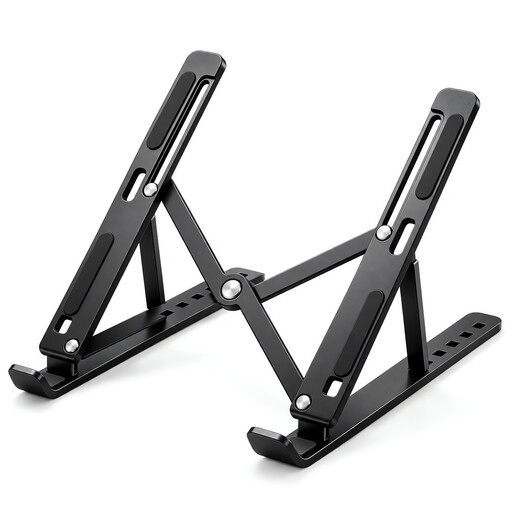 Image unavailable
Foldable Adjustable Laptop Stand, 10–17-inch
A stand to consider when you want to raise a laptop screen at a fixed desk; plan separate inputs if the raised position makes the built-in keyboard unsuitable.
Seven height levels; 15–45-degree adjustment; foldable design; anti-slip silicone pads; for 10–17-inch laptops.
View on Joybuy
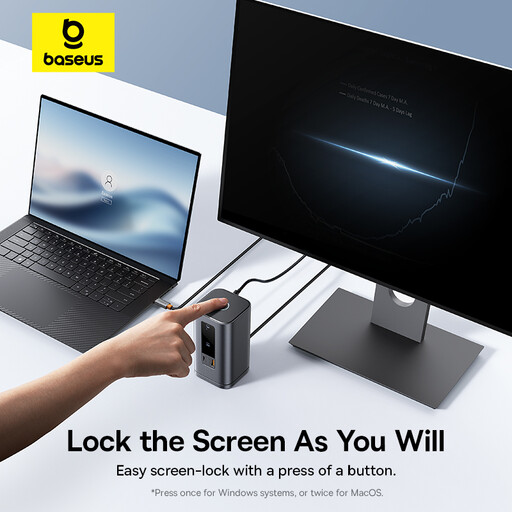 Image unavailable
Baseus Wisdom Series 11-in-1 WIN Workstation
A dock option for reconnecting desk devices; check the laptop’s supported video and charging functions and confirm employer approval if the device is managed.
View on Joybuy
 Image unavailable
HP 680 CFT Dual-Mode Keyboard/Mouse Combo
A separate keyboard and mouse set to consider when arranging a raised laptop screen or separate monitor; check that your employer permits the connection method you plan to use.
View on Joybuy
 Image unavailable
Lenovo L32p-30 31.5-inch 4K UHD Monitor, IPS, USB-C
A separate monitor to consider when documents and meeting windows need more screen space; check the laptop’s display output and the monitor’s documented connection functions before relying on USB-C for video or power.
31.5-inch 4K UHD display; IPS; USB-C.
View on Joybuy
 Image unavailable
Targus 2K Webcam with Auto Focus
A separate webcam to consider if your built-in camera or its position does not suit fixed-desk meetings; confirm that your work device permits an external camera.
2K; autofocus.
View on Joybuy
Home workstation FAQs
Will any USB-C monitor or dock carry video and charge my laptop?
No. Check the exact laptop and accessory specifications separately for video and charging. For example, Philips requires DP Alt Mode for USB-C video and compatible USB-C Power Delivery for charging on the 24B1U5301H/00.
Can I connect two external displays to a work laptop by buying a dock?
Check the laptop’s supported display configuration before choosing a dock. Apple’s UK specifications list supported configurations for its MacBook Air; a DisplayLink approach can also involve software and macOS permissions that an employer may control.
How should I arrange a laptop for prolonged use at home?
The Health and Safety Executive advises positioning the screen appropriately and using a separate keyboard and mouse if a riser raises the laptop screen; a separate display is another option. Its display screen equipment guidance applies to workers using such equipment daily for continuous periods of an hour or more.
Who pays for equipment or repairs when I work from home?
Ask your employer what it provides and supports. Acas advises agreeing who provides or pays for equipment and repairs. Separately, the Health and Safety Executive says workers cannot be charged for display screen equipment that an employer’s assessment indicates is needed as a risk-control action; this does not mean every preferred upgrade must be employer-funded.
Are personally bought peripherals prohibited on a work laptop?
The guidance cited here does not establish a general UK prohibition. The National Cyber Security Centre advises organisations to assess risks from external interfaces, and an employer may set its own device policy. Check that policy before connecting a peripheral or installing software.


