Civilian sightseeing cockpit builders
You want a yoke-and-throttle layout for scenic general-aviation or airliner flying and have room to keep the controls mounted.


For civilian sightseeing flights, start with a yoke and throttle if you want an aircraft-style layout; choose a HOTAS if you prefer configurable stick-and-throttle controls on a PC. Modular cockpit panels add physical controls for functions such as autopilot and trim, but do not replace your main flight controls. Check the exact device against your platform and simulator, then plan where every control and USB connection will go.
You want a yoke-and-throttle layout for scenic general-aviation or airliner flying and have room to keep the controls mounted.
You already have primary flight controls, or plan to add them, and want physical controls for frequently used cockpit functions within reach.
You use Windows and would rather arrange a stick and throttle with many assignable inputs than build around a civilian-style yoke.
Choose compatible primary flight controls before deciding whether extra panels would improve your fixed games-room layout. Microsoft Flight Simulator advises matching the level of a hardware setup to available space and simulation needs.
Choose it when: Your sightseeing flights centre on civilian aircraft and you want separate aircraft-style steering and engine controls.
Allow for: A stable mounting position and enough clearance for the yoke at your usual seat.
Add them when: Your main flight controls are settled and you want physical access to cockpit functions such as autopilot or trim.
Allow for: More mounting positions and connections; a panel cannot provide the primary pitch-and-roll control on its own.
Choose it when: You use a PC and favour a configurable stick-and-throttle arrangement over a civilian yoke.
Allow for: Time to assign controls, and a layout that differs from a conventional civilian cockpit.
| Concern | What to check | Who this matters to |
|---|---|---|
| Platform and simulator compatibility | Check the exact model against your PC or console and simulator version. For a PC panel, check its operating-system and plug-in requirements. | If I fly on Xbox, a PC-only panel would change my choice before its controls matter. For around 31% of consumers, compatibility is the primary concern. |
| Civilian control layout | Check the type of primary controller, the supplied throttle controls and how the layout fits the aircraft you fly. | For scenic flights in civilian aircraft, I want the main controls to feel familiar and be easy to reach. A civilian-style layout comes first for around 31% of consumers. |
| Mounting and expansion | Measure desk depth, seated reach and clamp clearance; plan positions and USB connections for any later panels. | I want to leave the cockpit assembled between flights without crowding my seat or desk. Room fit and expansion are the main concern for around 23% of consumers. |
| Programmable PC controls | Check which inputs you can assign in your simulator and how much configuration the control layout requires. | If I switch between aircraft types, I value having functions assigned to controls within reach. Around 15% of consumers put PC control customisation first. |
Microsoft Flight Simulator says most flight-simulation peripherals sold for PC are not compatible with Xbox Series X|S. Compatibility of one product does not establish compatibility for another model from the same brand.
Check the manufacturer's stated platform support for the exact controller or panel before ordering.
A panel can put functions such as autopilot and trim on physical controls, but it does not replace the pitch-and-roll input from a yoke, stick or gamepad.
If you are starting a dedicated setup, settle your main flight controls first; add a panel for cockpit functions you use often.
Mounted controls need a stable surface, usable seated reach and space for cables. Honeycomb Aeronautical lists its Alpha Flight Controls XPC at 410 mm deep and 4.65 kg, illustrating why a yoke's physical fit deserves attention.
Measure the intended position and map the yoke or stick, throttle, future panels and USB connections before adding modules.
A different mount or a change to the desk arrangement may be needed if the planned positions do not fit.
A maker's description of sensors, controls or cockpit styling does not establish that one system performs better than another in your simulator.
Use the stated features to check fit and compatibility, then judge which control layout serves the aircraft and functions you actually use.
A modular, PC-oriented route for building a desk-mounted civilian cockpit over time.
A yoke-centred route for a fixed civilian-flight control position.
A route that includes Boeing-inspired yoke-and-throttle controls for buyers interested in an airliner layout.
Its VelocityOne Flightdeck provides a PC-focused stick-and-throttle route with configurable controls.
These choices cover civilian-style flight controls, stick-based controls and an Airbus-themed control pack for sightseeing setups. Decide on your preferred layout and platform before checking whether a model fits your simulator and games-room position.
 Image unavailable
Consider this for a civilian-style sightseeing cockpit. Check the exact simulator support and measure the intended mounting position before ordering.
 Image unavailable
Consider this if you use a Windows 11 or 10 PC and prefer a HOTAS layout to a civilian yoke. Plan where the system and mount will sit, and check compatibility with your simulator.
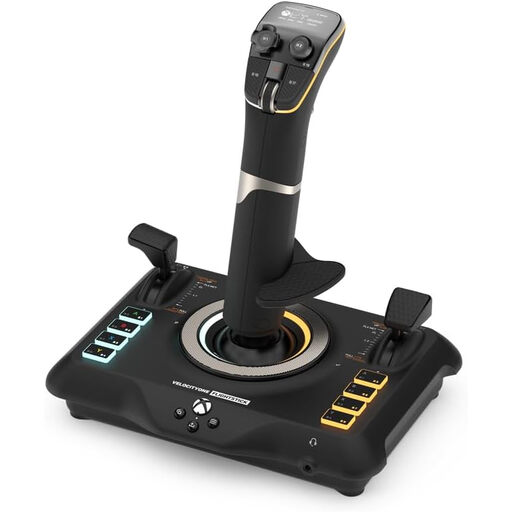 Image unavailable
A stick-based choice if you prefer that control layout to a civilian yoke. Check support for your exact Xbox or PC setup, then confirm how you would position it at your seat.
 Image unavailable
Consider this pack if an Airbus-themed airliner layout appeals more than a conventional yoke cockpit. Confirm the included controls, simulator compatibility and space needed at your seat.
Start with suitable primary flight controls if you do not already have them. A panel adds access to cockpit functions such as autopilot and trim; it does not take the place of pitch-and-roll control. If your main controls already suit you, a panel can be the next addition.
Only choose one for Xbox if the manufacturer states that the exact model is compatible. Microsoft Flight Simulator warns that most flight-simulation peripherals sold for PC are not compatible with Xbox Series X|S, so check the model and its setup instructions rather than relying on the brand name.
Measure the intended desk or rig position for the particular controls you choose. Include clamp clearance, seated reach, movement of the main controller and places for cables and any later panels; Honeycomb Aeronautical lists its Alpha Flight Controls XPC at 410 mm deep, but other models need their own measurements.
Check the installation requirements for the exact panel and simulator before connecting it. Logitech G says its Multi Panel requires a plug-in for its listed PC simulators; you may also need to assign or confirm the controls you intend to use in the simulator.