Space-limited desktop pilots
If your keyboard and mouse must share a small desk with the flight stick, consider whether one tabletop unit can provide rudder and throttle input as well as stick control.


For a compact light-aircraft simulator cockpit, start by assessing a tabletop flight stick with twist rudder and an onboard throttle: it can put pitch, roll, yaw and power control in one place without immediately adding pedals or a separate throttle. Check the stated platform support and the room needed for the stick’s full movement; more controls or separate units are worthwhile only if they suit your simulator bindings and available space.
If your keyboard and mouse must share a small desk with the flight stick, consider whether one tabletop unit can provide rudder and throttle input as well as stick control.
You may want straightforward pitch, roll, rudder, throttle and view bindings before building a multi-unit cockpit. Microsoft Flight Simulator supports general, aircraft-category and individual-aircraft controller profiles.
Check support for the device you fly on now, then consider whether pedals, a separate throttle or mounting hardware would fit if you add them later. Do not assume those accessories come with the stick.
For light-aircraft flying in a compact cockpit, establish how you will control rudder and power within the available space before weighing extra inputs or future accessories.
| Concern | What to check | Who this matters to |
|---|---|---|
| Space and essential controls | Check the base and movement clearance, twist-rudder axis, onboard throttle and a way to manage views. | If my desk is crowded, I want rudder and power controls close to the stick rather than starting with separate units; around 33% of consumers would make this their primary concern. |
| Control depth and feel | Compare the exact model’s stated sensor type, resistance adjustments and grip orientation where these matter to you. | When I make repeated small inputs, I care about a grip and centring feel that suit my hand; roughly 27% of consumers would prioritise control feel and configuration. |
| Platform and mapping | Confirm the stated PC or console support and inspect the controller profiles and binding conflicts in your simulator. | If I switch aircraft or use a console, I need a supported stick whose essential controls I can map; around 20% of consumers would put compatibility and bindings first. |
| Room to expand | Check whether later pedals, throttle units or mounts are compatible, and measure the space they would occupy. | I may add separate controls later, but do not want to buy equipment that overwhelms my desk; approximately 20% of consumers would make expansion their leading consideration. |
A product shown with pedals, a throttle quadrant or a clamp may need more equipment and space than the selected package provides.
Read the contents for the exact variant and measure the full arrangement if you plan to add accessories.
Platform support differs by model: Thrustmaster identifies the T.16000M FCS as a PC stick, while Turtle Beach lists Windows 10/11 and Xbox Series X|S support for the VelocityOne Flightstick II.
Match the exact product and variant to your simulator device; Windows compatibility alone does not establish Xbox compatibility.
Microsoft Flight Simulator says some controllers need manual assignments, and bindings can differ between aircraft profiles.
Inspect pitch, roll, rudder, throttle and the other controls you use, then check for binding conflicts before flying.
A stick still needs sufficient desk area and vertical clearance for its base and full range of movement. Grip orientation and resistance options also vary by model.
Measure your cockpit and compare the exact variant’s dimensions and controls before deciding whether extra buttons are useful.
The Extreme 3D Pro represents a single-stick tabletop approach.
Its flight-simulation range includes the PC-focused T.16000M FCS and the Airbus-inspired TCA Sidestick Airbus Edition.
The VelocityOne Flightstick II is a Windows 10/11 and Xbox Series X|S option with configurable controls.
The Gladiator NXT EVO range offers tabletop sticks with configuration options; the cited UK listing describes the SCG Premium Left variant.
These choices include single-stick and multi-part flight controls. For a compact light-aircraft cockpit, compare the space each arrangement needs and confirm how the exact package handles rudder and throttle before choosing.
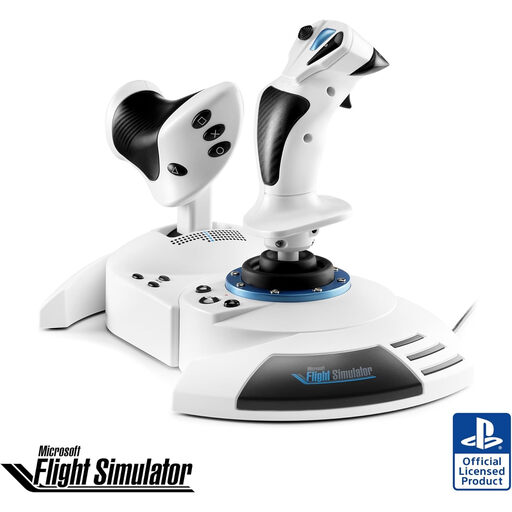 No image available
Consider this stick-and-throttle arrangement if you have room for both controls. Measure their combined placement and check how the exact package provides rudder input. The named platforms are PS5, PS4 and PC.
 No image available
For a Windows cockpit where a mounted HOTAS arrangement is practical, check the space needed for its controls and mount together. Confirm that its rudder input and mounting position suit your desk.
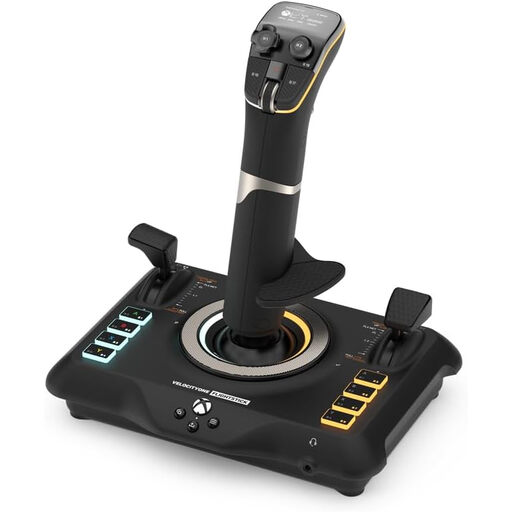 No image available
Consider this single-stick arrangement for an Xbox or PC setup, subject to compatibility with your exact device. Before relying on it without pedals, confirm how this model provides rudder input and measure the clearance needed for stick movement.
 No image available
Consider this Airbus-inspired pack if you want its style of controls and have space for a multi-part setup. Check the complete arrangement’s dimensions and how this exact pack handles rudder input for your light-aircraft bindings.
Not if your chosen flight stick provides twist-rudder control that you can bind to yaw. Pedals can be added later if you want separate foot controls; check whether the stick’s twist axis can be locked when making that change.
Select the connected controller in the simulator’s Controls settings and inspect its assignments before flying. Microsoft Flight Simulator Support says common controllers may receive an automatic profile, while others need manual assignments; check the controls you use and resolve binding conflicts.
Only if the exact model states Xbox Series X|S compatibility. Thrustmaster identifies the T.16000M FCS as a PC stick, whereas Turtle Beach lists both Windows 10/11 and Xbox Series X|S for the VelocityOne Flightstick II; do not transfer either model’s platform support to another variant.
Check compatibility with your chosen stick, whether the accessories are included or separate, and where each unit will sit. Additional controls may give you a different layout, but they also use desk or floor space that a compact cockpit may not have.