For learning virtual cockpit checks, start with a flight stick that suits your platform and gives you the aircraft controls you expect to use regularly; keep a mouse, keyboard or other supported navigation input available for menus and cockpit interactions. A compact stick can suit early PC practice, while a separate throttle, airliner-style controls or a yoke becomes more relevant when it matches the aircraft and procedures you practise—and the space you can give it.
Who is this for?
New PC checklist learners
If you are learning cockpit flows alongside basic aircraft handling, a compact stick lets you begin without assembling a larger control setup. You can reserve its accessible controls for repeated actions and use a mouse or keyboard for the rest. Microsoft Flight Simulator identifies analogue peripherals as useful for in-flight control, while retaining other inputs for navigation.
Airliner procedure practisers
If your practice centres on Airbus-style procedures, a sidestick layout may fit the way you want to handle the aircraft. Thrustmaster offers a separate TCA quadrant with two thrust levers for those who also want physical engine controls; check the contents of the particular bundle you choose.
Platform-constrained sim pilots
If you fly on Xbox, or move between Xbox and PC, establish support for the exact controller before comparing button layouts. Microsoft Flight Simulator warns that most PC flight-simulation peripherals are not Xbox-compatible unless the manufacturer says otherwise.
What matters when choosing?
Choose the control format around the aircraft and platform you use, then decide which repeated actions deserve physical controls. More hardware can give those actions their own place, but it also has to fit your desk and your cockpit workflow.
Compact PC stick
Choose it when: You are starting PC-based checklist practice and prefer a stick with basic flight controls in one unit.
Accept that: Less-used actions will still need other bindings or mouse and keyboard input.
Separate-throttle HOTAS
Choose it when: You regularly want flight and engine controls under different hands.
Accept that: Two control units take more space and require you to set up useful bindings.
Airliner-style sidestick
Choose it when: Your practice repeatedly follows an airliner workflow; a compatible quadrant can add separate thrust controls when those matter.
Accept that: An aircraft-inspired layout does not reproduce every cockpit control, and components may be sold separately.
Yoke and quadrant
Choose it when: The aircraft you practise and your preferred handling style call for a yoke rather than a stick.
Accept that: It is a different control format with a larger physical setup, not a necessary step for learning checks.
| Concern | What to check | Who this matters to |
|---|
| Basic aircraft control |
Check the stated control axes, throttle arrangement and whether twist-rudder control suits your intended setup. |
I want to handle the aircraft while learning checks without building a larger setup straight away. Around 34% of consumers put basic aircraft control first. |
| Cockpit interaction |
Identify the actions you will bind to hardware and retain an input for menus and other cockpit controls. |
I need to move between flying and working through virtual controls without losing track of the checklist. For around 33% of consumers, that interaction workflow is the main concern. |
| Platform compatibility |
Confirm support for the exact controller model and your PC or console; check any required operating mode. |
I use Xbox, PC or both, so a controller that cannot work with my platform would not meet my needs. Platform fit comes first for around 20% of consumers. |
| Aircraft-style controls |
Match stick, HOTAS, sidestick or yoke layout to your aircraft; check desk space and any separately sold controls. |
I repeatedly practise a particular aircraft workflow and want the physical layout to reflect it. Around 13% of consumers primarily look for that match. |
Mistakes to avoid
-
Assuming a PC flight stick will work on Xbox
Microsoft Flight Simulator says most PC flight-simulation peripherals are not compatible with Xbox unless their manufacturer specifies otherwise. A familiar brand name is not enough to establish support for a particular model.
Check the exact model and revision against your console, including any stated platform mode or additional input requirements, before buying.
-
Expecting the stick to replace cockpit navigation
Analogue flight control and menu navigation are different jobs. Microsoft Flight Simulator says its menus require a mouse, keyboard or Xbox controller; a stick’s buttons will not automatically operate every aircraft-specific switch.
Keep a supported navigation input available, then bind the actions you repeat most often as you work through your checklist.
-
Choosing a larger setup before checking its fit
A separate throttle, quadrant or yoke changes how you arrange and use the controls. Those components are useful when they serve your chosen aircraft workflow, rather than simply because they offer more physical controls.
Check the room available for each unit and identify which repeated actions justify the extra hardware before expanding your setup.
Optional quadrants, pedals, clamps or stands also add components to accommodate and set up.
-
Confusing home practice with qualified training
The UK Civil Aviation Authority describes qualification of Flight Simulation Training Devices as applying to the device and its operator; owning a consumer flight stick does not, by itself, establish that qualification.
Use a home setup for personal virtual practice. If formal training credit matters, ask the relevant approved training provider which device and course arrangements apply.
Relevant brands to consider
Thrustmaster
Thrustmaster has compact PC-stick and Airbus-inspired sidestick options relevant to different kinds of checklist practice.
- Its T.16000M FCS specifications describe twist rudder and identifiable controls; the TCA range offers a sidestick and a separate two-lever quadrant.
- Check platform support and the contents of the exact item: an expandable range does not mean the quadrant or pedals come with every stick.
Logitech G
Logitech G offers both the X52 Pro stick-and-throttle format and a Flight Yoke System for those choosing between control layouts.
- Logitech G describes an adjustable throttle and twist rudder on the X52 Pro, while its Flight Yoke System includes a throttle quadrant.
- Consider the space needed for either layout and confirm that the chosen format suits the aircraft you fly.
Turtle Beach
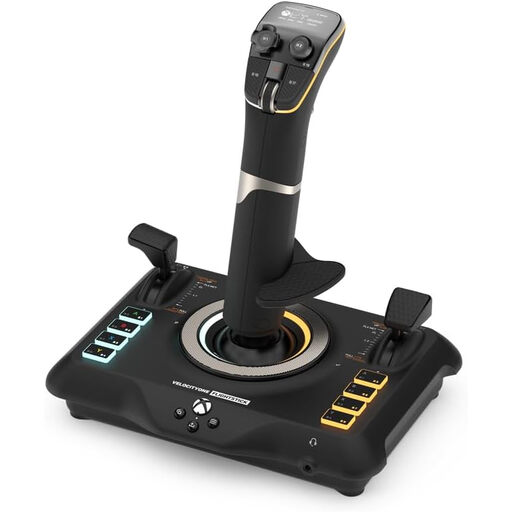
Turtle Beach’s VelocityOne Flightstick is relevant when support for both Xbox and Windows is a deciding requirement.
- Turtle Beach lists Xbox Series X|S, Xbox One and Windows 10/11 compatibility for the VelocityOne Flightstick.
- Confirm how the exact stick’s controls work with your simulator and aircraft; a cursor-control feature does not establish identical cockpit interaction across aircraft.
Joybuy product choices
These choices cover flight sticks, separate-throttle controls, an airliner-oriented pack and a yoke alternative. Choose by platform and aircraft workflow rather than treating the different control formats as interchangeable.
 No image available
Turtle Beach VelocityOne Flight Stick for Xbox and PC
Consider this stick if you need an Xbox-and-PC option for flight control while practising checks.
Confirm the rudder control you intend to use and how the stick works with your chosen simulator and aircraft.
View on Joybuy
 No image available
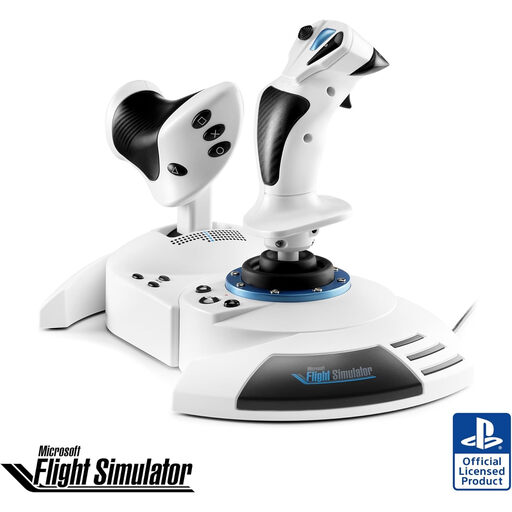
Thrustmaster T.Flight Hotas 5 Stick and Throttle for PS5, PS4 and PC
Consider the stick-and-throttle format if you want separate physical controls for repeated flight actions.
The product name specifies PS5, PS4 and PC. Check compatibility with your exact simulator and allow space for both controls.
View on Joybuy
 No image available
HORI HOTAS Flight Control System and Mount for Windows 10/11
This is a separate-control option for PC users who want to arrange a HOTAS at their desk.
The product name specifies a mount and Windows 10/11. Check the mounting space and your intended simulator’s control profile.
View on Joybuy
 No image available
Turtle Beach VelocityOne Flight Universal Control System
Consider this yoke-system alternative only if yoke handling suits the aircraft and procedures you practise.
Check the space for the control system and how its controls map in your intended simulator.
View on Joybuy
 No image available
Thrustmaster TCA Captain Pack X Airbus Edition for Xbox Series X/S and PC
Consider this Airbus-oriented control pack if that aircraft workflow is the focus of your virtual checks.
The product name specifies Xbox Series X/S and PC. Confirm the included controls, your simulator profile and the rudder arrangement you need.
View on Joybuy
Frequently asked questions
Do I need a mouse as well as a flight stick for virtual cockpit checks?
Keep a mouse, keyboard or other supported navigation input available rather than expecting the stick to do everything. Microsoft Flight Simulator says its menu navigation requires a mouse, keyboard or Xbox controller; use stick bindings for actions you repeat and the other input for menus or controls you have not mapped.
Is a basic stick enough, or should I start with a HOTAS?
A compact stick can be enough for early PC checklist practice if you are comfortable using other inputs for cockpit interactions. Choose a separate-throttle HOTAS when regularly used flight or engine controls warrant their own physical positions, and check the additional desk space it needs.
Can I use any PC flight stick on Xbox?
No: check explicit Xbox support for the exact model. Microsoft Flight Simulator warns that most PC flight-simulation peripherals are not Xbox-compatible unless the manufacturer says otherwise; Turtle Beach lists Xbox support for its VelocityOne Flightstick, while Thrustmaster specifies PC USB compatibility for the cited T.16000M FCS.
Can a home flight stick count as qualified flight-training equipment?
A consumer stick alone does not establish qualification as a Flight Simulation Training Device. The UK Civil Aviation Authority describes an FSTD qualification certificate as issued to the device operator; ask the relevant approved training provider which device and course arrangements apply if formal credit is your aim.


