For virtual landing practice on one monitor, start by looking for a flight stick with rudder, throttle and view controls you can assign in your simulator. A separate-throttle HOTAS gives power control its own unit but takes more desk space; a yoke makes more sense if you mainly fly yoke-equipped aircraft. Check the exact controller, simulator and host platform before choosing any layout.
Who these setups suit
Desk-based landing learner
If you want to repeat approaches without building a cockpit, look for assignable pitch, roll, rudder and power controls. A twist-rudder stick can keep the initial setup compact; a POV hat gives you a possible view-control input on one monitor.
Console or Windows flyer
Check platform support before settling on a control layout. Turtle Beach specifies the VelocityOne Flightstick for Xbox Series X|S, Xbox One and Windows 10/11, while the cited Thrustmaster T.16000M FCS HOTAS is a PC device.
Yoke-equipped aircraft flyer
If most of your practice is in aircraft such as a Cessna 172 or Boeing 787, a yoke may better match their controls. Microsoft Flight Simulator identifies those aircraft as yoke examples; allow room for the yoke and check how you will control power.
What matters for landing practice
Compact flight stick
Choose it when: One desk controller needs to cover basic flight inputs and view changes.
Allow for: Twist rudder does not provide separate foot-operated controls, and throttle arrangements vary by stick.
Separate-throttle HOTAS
Choose it when: You want a dedicated throttle unit for repeated power adjustments and have room for two units.
Allow for: More desk space and control mapping; the cited T.16000M FCS HOTAS is specified for PC.
Yoke setup
Choose it when: You mainly practise in aircraft that use a yoke. Microsoft Flight Simulator identifies the Cessna 172 and Boeing 787 as examples.
Allow for: A larger desk footprint and a separate plan for throttle control.
For one-monitor landing practice, identify the control need that matters most to you, then check the chosen controller against your simulator and platform.
| Concern | What to check | Who this matters to |
|---|
| Approach and flare control |
Confirm that pitch, roll and a rudder method can be assigned in your simulator. |
I want to correct my approach and flare without relying on keyboard commands for rudder. Around 42% of consumers would put those flight inputs first. |
| Power and aircraft controls |
Check for an assignable throttle; check flap and trim inputs if your simulator and aircraft use them. |
Repeated power changes interrupt my practice if I have to make them on the keyboard. Dedicated power control would come first for around 33% of consumers. |
| Views and setup fit |
Check POV-hat mapping, platform support and room for the controller on your desk. |
With one screen, I need a workable way to change my view without choosing a controller that will not fit or connect to my setup. Around 25% of consumers would prioritise this combination. |
Buying pitfalls
-
Assuming platform support means automatic simulator mapping
Controller support differs by model and host platform. Microsoft Flight Simulator says common controllers often receive an automatic profile, but functions may need manual assignment when a profile is unavailable.
Match the exact variant to your PC or console, then check how the simulator assigns the axes and buttons you need.
-
Leaving view control until after purchase
On one monitor, looking around the cockpit matters alongside controlling the aircraft. A POV hat is useful only if your simulator permits the view functions you want to be assigned to it.
Plan your cockpit and outside-view controls before choosing a stick, and check their mapping when you set it up.
-
Treating a yoke as a complete control setup
The Honeycomb Alpha Flight Controls XPC is a yoke and mounting setup; its cited box contents do not include a throttle quadrant. Honeycomb lists it as 410 mm deep.
Check the box contents and desk clearance, then decide how you will control power and rudder.
A separate throttle, optional pedals or more desk space may become part of this route.
-
Assuming a product listing means it is available to order
A listing can remain visible when an item cannot be ordered.
Check availability and delivery details on the product page immediately before making a purchase decision.
Brands and control layouts
Thrustmaster
Its cited T.16000M FCS products offer a choice between a PC flight stick and a PC HOTAS bundle with a separate TWCS throttle.
- Thrustmaster specifies twist rudder and an 8-way POV hat for the T.16000M FCS stick.
- Check console compatibility rather than assuming the cited PC products support your console.
Turtle Beach
The VelocityOne Flightstick is an integrated option specified for Xbox Series X|S, Xbox One and Windows 10/11.
- Turtle Beach specifies throttle and flap levers, trim and a POV hat on the Flightstick.
- Confirm the intended simulator's mappings and current ordering availability before choosing it.
Logitech G
The cited X52 uses a traditional two-unit stick-and-throttle layout for PC flight simulation.
- Logitech G describes an adjustable throttle and twist-rudder control on the X52.
- Its separate units require more desk room than an integrated stick.
Honeycomb Aeronautical
The Alpha Flight Controls XPC is a yoke alternative for practice in yoke-equipped aircraft.
- Honeycomb specifies an 8-way POV switch and PC/Xbox compatibility for the Alpha XPC.
- Honeycomb lists a depth of 410 mm, and the cited box contents do not include a throttle quadrant.
Joybuy product choices
These stick-and-throttle choices are relevant if you want physical power control while practising landings. Compare their stated platforms and the space each setup needs, then check your simulator's control mappings.
 No image available
HORI HOTAS Flight Control System & Mount (PC Windows 11/10)
Consider this mounted HOTAS if you have desk space for a joystick-and-throttle arrangement. Check that your Windows simulator lets you assign the flight, power and view controls you need.
View on Joybuy
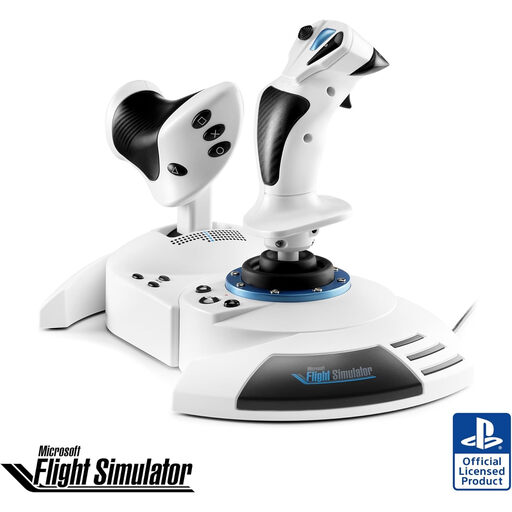 No image available
Thrustmaster T.Flight Hotas 5 Stick & Throttle (PS5, PS4, PC)
This stick-and-throttle choice suits consumers considering separate physical power control. Check support for your exact simulator and host platform, including rudder and view assignments, and allow room if you use the throttle separately.
View on Joybuy
 No image available
Thrustmaster TCA Captain Pack X Airbus Edition (Xbox Series X/S, PC)
Consider this Airbus-oriented pack if those are the aircraft you practise with. Before buying, check how your simulator will map rudder, views and the approach controls you intend to use.
View on Joybuy
Common questions
Which controls should I assign before practising landings?
Start with pitch, roll, rudder or yaw, and throttle. On one monitor, also check whether a POV hat can handle the view changes you need; flap and trim assignments depend on the simulator and aircraft.
Can I start with a twist-rudder stick instead of pedals?
Yes, if your chosen stick has a twist-rudder axis that your simulator can assign, it offers a compact way to begin. It does not give you separate foot-operated controls, so check pedal options if you later want that arrangement.
Will a flight stick work automatically in Microsoft Flight Simulator?
Not necessarily. Microsoft Flight Simulator says many common controllers receive an automatic profile, but you may have to assign functions manually if a profile is unavailable; check the exact simulator version and controller.
Should I use a stick or a yoke for landing practice?
Choose according to the aircraft you practise in most and the space you can give the controls. Microsoft Flight Simulator identifies a yoke as more realistic for yoke-equipped aircraft such as the Cessna 172 and Boeing 787; a compact stick avoids committing that much desk space to a yoke setup.


