Windows PC navigation simmer
You practise heading, altitude and power changes while seated, and want a dedicated throttle close enough to use without changing position.


For seated virtual navigation practice on a Windows PC, a separate stick-and-throttle HOTAS suits you if you want power controls apart from the stick and have room for both units. An integrated flight stick keeps controls on one base and is worth considering when space is tighter or Xbox compatibility matters. Check your exact simulator, yaw and trim controls, and a stable position within reach before choosing; a home controller alone does not establish credit towards UK flight training under CAA flight-simulation-device requirements.
You practise heading, altitude and power changes while seated, and want a dedicated throttle close enough to use without changing position.
You have limited surface space, or use Xbox, and want the stick and power controls together on one base.
You want trim, views and other frequently used commands on accessible controls, and may value adjustable stick resistance.
Choose it when: You practise on a Windows PC and want to move the throttle independently of the stick.
Allow for: Two units need secure positions within comfortable reach, plus space for their cables.
Choose it when: You prefer one controller base; the cited Turtle Beach VelocityOne Flightstick also supports Xbox and Windows.
Allow for: Its throttle sits alongside the stick rather than in a separate unit, so check that the lever layout suits your seated position.
| Concern | What to check | Who this matters to |
|---|---|---|
| Controls within reach | Check throttle access and how you will control yaw, whether by stick twist, another controller input or compatible pedals. | If I am changing power and direction repeatedly, I want those inputs close to hand rather than reaching for the keyboard. Around 42% of consumers would put reachable flight controls first. |
| Seated fit and platform | Confirm support for your exact PC or console and simulator, then check the usable surface, base placement and mounting arrangement. | A controller needs to sit securely where I can use it, and it must work with the platform I fly on. For around 33% of consumers, fit and compatibility would be the primary concern. |
| Mapping and control feel | Check whether the simulator accepts your intended trim and view mappings, and whether the exact model offers the adjustments you want. | When I repeat a navigation leg, I want frequently used commands where I can find them and a stick feel I can live with. Mapping and adjustability would come first for around 25% of consumers. |
Thrustmaster specifies the T.16000M FCS HOTAS for Windows PC, while Turtle Beach specifies the VelocityOne Flightstick for Xbox and Windows. The controller format alone does not establish platform support.
Check the exact version against both your platform and simulator before ordering.
Programmable inputs help only if you can reach them comfortably and map the commands you use. Turtle Beach lists different input counts for the VelocityOne Flightstick and Flightstick II, so their names should not be treated as interchangeable.
Decide where throttle, yaw, trim and view controls need to be before comparing additional buttons.
A separate throttle needs its own stable position; placing both units awkwardly can undermine the seated layout you are trying to create.
Measure the surfaces you can use and check that both controls will remain within comfortable reach.
The UK Civil Aviation Authority identifies qualified Flight Simulation Training Devices through its device information and qualification documentation. Owning a consumer controller does not, by itself, establish that a home setup or its use qualifies for training credit.
If formal credit matters, ask the approved training organisation about the specific device, programme and applicable requirements before relying on simulator time.
Its T.16000M FCS HOTAS is a Windows PC route with a separate stick and TWCS throttle.
The X52 offers a separate stick and adjustable throttle for PC flight or space simulation.
Its VelocityOne Flightstick line puts flight controls on an integrated base; features vary by version.
These choices include separate stick-and-throttle setups and an integrated flight stick for seated simulator use. Check the exact platform, aircraft controls and available space against the version you select.
 No image available
Consider this for seated Windows PC practice if you want a stick-and-throttle setup with a mount; confirm that the mount fits your surface and the controls map as needed in your simulator.
The named version is for Windows 11/10 PC.
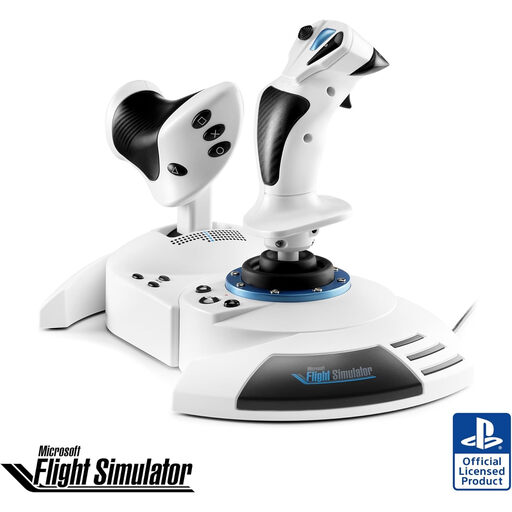 No image available
This stick-and-throttle option suits seated practice when you want separate power controls. Check the control placement and your simulator’s support for the assignments you intend to use.
The named version lists PS5, PS4 and PC; do not assume Xbox compatibility.
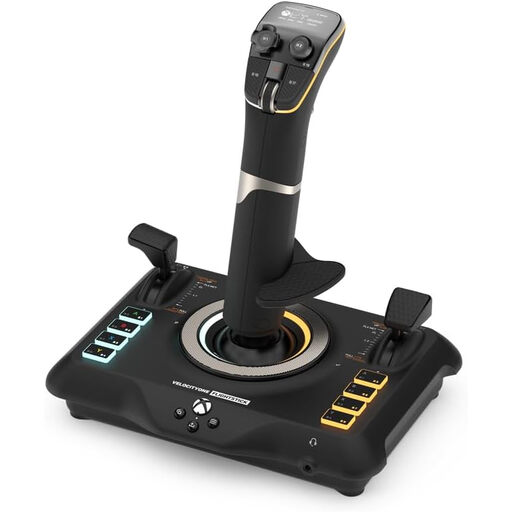 No image available
Consider this integrated stick when you want one seated controller for an Xbox or PC setup. If yaw control is important to your practice, check its method on the exact version and confirm your simulator mappings.
 No image available
This Airbus Edition pack is worth considering if its sidestick and separate power-control layout match the aircraft you practise with. Check how you will control yaw, where the components will sit and whether your simulator supports the mappings you need.
The named version lists Xbox Series X/S and PC.
A flight stick fits this choice if you want a seated stick setup with accessible power controls. If the aircraft you practise uses a yoke, consider whether matching that control layout matters to you; a yoke is a different setup and is not a like-for-like substitute for the sticks discussed here.
Not necessarily for basic home practice if your chosen stick and simulator provide a usable yaw input. Thrustmaster lists stick-twist rudder for the T.16000M FCS HOTAS, Logitech G describes it for the X52, and Turtle Beach specifies lockable twist rudder for Flightstick II. Choose pedals if pedal-based control matters to your practice and you have compatible equipment and floor space; do not assume the two methods feel the same.
Do not count on a consumer stick and home simulator alone establishing training credit. The UK Civil Aviation Authority publishes qualification information for Flight Simulation Training Devices; an approved training organisation can advise whether a particular qualified device, programme and use meet the applicable requirements.
Start by confirming that the exact controller works with your platform and simulator, then calibrate and check the direction of its flight-control axes. Map pitch, roll, yaw and throttle before adding trim, views, flaps where applicable and other commands you expect to use during the leg.