For virtual approaches on one monitor, start with a controller that keeps a cockpit-view control, throttle and rudder input within reach while you steer. A compact flightstick suits a small desk, while a separate-throttle HOTAS gives you a different arrangement for power and mapped controls; consider a yoke only if you want that control layout and have room for it. Check the exact controller, simulator and platform combination before buying.
Who this setup suits
Single-monitor approach practisers
If you need to adjust power and look around the cockpit without a second display, a reachable view control, throttle and rudder input deserve attention. Check that your simulator lets you assign the view actions you use most.
Compact-desk or Xbox users
If space is limited or you fly on Xbox, check both the controller’s physical layout and its stated platform compatibility. Microsoft Flight Simulator cautions that most flight peripherals sold for PC are not automatically compatible with Xbox Series X|S.
PC simmers planning more mapped controls
If you have room for a separate throttle, you may prefer controls spread across two units. Decide which approach and view commands you actually want on the controller, then check the exact model’s PC and simulator compatibility.
What matters when choosing
Choose the control layout around your desk and platform, then check whether its view, power and rudder inputs can be assigned as you need for approaches.
Compact flightstick
Choose it when: You want controls in one compact unit, especially for a shared desk or a model explicitly compatible with your console.
Check: Throttle and rudder arrangements differ by model; confirm both rather than assuming every integrated stick provides the same inputs.
Separate-throttle HOTAS
Choose it when: You have space for stick and throttle units and want a separate control for power changes.
Allow for: The additional desk area, and check platform support for the precise model; Thrustmaster states PC compatibility for its T.16000M FCS HOTAS.
Yoke setup
Choose it when: You deliberately want a yoke-style control layout for virtual approaches.
Allow for: A larger desk-mounted arrangement, and check which throttle and rudder controls come with the particular system.
| Concern |
What to check |
Who this matters to |
| Cockpit-view controls |
Look for a reachable multi-directional POV or hat control and confirm that your simulator can map it to the views you use. |
When one screen has to show both the approach and cockpit instruments, I want to change the view without reaching for the mouse. Around 36% of consumers put reachable view and approach controls first. |
| Power and rudder |
Check the throttle arrangement and how the exact controller provides rudder input. |
I want to adjust power and yaw while keeping my steering input available during an approach. For around 29% of consumers, those controls are the primary need. |
| Platform and desk fit |
Match the exact model to your simulator and PC or console; check the space needed for each unit or mount. |
If I use Xbox or share a small desk, compatibility and a workable layout matter before extra buttons. Roughly 21% of consumers prioritise platform and setup fit. |
| Future additions |
Check accessory compatibility for the exact controller and platform before planning pedals, panels or another throttle. |
I would rather choose a controller that can accommodate the controls I plan to add later. Around 14% of consumers make that upgrade path their main concern. |
Buying pitfalls
-
Assuming a PC flight controller will work on Xbox
Microsoft Flight Simulator warns that most flight-simulation peripherals sold for PC are not compatible with Xbox Series X|S unless the manufacturer specifies otherwise. A suitable-looking control layout is not enough to establish console support.
Check the exact model against your console and simulator edition; do not rely on the product family name or its USB connection.
-
Choosing by button count alone
On one monitor, changing the cockpit view while controlling the aircraft is part of the task. A high button count does not tell you whether your preferred view action is easy to reach or map.
Check for a practical POV or hat control and confirm your simulator’s view assignments before comparing additional buttons.
-
Treating a yoke like a compact flight stick
A yoke changes the physical layout and desk-space decision. Depending on the system, throttle or pedal controls may also be separate items rather than part of the yoke itself.
Choose that arrangement deliberately: check desk fit and the controls included with the exact system before deciding whether it meets your approach-practice needs.
Brands to consider
Thrustmaster
Its flight-control range includes PC-and-Xbox options as well as the PC-focused T.16000M FCS HOTAS with a separate throttle.
- Thrustmaster lists a hat control, detachable throttle and two rudder-control options for the T.Flight HOTAS One Microsoft Flight Simulator Edition.
- Thrustmaster states PC compatibility for the T.16000M FCS HOTAS; do not infer Xbox support from another Thrustmaster model.
Turtle Beach
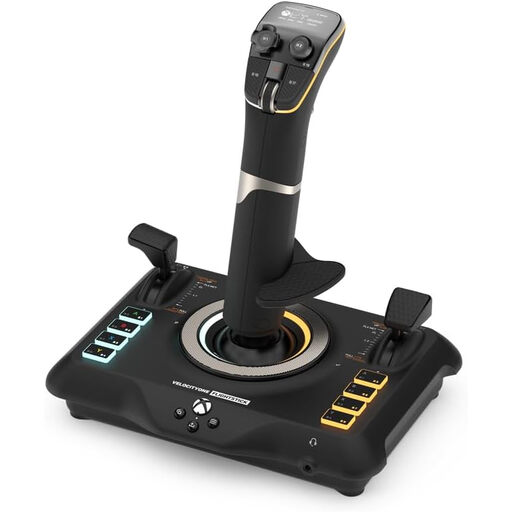
The VelocityOne Flightstick puts several flight controls in a single-unit layout stated for Xbox and Windows 10/11.
- Turtle Beach lists an 8-way POV hat, throttle and flap levers, a trim wheel and programmable buttons for the VelocityOne Flightstick.
- Those manufacturer specifications do not establish whether its control assignments will suit your particular simulator; check the functions you intend to map.
Logitech G
The X52 Professional H.O.T.A.S. is a PC-oriented stick-and-throttle option.
- Logitech G lists an adjustable throttle and twist rudder control for the X52 Professional H.O.T.A.S.
- Check support for your exact simulator and platform; the cited X52 Pro product information does not establish Xbox compatibility.
Joybuy product choices
These choices cover flightsticks, separate-control arrangements and a yoke-based alternative for virtual approaches. They are different layouts, so compare the exact platform, view-control and rudder arrangements rather than treating them as interchangeable.
 No image available
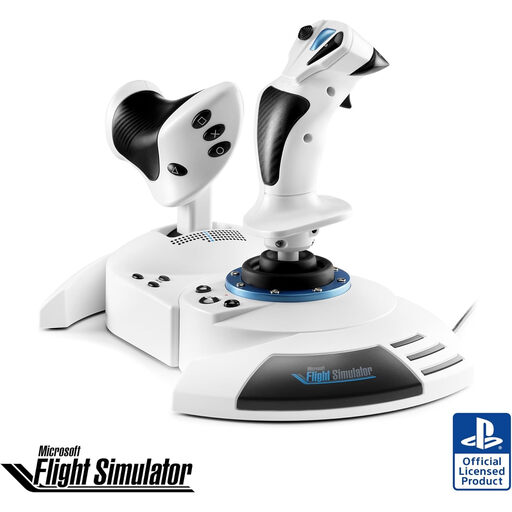
Thrustmaster T.Flight HOTAS 5 Stick and Throttle — PS5, PS4, PC
Consider this stick-and-throttle arrangement if you want power control separate from steering during approaches. The product title lists PS5, PS4 and PC; check support for your exact simulator on the platform you intend to use.
View on Joybuy
 No image available
HORI HOTAS Flight Control System and Mount — Windows 11/10
Consider this mounted HOTAS arrangement if you practise on a Windows PC and have suitable desk space. Check whether your simulator recognises the controls and lets you assign a convenient cockpit-view action.
View on Joybuy
 No image available
Turtle Beach VelocityOne Flightstick — Xbox/PC
Consider this single-unit layout if you want view and power controls together and need a stated Xbox or PC option. Turtle Beach lists an 8-way POV hat and throttle controls for the VelocityOne Flightstick; check how you would control rudder and whether your simulator supports your preferred assignments.
View on Joybuy
 No image available
Turtle Beach VelocityOne Flight Universal Control System
Consider this yoke-based alternative only if you want that control layout rather than a compact stick. Check its desk fit, the included throttle and rudder controls, and how you would manage cockpit views on one monitor.
View on Joybuy
 No image available
Thrustmaster TCA Captain Pack X Airbus Edition — Xbox Series X/S, PC
Consider this flight-control pack if you want a bundled arrangement for power and other approach-related inputs. The product title lists Xbox Series X/S and PC; check your simulator’s compatibility, cockpit-view and rudder assignments, and the space needed for the controls.
View on Joybuy
Common questions
Do I need rudder pedals to practise virtual approaches?
Not necessarily: some flight controllers offer a twist or lever-based rudder input instead. If you would rather use pedals, check that they work with your exact controller, platform and simulator; otherwise, confirm that you can assign and comfortably use the controller’s rudder input.
Will a PC flight stick work on Xbox Series X|S?
Do not assume it will. Microsoft Flight Simulator says most flight-simulation peripherals sold for PC are not compatible with Xbox Series X|S unless the manufacturer specifies otherwise. Check the exact model and your intended simulator before ordering.
Which controls should I set up first for approaches on one monitor?
Start with pitch and roll, throttle, rudder and a reachable cockpit-view control, then assign frequently used commands to convenient buttons. The workable assignments depend on the controller and simulator, so try your layout in a simple practice flight before using it for approaches.


