For a space-limited PC setup, consider a compact sidestick with twist rudder and a built-in throttle. Choose a separate-throttle flight stick when having a dedicated power control matters more than desk space. If you fly on Xbox with a wired headset, confirm both console compatibility and where the headset will connect; a socket on the flight stick is convenient, but it is not essential to every setup.
Who these controls suit
PC learners with limited desk space
If you want one controller for take-offs, landings, taxiing and sightseeing, a built-in throttle and twist rudder can cover basic controls without adding pedals immediately. Thrustmaster documents both functions on its PC-compatible TCA Sidestick Airbus Edition.
Xbox pilots using a wired headset
Check Xbox support on the exact flight stick and decide whether your headset will connect to the stick or a compatible Xbox Wireless Controller. Microsoft Flight Simulator distinguishes Xbox-compatible peripherals from PC-only models, while Turtle Beach describes a headset connection on its VelocityOne Flightstick.
Pilots who want a separate throttle
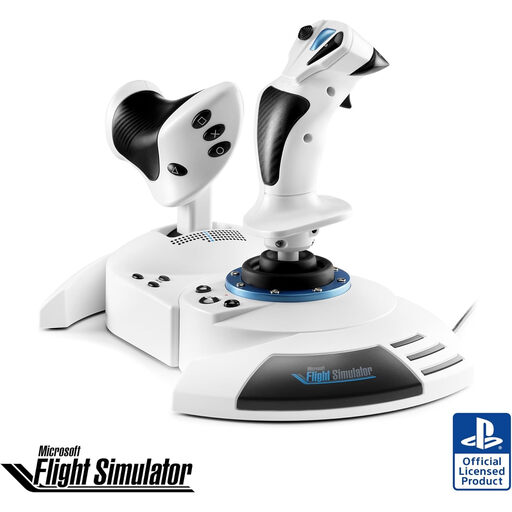
If you frequently adjust power during simulated climbs and approaches, you may prefer a distinct throttle hand position and have room for two control units. Thrustmaster describes a detachable throttle on the T.Flight HOTAS One Microsoft Flight Simulator Edition; Logitech G describes adjustable throttle resistance on the PC-oriented X52 Pro.
What to check before choosing
Start with the exact simulator and platform, then decide how much physical control you want for yaw and power. Plan the headphone connection separately unless a stick-mounted socket is important to your setup.
| Concern | What to check | Who this matters to |
|---|
| Platform compatibility |
Check the exact model against your PC or Xbox platform and simulator; confirm whether manual control mapping is needed. |
If I fly on Xbox, a USB plug alone does not settle whether the stick will work. Around 31% of consumers put platform certainty first. |
| Basic flight controls |
Look for yaw control through a twist grip or another axis, plus a way to adjust throttle without pedals or a separate unit. |
With little desk space, I want to steer on the ground and manage power from a compact setup. For around 31% of consumers, those core controls are the primary concern. |
| Throttle and commands |
Decide between an integrated and separate throttle; consider available controls for commands such as trim and flaps alongside the space required. |
I change power often and want flight commands within reach rather than relying on the keyboard. Around 23% of consumers prioritise throttle and command access. |
| Headphone connection |
Identify where the headset connects and, if you use voice chat, confirm microphone support with that device. |
I use a wired headset and want its connection to fit where I sit while flying. Headset routing comes first for around 15% of consumers. |
Common buying mistakes
-
Assuming every USB flight stick works on Xbox
A PC-compatible model is not necessarily Xbox-compatible. Thrustmaster documents the standard TCA Sidestick Airbus Edition for PC, while it explicitly states Xbox Series X|S support for the different T.Flight HOTAS One Microsoft Flight Simulator Edition.
Match the complete model name to your platform before buying, rather than relying on the brand or connector.
-
Counting buttons before checking yaw and throttle
For taxiing and power changes, the location of yaw and throttle controls may matter more to your setup than the number of assignable buttons. A twist grip and built-in throttle keep the controls together; a separate throttle needs more room.
Choose the control layout first, then check whether the remaining inputs suit the commands you intend to map.
-
Assuming the flight stick needs a headset socket
Headphone audio can follow a separate route: Xbox Support describes connecting a compatible 3.5 mm headset to an Xbox Wireless Controller, while a PC uses its selected audio device. A stick-mounted connection is useful only if it suits your headset arrangement.
Trace the headset and microphone connection through the PC, console or controller before making integrated audio a deciding feature.
Relevant flight-control brands
Thrustmaster
Its cited models cover compact PC sidesticks, separate-throttle controls and distinct Xbox-compatible variants.
- The TCA Sidestick Airbus Edition manual documents a built-in throttle and twist rudder.
- That standard TCA Sidestick Airbus Edition is documented for PC; Xbox support must be checked on a different, explicitly compatible model.
Turtle Beach
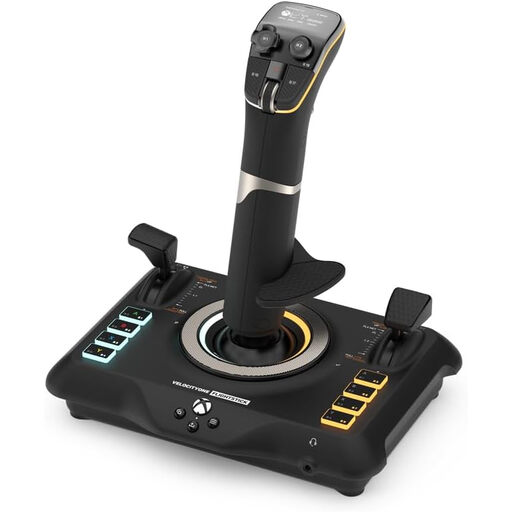
The cited VelocityOne Flightstick is a single-stick option for buyers considering Xbox or Windows PC controls alongside wired-headset placement.
- Turtle Beach states that this model supports Xbox Series X|S, Xbox One and Windows 10/11 PCs, and describes a 3.5 mm headset connection.
- It is not a separate-throttle flight stick; check the exact listing and headset arrangement before relying on stick-mounted audio.
Logitech G
The cited X52 Pro is a PC-oriented stick-and-throttle option.
- Logitech G describes adjustable throttle resistance and twist rudder control on the X52 Pro.
- Check availability and arrange headphone audio separately; the cited product information does not establish Xbox or headset-port support.
Joybuy flight-control options
These flight controls cover single-stick and stick-and-throttle setups for the light-aircraft simulation decision. Match each product’s stated platform to your simulator, and plan how your headphones will connect before choosing.
 No image available
Turtle Beach VelocityOne Flightstick for Xbox and PC
Consider this single-stick layout if you want flight controls for Xbox or Windows PC and prefer commands within reach. Turtle Beach describes 27 programmable buttons and eight axes for the VelocityOne Flightstick. Confirm yaw mapping and how the exact listing handles headset and microphone connections before relying on it for a wired-headset setup.
View on Joybuy
 No image available
Thrustmaster T.Flight Hotas 5 stick and throttle — PS5, PS4, PC
Consider this model if you want a separate place to control power while flying on a stated platform. Its product name identifies a stick-and-throttle set for PS5, PS4 and PC; do not confuse it with the differently named Xbox-compatible T.Flight HOTAS One. Check your simulator’s support and route headphone audio separately.
View on Joybuy
 No image available
HORI HOTAS Flight Control System & Mount — Windows 10/11 PC
Consider this mounted stick-and-throttle setup if you fly on a Windows PC and have desk space for its controls. The product name specifies Windows 10/11 PC and a mount. Check the available mounting space, simulator control mapping and your separate headphone connection.
View on Joybuy
 No image available
Thrustmaster TCA Captain Pack X Airbus Edition — Xbox Series X/S, PC
Consider this multi-part Airbus-style control pack if you want dedicated controls and its stated Xbox Series X/S or PC compatibility matches your setup. Check whether its layout suits the light aircraft you fly, how you will assign yaw control and where your headphones will connect.
View on Joybuy
Flight stick and headphone questions
Do I need a flight stick with a headphone socket?
No: the headset can connect separately from the flight controls. On a Windows PC, select the intended audio device; on Xbox, Xbox Support describes using the 3.5 mm port on a compatible Xbox Wireless Controller for a wired headset. If you prefer a stick-mounted connection, confirm that the exact model and headset support the audio and microphone functions you need.
Can I use a PC flight stick on Xbox Series X|S?
Only choose it for Xbox if the exact model explicitly supports Xbox Series X|S. Microsoft Flight Simulator distinguishes compatible peripherals by platform: Thrustmaster documents the standard TCA Sidestick Airbus Edition for PC, while it states Xbox Series X|S support for the T.Flight HOTAS One Microsoft Flight Simulator Edition.
Do I need rudder pedals to start flying simulated light aircraft?
Not if your chosen controls provide a suitable yaw axis that you can assign in the simulator. Thrustmaster documents twist-rudder control on the TCA Sidestick Airbus Edition, giving you an initial yaw option without pedals. Check the yaw control on the exact model you plan to buy rather than assuming every stick has a twist grip.


