Small-desk take-off learner
You want to practise pitch, roll, yaw and power without leaving a wide control setup on your desk. A joined or detachable-throttle layout lets you weigh control access against the space needed for your keyboard and mouse.


For simulated take-off checks at a small desk, choose a flight stick with a throttle input and a yaw method you can use comfortably before prioritising extra buttons. A joined or detachable-throttle layout keeps the controls closer together; consider a separate throttle if direct power control and additional bindings matter more to you than the extra desk space. Check support for your exact platform and simulator, and measure the usable surface before buying.
You want to practise pitch, roll, yaw and power without leaving a wide control setup on your desk. A joined or detachable-throttle layout lets you weigh control access against the space needed for your keyboard and mouse.
You want to put frequently used take-off commands on the controller, with the option to consider a separate throttle or pedals later. Check which additions work with the exact stick you choose.
You want throttle and flap levers alongside programmable controls in one desktop unit. Leave time to map those inputs, and measure the base before deciding whether it fits.
Start with the space left beside your keyboard and mouse, then decide which take-off inputs need dedicated controls. Check platform and simulator support for the exact model before settling on a layout.
| Concern | What to check | Who this matters to |
|---|---|---|
| Desk space and layout | Measure clear space with your keyboard, mouse and monitor stand in place. Check whether the throttle stays joined or needs its own position. | I need to set up for short practice sessions without displacing the rest of my desk; around 42% of consumers put space and layout first. |
| Take-off control access | Identify the throttle input and yaw method, then check that you can reach the take-off commands you plan to bind. | When I repeat a take-off sequence, I want power and directional inputs close to hand rather than hunting through menus. For around 33% of consumers, direct control access is the primary concern. |
| Compatibility and expansion | Check the exact platform and simulator version. If you may add hardware, confirm that the throttle, pedals or mapping software work with this model. | I want a controller that works with my current setup without closing off the additions I may use later; compatibility and expansion come first for around 25% of consumers. |
A separate throttle takes another position on the work surface and may push your keyboard or mouse out of comfortable reach.
Measure the clear area with your usual desk equipment in place. If two bases crowd it, consider a joined or detachable-throttle layout.
Platform support differs between models. A PC-only stick is not made suitable for an Xbox by another product in the same brand range supporting it.
Check the exact model against your platform, simulator version and available connections before buying.
Extra bindings are less useful for repeated take-off practice if the throttle or yaw control is awkward for you to reach.
Decide how you will control pitch, roll, yaw and power, then look for enough accessible inputs for the other commands you use.
A consumer flight stick and simulator are not, by themselves, evidence that a particular training programme will grant credit for their use.
If formal credit matters, ask the relevant training provider or authority about the specific device, software setup and programme before relying on home practice for that purpose.
Its flight-simulation range includes compact joined controls and separate PC stick-and-throttle setups. Compare the exact model rather than assuming that specifications or platform support carry across the range.
The VelocityOne Flightstick puts several flight controls in one desktop unit for supported Xbox and Windows setups.
The X52 Pro is a separate stick-and-throttle option for PC flight or space simulation when you can allocate space to both units.
These options range from stick-and-throttle controls to an integrated desktop stick and a separate-unit HOTAS. For a small desk, compare where each control will sit and confirm the exact platform and simulator you intend to use.
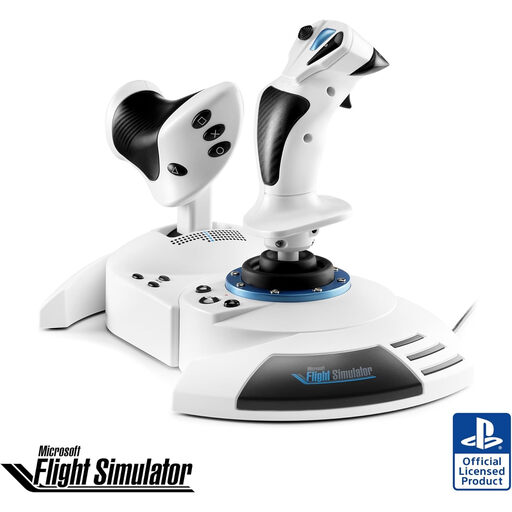 No image available
Consider this stick-and-throttle option if you want a power control alongside the stick for take-off practice. The product name lists PS5, PS4 and PC; check your exact simulator and the space needed for your preferred arrangement before buying.
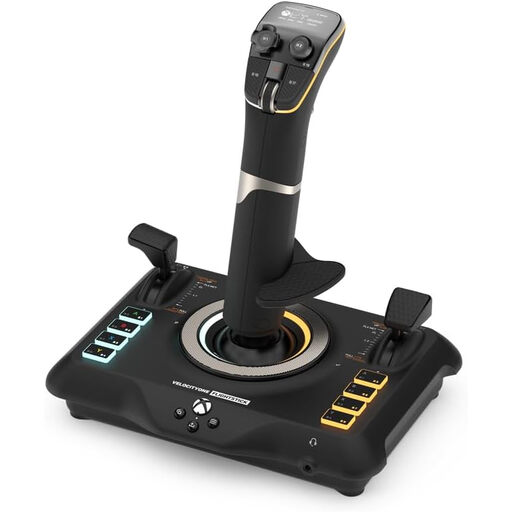 No image available
Consider this single-unit stick if you want throttle and flap controls close to hand. Turtle Beach lists 8 axes and 27 programmable buttons for the VelocityOne Flightstick; check the yaw method you want to use, your exact platform and simulator, and the space needed for its base.
 No image available
Consider this mounted HOTAS arrangement if you can give the stick and throttle separate positions. The product name specifies PC Windows 11/10; check clearance for both controls and the mounts, as well as support for your intended simulator.
Choose a flight stick if compactness and using the controller across varied simulated aircraft matter most. Microsoft Flight Simulator describes yokes as a closer control-type match for aircraft such as the Cessna 172 and Boeing 787, while joysticks offer flexibility across fighters, helicopters and other aircraft. If matching your chosen aircraft’s controls matters more than desk space, consider a yoke instead.
Not necessarily: a stick with a usable yaw control can provide an alternative for simulation practice. Thrustmaster lists stick-twist and tilting-lever rudder methods for the T.Flight Hotas One Microsoft Flight Simulator Edition, and twist rudder for the T.16000M FCS. Check the yaw method on the exact model you buy; pedals are a separate option if you later want them.
Start with pitch, roll, yaw and throttle, then add the take-off commands you use repeatedly, such as flaps or trim where available. A shorter, familiar set of bindings may be easier to practise consistently than mapping every available button at once.
Do not assume that a consumer controller or home simulator qualifies for formal training credit. UK Ministry of Defence and Military Aviation Authority guidance on approved training devices concerns military aviation, not a general approval for home controllers. If credit is your aim, confirm the requirements for your specific programme with its training provider or applicable authority.