First-time scenic-flight pilots
If you want to steer through sightseeing routes without using a keyboard for basic flight controls, start with a manageable stick-and-throttle setup rather than planning a cockpit around your first device.


Choose a compact flight stick if you want basic aircraft controls without taking over your desk, or a HOTAS if you want the throttle separate from the stick. A yoke and throttle quadrant make more sense when you mainly fly conventional light aircraft from a fixed desk position. Whichever format appeals, check the exact simulator and platform before buying.
If you want to steer through sightseeing routes without using a keyboard for basic flight controls, start with a manageable stick-and-throttle setup rather than planning a cockpit around your first device.
For longer visual routes, separate throttle control and buttons you can assign to frequently used commands may matter more than the smallest possible footprint. Check platform support on the exact model.
If you mainly fly conventional light aircraft and have a stable desk position, a yoke and throttle quadrant may suit the layout you want better than a handheld stick.
Choose it when: You want one compact device for scenic flights and limited desk space.
Trade-off: An integrated throttle leaves fewer separate physical controls; check how the particular stick handles rudder input.
Choose it when: You want to adjust power independently of the stick during longer climbs, descents and approaches.
Trade-off: A separate throttle takes more surface space, and console support depends on the exact model.
Choose it when: Your sightseeing is mostly in conventional general-aviation aircraft and you can use a fixed desk setup.
Trade-off: Allow more desk space and check platform support: Logitech G describes its Flight Yoke System for PC simulators, not as an Xbox peripheral.
Once you have a format in mind, check the controls you need, the platform you fly on and the space available for the whole setup.
| Concern | What to check | Who this matters to |
|---|---|---|
| Simple controls | Look for throttle and rudder inputs you can use without adding separate devices, and check whether the base fits your intended position. | If I mainly want to look around and make gentle turns, I would rather manage one device than arrange a cockpit. Around 42% of consumers put straightforward control and setup first. |
| Platform compatibility | Confirm the exact model and variant against your simulator, PC or console generation; a generic USB description is not enough. | Before choosing a control layout, I need to know it will work where I actually fly. For about 33% of consumers, platform and simulator compatibility is the primary concern. |
| Cockpit-style control | Check which throttle components are included, how yaw is handled and whether your desk can accommodate the mounting arrangement. | If I regularly fly conventional aircraft, dedicated controls may be worth the space and setup they require. Roughly 25% of consumers prioritise that cockpit-style layout or a path to expansion. |
Microsoft Flight Simulator distinguishes compatible PC peripherals from those intended for Xbox Series X|S. A model's control format alone does not establish console or simulator compatibility.
Match the exact variant to your simulator and platform using the manufacturer's compatibility statement.
Detached throttles, yokes, pedals and mounts need somewhere to go. VIRPIL Controls also notes that some modular base configurations require hard mounting.
Measure the position where you will fly, then add dedicated controls only if you want to use them regularly.
A modular arrangement can also mean more components to mount and configure between flights.
A reference point for model-specific stick and HOTAS options across PC and Xbox setups.
Relevant if you want a desk-based yoke and throttle quadrant for PC sightseeing in conventional aircraft.
A modular route for PC flyers who want to plan a more permanent control position.
These choices span flight sticks, stick-and-throttle setups and a desk-based control system. Choose by your aircraft preferences, platform and available space rather than treating the formats as interchangeable.
 No image available
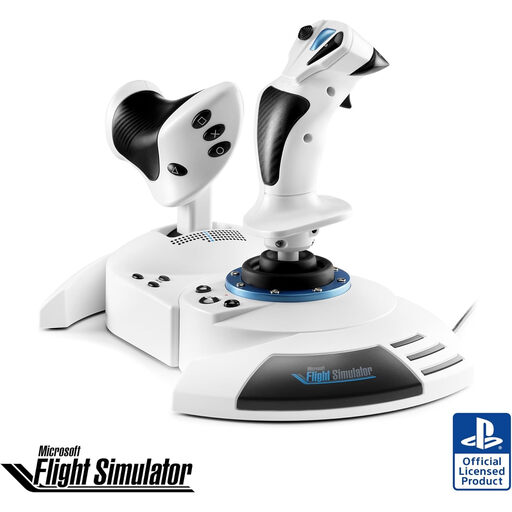
Consider this stick-and-throttle format if you want distinct flight and power controls for longer scenic routes. The product title specifies PS5, PS4 and PC; confirm support for your simulator and allow space for the arrangement you intend to use.
 No image available
This mounted HOTAS is worth considering if you fly from a fixed PC desk and want a stick-and-throttle arrangement. The title specifies Windows 11/10; check your simulator's device support and whether the mount fits your desk.
 No image available
If conventional-aircraft sightseeing makes a desk-based yoke-style setup appealing, consider this system rather than a compact handheld stick. Check its exact platform support, dimensions and mounting clearance for your desk.
 No image available
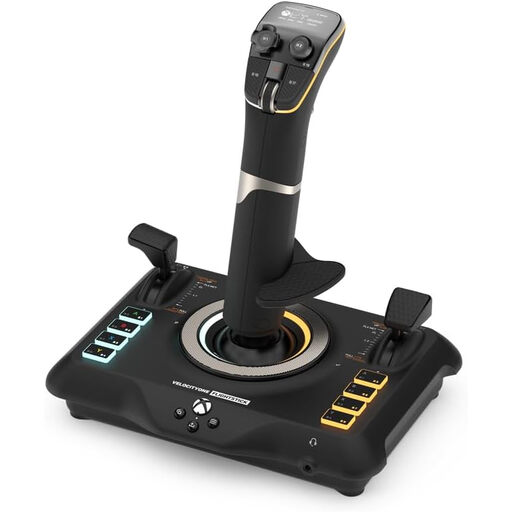
This flight-stick format may suit an Xbox or PC sightseeing setup when you prefer one main control device. Check how the exact variant handles yaw and throttle, and confirm support for your simulator version.
 No image available
If you mainly want to fly Airbus-style aircraft, this pack is a more focused option than a general-purpose stick. The title specifies Xbox Series X/S and PC; check the space needed for the controls and how you would handle yaw.
Not necessarily: a stick with a twist axis or another built-in rudder control can provide yaw input without separate pedals. Check the exact product's rudder arrangement if you want to start with a compact setup.
Yes, if the exact model is specified for both your PC simulator and Xbox generation. Microsoft Flight Simulator distinguishes compatible PC peripherals from Xbox Series X|S-compatible ones, so check the manufacturer's platform statement for the variant you plan to buy.
Make sure your simulator detects the control, then assign the basic inputs you will use during the flight: pitch, roll, yaw or rudder, throttle, brakes, camera view and pause. Check each assignment before setting off, and add less frequently used commands as you learn which ones you want within reach.