For landing practice at a shared desk, start with the space you can use and the platform you play on. A stick with built-in throttle and twist-rudder controls keeps the setup to one unit; an attachable HOTAS gives you a separate throttle you can bring alongside the stick, while a larger two-unit setup needs more room. If you mainly fly Airbus-style aircraft, consider a sidestick layout, but check the exact model’s platform support before buying.
Who this setup suits
Beginners with a shared desk
If you need to clear the desk after each session, look for a controller you can place securely, use for approach inputs and put away without leaving a separate throttle on display. Microsoft Flight Simulator identifies available physical space as a factor in choosing a setup.
Airbus-focused virtual pilots
If your practice centres on Airbus-style approaches, a sidestick layout may suit the aircraft you fly. Thrustmaster specifies twist-rudder and built-in thrust-reverser controls on the TCA Sidestick Airbus Edition; check the controls on any other variant separately.
Console flight-sim users
If you play on Xbox or PlayStation, check support for your exact console and simulator before choosing a controller. Microsoft Flight Simulator cautions that most PC flight peripherals are not compatible with Xbox Series X|S unless the manufacturer states otherwise.
What matters when choosing
Single stick
Choose when: You need to clear a small shared desk after practising and can work with controls on the stick and its base.
Trade-off: A built-in throttle avoids a second unit, but does not give you a separate throttle to position for two-handed use.
Attachable HOTAS
Choose when: You want a separate throttle for power changes but need to bring the units together when desk space is tight.
Trade-off: Thrustmaster describes an attached configuration for the T.Flight HOTAS One; check the arrangement of the exact HOTAS you choose.
Larger separate-throttle setup
Choose when: You have room to position and store both units and want more controls within reach.
Trade-off: The separate units take more space than a single-stick arrangement, so check both their working positions and where they will go afterwards.
| Concern | What to check | Who this matters to |
|---|
| Desk space and storage |
Check the base dimensions and whether a separate throttle can attach to the stick; leave room for your keyboard and mouse. |
I need to reclaim the shared desk after each session, so the controller must be manageable to set out and store. Around 42% of consumers put space and storage first. |
| Landing controls |
Check the aircraft control layout you want to practise, plus the available yaw, throttle and reverser inputs on the exact model. |
If I mainly fly Airbus-style approaches, I want controls that fit that routine without adding more units than I can accommodate. Around 33% of consumers prioritise airliner-oriented landing controls. |
| Platform compatibility |
Match the exact controller model to your PC, Xbox Series X|S, PS4 or PS5 and the simulator you intend to use. |
I do not want to set up a stick only to find it will not work with my console. Around 25% of consumers make platform compatibility their primary concern. |
Buying pitfalls
-
Assuming a USB stick works on every console
Microsoft Flight Simulator cautions that most PC flight peripherals are not compatible with Xbox Series X|S unless the manufacturer specifies support.
Check the exact model’s stated platform support, rather than relying on its USB connection or another model from the same brand.
-
Choosing a separate throttle before measuring the desk
A second unit needs a usable position during practice, even if you plan to store it afterwards.
Measure the desk space left beside your keyboard and mouse. If it is tight, compare a one-piece stick with an HOTAS whose throttle can attach to the joystick.
-
Choosing an Airbus sidestick for yoke-aircraft realism
Microsoft Flight Simulator notes that a yoke more closely matches aircraft that use one. A sidestick can provide flight input without reproducing that control format.
Choose around the aircraft you practise with most, and allow for a yoke’s space requirements if matching a yoke-equipped aircraft matters to you.
Brands to consider for these controller types
Thrustmaster
Its range includes compact civil-aviation sidesticks and HOTAS controllers, with platform support varying by model.
- Thrustmaster specifies twist rudder and a built-in throttle with thrust-reverser function for the PC TCA Sidestick Airbus Edition.
- The T.Flight HOTAS One can hold its throttle alongside the stick, according to Thrustmaster.
- Check the exact variant: Thrustmaster lists the HOTAS One for PC and Xbox, while the T.Flight HOTAS 5 is listed for PC, PS4 and PS5.
Logitech G
Its controllers include a single-unit joystick and a larger separate-throttle HOTAS.
- Logitech G specifies twist rudder, 12 programmable buttons and an 8-way hat switch for the Extreme 3D Pro.
- The X52 Pro includes a separate adjustable throttle, according to Logitech G.
- If you need to put the controller away after each session, check that you have space to use and store a separate-throttle model.
Joybuy product choices
These controllers span a HOTAS, single-stick options and larger multi-part flight controls. Choose by the room you can spare and the platform named for each product; the list does not make every controller suitable for the same setup.
 No image available
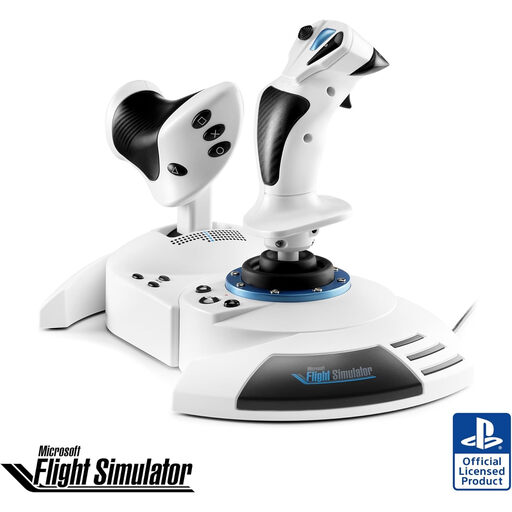
Thrustmaster T.Flight HOTAS 5 stick and throttle — PS5, PS4, PC
Consider this HOTAS if you want a separate throttle for landing practice and need one of its named platforms. Thrustmaster specifies twist-rudder input and PC, PS4 and PS5 compatibility for the T.Flight HOTAS 5. Check how the stick and throttle will fit your desk before choosing it.
View on Joybuy
 No image available
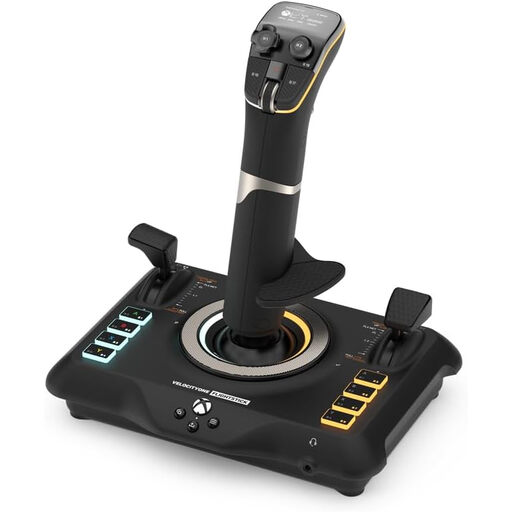
Turtle Beach VelocityOne Flight Stick — Xbox, PC
Consider this stick if you want a single-unit controller for an Xbox or PC setup. Before relying on it for approaches without pedals, confirm how the exact model handles rudder input, and check its base dimensions against your desk.
View on Joybuy
 No image available
HORI HOTAS Flight Control System & Mount — Windows 11/10
Consider this mounted HOTAS if you use a Windows 11 or 10 PC and can set aside space for the controls during practice. Check the mount clearance and the room needed around your keyboard before choosing it for a shared desk.
View on Joybuy
 No image available
Thrustmaster TCA Captain Pack X Airbus Edition — Xbox Series X/S, PC
Consider this Airbus Edition pack if your landing practice focuses on Airbus-style aircraft and you use Xbox Series X/S or PC. Check how its components will fit together on your desk and confirm the rudder input arrangement if you do not plan to use pedals.
View on Joybuy
Frequently asked questions
Should I use a joystick or a yoke for landing practice?
Choose the control format around the aircraft you practise with. Microsoft Flight Simulator says a yoke is more realistic for aircraft that use one; a sidestick better matches an Airbus-focused virtual routine. For a shared desk, also check whether you can accommodate and store the control you choose.
Will a PC flight stick work on Xbox Series X|S?
Only choose it for Xbox if the exact model states Xbox Series X|S support. Microsoft Flight Simulator cautions that most PC flight peripherals are not Xbox-compatible unless their manufacturer specifies otherwise; check any required device mode as well.
Do I need rudder pedals to begin practising landings?
You can begin without separate pedals if your chosen stick provides twist-rudder input. Thrustmaster specifies stick-rotation rudder control for the TCA Sidestick Airbus Edition and T.Flight HOTAS 5; confirm the feature on the exact variant you intend to use.
How can I make a flight-sim setup less disruptive in a shared bedroom?
Choose a controller you can store after use, plan where each unit will sit and use headphones for simulator audio. If control sounds could disturb someone nearby, consider whether you can try the exact model before settling on it rather than assuming it will be quiet.


