Dedicated-room navigation practisers
If you repeat virtual route legs, you may want stick, yaw and power controls positioned consistently rather than relying chiefly on keyboard inputs.


Choose a flight stick that explicitly supports your PC or console, then decide whether you want power controls on the stick or room for a separate throttle. For repeated virtual navigation legs, a compact sidestick keeps the setup together, while a separate-throttle layout lets you position power control independently; the aircraft you usually fly may also make a sidestick or a yoke the more appropriate control type.
If you repeat virtual route legs, you may want stick, yaw and power controls positioned consistently rather than relying chiefly on keyboard inputs.
Check the exact platform before choosing a layout. Microsoft Flight Simulator warns that most PC flight peripherals are not compatible with Xbox Series X|S unless Xbox support is specified.
If you mainly fly Airbus-style virtual aircraft, an Airbus-inspired sidestick may suit your preferred control arrangement. Thrustmaster lists PC compatibility for the TCA Sidestick Airbus Edition and Xbox Series X|S and PC compatibility for the TCA Sidestick X Airbus Edition.
Settle your playing platform and most-flown aircraft first, then choose how much space to give the stick, power controls and possible later additions.
| Concern | What to check | Who this matters to |
|---|---|---|
| Platform compatibility | Check the exact variant against your PC or console and simulator version. Microsoft Flight Simulator cautions that PC peripheral support does not imply Xbox Series X|S support. | If I practise on Xbox, I need explicit console compatibility before the control layout matters. Around 25% of consumers put platform support first. |
| Hands-on controls | Compare an independently placed throttle with built-in throttle or flap levers; check how yaw and trim are controlled. | When I repeat route legs, I want power and directional inputs within reach without repeatedly returning to the keyboard. Roughly 31% of consumers prioritise this hands-on workflow. |
| Aircraft control style | Match a sidestick, conventional stick or yoke to the aircraft you fly most often before comparing button counts. | If most of my practice is in Airbus-style aircraft, the control arrangement matters more to me than adding inputs I rarely use. Around 25% of consumers make aircraft style their primary concern. |
| Room layout | Measure desk and floor space; decide whether a separate throttle, pedals or mounting hardware should be part of the initial setup. | I can leave controls set up in the games room, but I still need the desk and floor arrangement to work for every session. About 19% of consumers put footprint and future additions first. |
Microsoft Flight Simulator warns that most PC flight peripherals are not compatible with Xbox Series X|S unless specified.
Check Xbox support for the exact controller variant before comparing its other controls.
A built-in throttle and twist rudder are different from having separate throttle and pedal controls.
Decide which controls you want from the outset, then measure the desk and floor space for that arrangement.
In Thrustmaster’s TCA Airbus range, optional quadrant controls, pedals and mounting hardware are separate additions.
A sidestick suits an Airbus-focused routine, but aircraft commonly flown with a yoke call for a different control arrangement.
List the virtual aircraft you use most often before committing to a stick-only setup.
Its flight-control range includes compact Airbus-style sidesticks, stick-and-throttle layouts and a kit with rudder pedals.
The VelocityOne Flightstick combines a stick and lever controls in one unit for supported Xbox and PC setups.
The X52 Pro is a PC-oriented stick-and-throttle option for a desk with room for separate controls.
These options cover an Airbus-themed flight-control pack, a Windows PC HOTAS with a mount, and a PS5, PS4 and PC stick-and-throttle set. Match the exact platform and desk arrangement to your practice setup.
 No image available
Consider this Airbus-themed pack for a games-room setup using Xbox Series X/S or PC. Check the space required for the pack and confirm support for your simulator title and version.
 No image available
For a more permanent Windows PC desk, consider whether the HOTAS and mount fit your intended control position. Check your simulator’s controller support before ordering.
 No image available
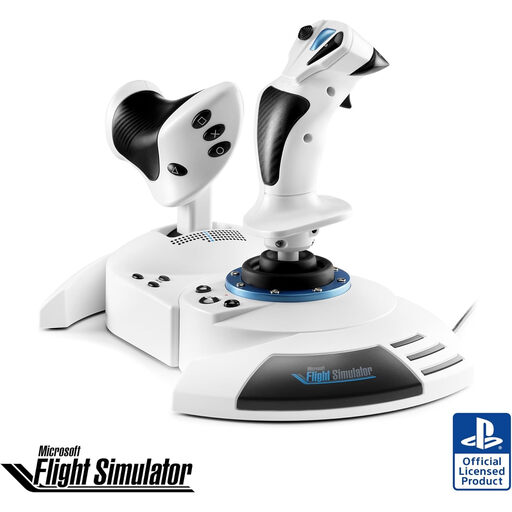
If you want stick and throttle controls for PC navigation practice, check how this set will fit on your desk. Its listed platforms are PS5, PS4 and PC; confirm support for your particular simulator.
Choose by your usual virtual aircraft and preferred power-control layout. Microsoft Flight Simulator describes joysticks as flexible across aircraft types, while a yoke more closely matches aircraft that use one; a HOTAS adds a separate throttle position when that arrangement suits your desk and routine.
No: PC compatibility alone does not establish Xbox compatibility. Microsoft Flight Simulator warns that most PC flight peripherals are not compatible with Xbox Series X|S unless specified, so check the exact variant’s platform listing.
A separate throttle is worth considering if you want to position power control independently of the stick and have desk space for it. Thrustmaster lists a detachable throttle for the T.Flight Hotas One Microsoft Flight Simulator Edition, whereas Turtle Beach lists integrated levers for the VelocityOne Flightstick.
Not necessarily if the controller’s available rudder control meets your needs. Thrustmaster’s T.Flight Full Kit X includes pedals; a separate floor control is an option to consider if you have the space and prefer not to control yaw through the stick or throttle.
You may want separate throttle controls, rudder pedals or a mounting clamp, depending on how you arrange the room. Thrustmaster identifies quadrant components, TFRP pedals and the TM Flying Clamp as separately sold accessories in its TCA Airbus range, so check the contents of the exact package you choose.