Approach learners with limited desk space
You want repeatable access to power and aircraft-configuration controls, but need to fit the equipment on a small desk or mount. The space taken by mounting hardware matters as much as the throttle body.


For virtual instrument-approach practice, choose a throttle that fits your measured mounting space and puts the controls you use repeatedly within reach. A fuller quadrant makes sense if you have room for its additional controls; a simpler unit leaves more of the workflow to simulator bindings or the keyboard. Check platform requirements before choosing, especially if you intend to use an Xbox.
You want repeatable access to power and aircraft-configuration controls, but need to fit the equipment on a small desk or mount. The space taken by mounting hardware matters as much as the throttle body.
You want twin-engine levers and, where they suit the aircraft you fly, detents and reversers. An aircraft-specific layout may be useful, but check how its controls behave with your other virtual aircraft.
You would rather reach for physical controls than return to the keyboard during a practice flow. The useful choice depends on which commands your simulator lets you bind and how much setup you are willing to do.
Measure the intended position first, then list the commands you want to operate by touch. Compare platform compatibility and aircraft-specific controls only after those requirements are clear.
| Concern | Buying check | Who this matters to |
|---|---|---|
| Cockpit fit | Measure usable depth, the mounting edge and room for your hand and cables. Honeycomb Aeronautical specifies a body depth of 330 mm for Bravo LITE and 382 mm for Bravo; both measurements exclude the mounting plate or clamp. | If desk space is tight, I need the mounted throttle to sit securely without crowding my other controls. Around 36% of consumers put physical fit first. |
| Controls within reach | List the power, trim, flap, gear and other simulator commands you want on hardware. Check which controls are dedicated and which require you to create bindings. | When practising a repeatable approach flow, I want to use the controls I reach for most without returning to the keyboard; around 36% of consumers make direct access their primary need. |
| Aircraft and platform fit | Confirm support for your simulator and platform, whether the throttle works independently, and whether its lever layout suits your aircraft. Turtle Beach states that VelocityOne Dual Throttle requires an Xbox-compatible VelocityOne Flightstick II for Xbox use; Honeycomb Aeronautical specifies Alpha XPC and Xbox Hub for Bravo on Xbox. | If I switch aircraft types or use a console, the layout and connection requirements could decide what I can use. Aircraft and platform fit comes first for around 28% of consumers. |
A bare-unit measurement does not tell you how much room the mounted quadrant needs. Honeycomb Aeronautical specifies depths of 330 mm for Bravo LITE and 382 mm for Bravo, excluding their mounting hardware.
Measure the mounting surface and allow room for the clamp, cable bend and hand movement before ordering.
Some throttle connection paths depend on another device. Turtle Beach specifies an Xbox-compatible VelocityOne Flightstick II for VelocityOne Dual Throttle on Xbox; Honeycomb Aeronautical specifies Alpha XPC and Xbox Hub for Bravo.
Check the complete connection path for the exact throttle and console you plan to use, including any companion hardware you would need.
Airbus-style detents and reversers suit a particular control workflow but may not be the layout you want for every aircraft. Thrustmaster provides selectors that disable the TCA Quadrant Airbus Edition’s detents and reversers.
Identify the aircraft you fly most often, then decide whether you want those detents or a linear-axis setup.
Its Bravo range covers a fuller cockpit-style quadrant and a simplified Bravo LITE for PC-oriented setups.
The TCA Quadrant Airbus Edition uses an Airbus-inspired layout for PC users practising twin-engine controls.
VelocityOne Dual Throttle offers configurable levers and inputs for users willing to set up their own assignments.
Its Flight Sim Throttle Quadrant is a desktop option for basic lever assignments rather than a full cockpit panel.
These choices include an Airbus-style control bundle, a PC HOTAS with a desk mount, and flight-stick or yoke systems with throttle controls. Some take the place of more than a throttle quadrant, so compare the space needed for the complete setup with your available desk area.
 No image available
Consider this bundle if you practise Airbus-style procedures and want physical throttle and aircraft-configuration controls.
The stated throttle positions include Idle, CL, Flex, TOGA and reverse thrust; the bundle also includes flap and speed-brake modules and a sidestick. It is listed for Xbox Series X/S and PC. Check the room needed for every component before choosing it for a compact desk.
 No image available
This dual-throttle HOTAS suits a Windows PC setup if you want to assign flight controls on hardware and have room for its desk mount.
The product description identifies Windows 10/11 via DirectInput, an adjustable steel desk mount and configurable functions including landing gear and flaps. Confirm your simulator’s binding options and measure the space needed for the mounted system, not just the throttle unit.
 No image available
Consider this yoke-and-throttle system if you want throttle and trim controls together rather than a separate throttle module.
Its stated controls include a modular dual-lever throttle quadrant, an integrated trim wheel, a Flight Management Display and a Status Indicator Panel. Panel alerts depend on supported titles. It is listed for Xbox and Windows PC; check simulator support and the desk space required for the complete system.
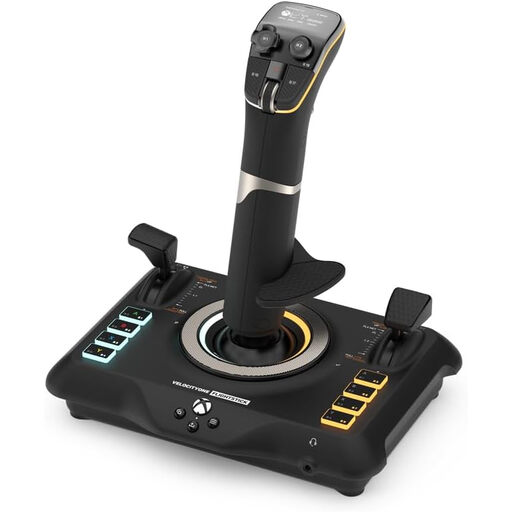 No image available
This flight stick is an option if you want throttle adjustment and trim on the stick unit rather than a standalone quadrant.
The described controls include adjustable throttles, a trim wheel, dual detents and 27 programmable buttons. It is listed for Xbox and Windows PC. Check how the unit fits your desk and whether your simulator lets you assign the approach functions you need.
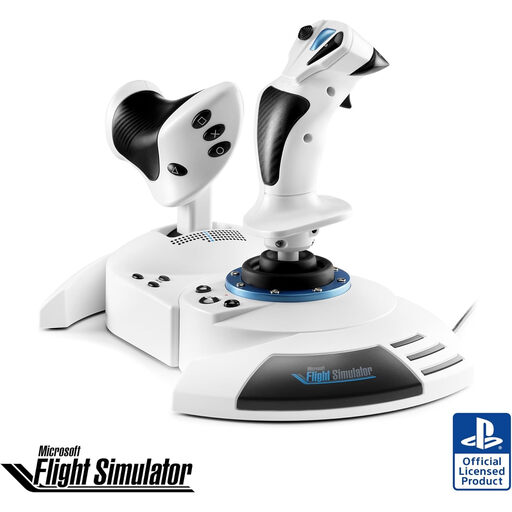 No image available
Consider this stick-and-throttle system if you want to position the throttle separately from the joystick for desktop practice.
The throttle detaches from the joystick; the described system has five control axes and 14 action buttons and is listed for PS5, PS4 and PC. Check the space required by both units and your simulator’s available bindings for approach-related commands.
Start with the commands you use repeatedly in your own simulator profile, such as power, trim, flaps and landing gear. If you also want physical autopilot and status controls, compare the integrated panel on Honeycomb Bravo with simpler quadrants, then confirm that your simulator supports the bindings you intend to use.
That depends on the exact throttle. Turtle Beach states that VelocityOne Dual Throttle connects independently by USB on Windows PC but requires an Xbox-compatible VelocityOne Flightstick II on Xbox Series X|S. Honeycomb Aeronautical specifies Alpha XPC and Xbox Hub for Bravo’s Xbox use, so check the full connection path before choosing either model.
Allow for the throttle, its mounting hardware, cables and comfortable hand movement. Honeycomb Aeronautical specifies a depth of 330 mm for Bravo LITE and 382 mm for Bravo, with both figures excluding the mounting plate or clamp; measure your intended position against the complete setup.
No particular throttle layout is required for the practice described here; choose according to the aircraft and controls you use in your simulator. An Airbus-inspired quadrant offers twin-engine controls and detents, while a configurable layout may suit a mix of aircraft. Thrustmaster’s TCA Quadrant Airbus Edition also has selectors for disabling its detents and reversers.