Single-monitor navigation trainees
If your route, map and instruments share one display, physical controls can help you make routine changes during climbs, descents and approaches without repeatedly reaching for the mouse.


For navigation-leg practice on one monitor, start with a throttle whose controls you can assign to the actions you use repeatedly, so the route and instruments can stay in view. A configurable quadrant suits practice across different aircraft, while an Airbus- or Boeing-style layout makes more sense if you mainly fly that aircraft family; check simulator and platform compatibility before choosing either.
If your route, map and instruments share one display, physical controls can help you make routine changes during climbs, descents and approaches without repeatedly reaching for the mouse.
If you practise in both general-aviation aircraft and airliners, you need to check whether the lever arrangement can be adapted to each aircraft.
If you mainly fly Airbus- or Boeing-style airliners, matching the lever layout and relevant cockpit controls may matter more to you than switching between aircraft types.
For navigation practice on one monitor, decide which actions you want off the keyboard, then check whether the throttle fits your usual aircraft and simulator platform. Dedicated controls are useful only when you can assign the corresponding functions in your simulator.
| Concern | What to check | Who this matters to |
|---|---|---|
| Controls within reach | Identify the throttle and other controls you will use regularly, then check that your simulator lets you assign them for your aircraft. | If I adjust power or flight-path settings while watching a route on one screen, I want fewer trips to the keyboard or on-screen cockpit. Around 40% of consumers put control access first. |
| Aircraft flexibility | Check the included levers and whether their arrangement, detents or reversers can be changed for the aircraft you fly. | When I switch between a trainer, a twin and an airliner, I want one throttle layout I can adapt rather than an awkward mapping for each flight. For around 30% of consumers, aircraft flexibility is the primary need. |
| Aircraft and platform fit | Confirm the exact model's PC or Xbox listing and the controls available for your usual aircraft; check the space it needs on your desk. | If I mostly fly one airliner family, its control layout matters, but the unit must also work with my setup. Aircraft-style and platform fit come first for around 30% of consumers. |
Thrustmaster lists the TCA Quadrant Boeing Edition for PC and Xbox, but lists the standalone TCA Quadrant Airbus Edition for PC. The aircraft style alone does not establish platform compatibility.
Check the manufacturer's listing for the exact model and confirm controller support in your simulator.
Airbus-style detents or Boeing-style controls may suit their intended aircraft, while a mixed fleet can call for different lever arrangements or mappings.
List the aircraft you practise in most often, then check lever options, detents and reversers before choosing a quadrant.
Honeycomb lists the Bravo Throttle Quadrant at 273 mm wide, 382 mm deep and 3.794 kg. It needs room alongside the mouse, keyboard and monitor.
Measure the usable desk area and check the mounting clearance before ordering.
Its Bravo Throttle Quadrant is a configurable route for practice across general-aviation and commercial aircraft.
Its Boeing and Airbus quadrants offer different aircraft-style layouts and platform listings.
Its separately listed throttle quadrant and panels offer a way to assemble controls in stages.
These stick-and-throttle systems are options to consider if you want physical flight controls for desktop navigation practice. Check their platform fit, control assignments and desk space against the aircraft you fly.
 No image available
Consider this mounted stick-and-throttle system for PC practice if you want the flight controls together at your desk. Check your simulator bindings and the space needed for mounting before buying.
 No image available
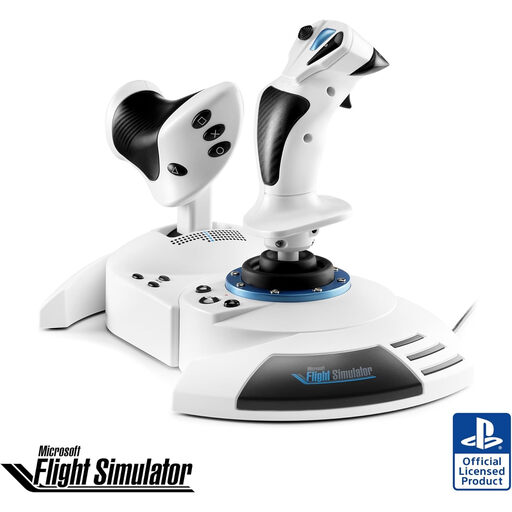
Consider this stick-and-throttle system if its listed PS5, PS4 or PC platform matches your setup. Confirm support in your chosen simulator and check that its assignable controls suit your navigation practice.
Assign the connected throttle in the simulator's Controls menu, then use general, aircraft-category or aircraft-specific controls according to where each binding is needed. Microsoft Flight Simulator Support distinguishes those profile levels, so you can keep common throttle actions consistent while setting different controls for a particular aircraft.
Not necessarily: it is worth considering if you often change altitude, heading or airspeed and can bind those functions in your simulator. If you mainly hand-fly or already use comfortable keyboard bindings, start by checking whether the throttle controls alone cover your routine actions.
Thrustmaster lists the TCA Quadrant Boeing Edition for PC and Xbox, while its standalone TCA Quadrant Airbus Edition page lists PC. Check the exact model and your simulator's controller support before treating either listing as suitable for your setup.