Crosswind-practice sim pilots
You already fly light aircraft or airliners in a simulator and want more deliberate control of runway alignment, yaw and braking during simulated take-offs and landings.


If you already have a usable yoke or stick, prioritise an assignable rudder control before adding an instrument panel for simulated crosswind landings. If you still need primary flight controls, choose a yoke or stick to suit the aircraft you fly, then decide whether integrated rudder controls meet your needs or you want separate pedals; a panel mainly helps you reach instruments and commands on one screen.
You already fly light aircraft or airliners in a simulator and want more deliberate control of runway alignment, yaw and braking during simulated take-offs and landings.
You want physical access to selected instruments or controls without repeatedly zooming into the simulated cockpit or adding another monitor.
You are putting together a first control setup and need to match it to the aircraft you fly, your desk and floor space, and your PC or Xbox configuration.
Start with controllable pitch, roll and yaw for the aircraft you fly; consider a physical panel when reaching cockpit information and commands on one monitor becomes the greater inconvenience. The Civil Aviation Authority of New Zealand’s crosswind guidance emphasises aligning an aircraft with the runway before touchdown, while Microsoft Flight Simulator advises matching peripherals to the aircraft and available space.
| Concern | What to check | Who this matters to |
|---|---|---|
| Rudder and braking | Check for an assignable rudder axis and, if you want separate left and right braking, differential brake controls. Check how pedals will sit on your floor. | If I already have a yoke or stick, I want to work on runway alignment with a separate directional input and practise braking on the ground. Around 31% of consumers put rudder and braking control first. |
| Primary flight control | Match a yoke or stick to the aircraft you fly most; check simulator support, trim access and mounting space. | Starting with a keyboard or an unsuitable controller, I need a hand control for pitch and roll before an extra panel helps. For around 31% of consumers, that primary-control choice comes first. |
| One-screen access | Check that a panel supports the particular readouts or commands you use and fits beside your existing controls. | With flight controls already covered, I would rather reach a gauge, trim or autopilot control without repeatedly changing the cockpit view. Easier one-screen access is the first concern for around 23% of consumers. |
| Space and compatibility | Confirm the exact PC or Xbox connection route, any required companion hardware, and the available desk and floor space. | My setup has limited room or a platform-specific connection, so the controls need to fit and connect together. Around 15% of consumers place those practical constraints first. |
An instrument or autopilot panel can make selected cockpit information and commands easier to reach, but it does not replace a rudder input or separate braking controls.
If simulated crosswind landings are your main goal, check that you have usable pitch-and-roll control and an assignable rudder route before choosing a display-focused add-on.
Connections can depend on the exact product combination. Honeycomb Aeronautical states that its Bravo Throttle Quadrant works on Xbox only alongside an Alpha XPC and Xbox Hub.
Check your simulator, platform, existing controls and required connection hardware for the precise model you intend to buy.
A pedal unit that moves under foot pressure can make consistent input harder during a practice session. Floor surface and the unit’s grip or mounting provisions therefore matter alongside its controls.
Measure the floor area and check whether the pedal base can be secured appropriately on your carpet or hard flooring.
Simulated crosswind practice cannot establish a pilot’s real-world operating limit or replace aircraft-specific procedures and instruction.
Use the simulator to practise control coordination; use the aircraft Flight Manual or Pilot’s Operating Handbook and qualified instruction for real-world decisions.
Modular yoke and throttle controls for buyers building a desktop cockpit around aircraft flown with a yoke.
A combined yoke-and-throttle option and separate pedals for buyers deciding between integrated and foot-operated rudder controls.
Separate throttle and pedal options for buyers assembling controls around their preferred primary stick or yoke.
Physical instrument and control panels for a single-monitor desk that already has primary flight controls.
These controls cover several starting points for a single-monitor crosswind-practice setup: separate pedals if you already have primary controls, or yoke and stick options if you are still building them. Check the rudder and braking inputs available in your complete setup before adding a cockpit panel.
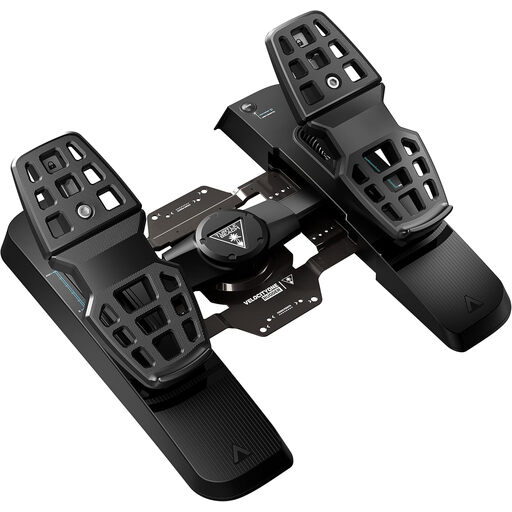 Image unavailable
Consider these separate pedals if you already have a yoke or stick and want foot-operated directional control for simulated landings.
Turtle Beach specifies a return-to-centre rudder axis, differential brakes and adjustable pedal hardware. For Xbox, check the required connection through a VelocityOne Flight controller; the pedals do not replace primary pitch-and-roll controls.
 Image unavailable
Consider this combined control system if you are starting a yoke-based setup and prefer integrated rudder controls to a separate pedal unit.
Turtle Beach lists a yoke, throttle quadrant, trim wheel and integrated rudder and brake controls. Integrated controls are not foot pedals; check whether the brake inputs suit the practice you want and whether the unit fits your desk.
 Image unavailable
Consider a stick-and-throttle layout if it better matches the aircraft you fly than a yoke.
This Windows 11/10 variant includes a mount in its product name. Check its control mapping with your simulator, particularly the rudder and braking inputs you need for landing and ground practice.
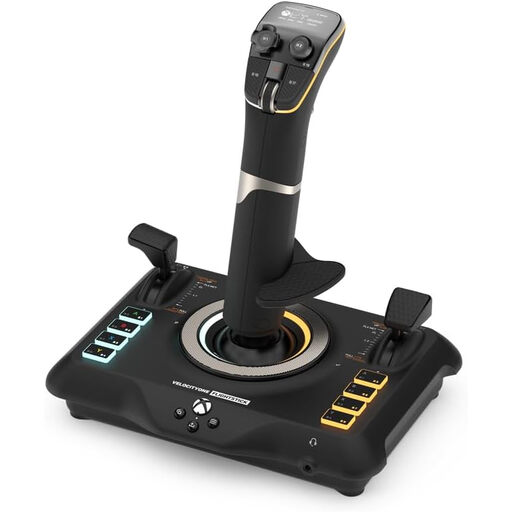 Image unavailable
Consider this stick when hand-operated primary control suits the aircraft you fly and you want to build the rest of the setup around it.
Check the exact simulator and platform connection, then confirm how you would assign rudder and any separate braking controls before relying on the stick for crosswind practice.
 Image unavailable
Consider this Airbus-style control bundle if that aircraft layout matches the simulation you spend most time flying.
Its product name identifies the Xbox Series X/S and PC variant. Before using it for crosswind practice, check how your chosen simulator and complete setup provide rudder and braking inputs.
Not necessarily: an assignable rudder input matters more than owning a particular pedal unit. If you already have pitch-and-roll control and want separate foot-operated yaw and left/right braking, pedals are a relevant next step; check their mapping and platform connection before buying.
Choose the primary controller to suit the aircraft you fly most. Microsoft Flight Simulator points to yokes for aircraft such as the Cessna 172 and Boeing 787, while a joystick suits a range of stick-flown aircraft; either choice still leaves you to plan your rudder input.
A physical panel can put selected instruments or commands within reach without relying entirely on the cockpit view. Logitech G lists 15 selectable readouts for its Flight Instrument Panel and autopilot, flap and trim controls for its Multi Panel, but neither replaces primary flight or rudder controls.
Confirm compatibility for the exact simulator, platform and combination of components, including how each device connects. Honeycomb Aeronautical requires an Alpha XPC and Xbox Hub for Bravo Throttle Quadrant use on Xbox; for the TCA Quadrant Airbus Edition on PC, Thrustmaster’s setup guidance calls for a direct USB connection.