What to check before buying
Decide which actions you most want to move off-screen, then check the exact simulator, aircraft and platform before choosing the hardware.
Programmable LCD-key panel
Choose when: You want visible labels for a defined aircraft flow while keeping the monitor on the virtual cockpit.
Trade-off: The controls depend on suitable mappings; Flightsim.to profiles may require particular aircraft versions and plugins such as AAO, PilotsDeck or MobiFlight.
Dedicated radio or autopilot panel
Choose when: Your repeated tasks centre on radio, navigation or autopilot controls and you prefer dedicated knobs and readouts.
Trade-off: A fixed layout covers its stated functions, not every switch or checklist step in your aircraft; confirm simulator and plugin support.
Larger flight-control system
Choose when: You need primary flight controls as well as additional configurable inputs.
Trade-off: It takes more desk space than a small panel, and display functions may have platform-specific limits.
| Concern |
What to check |
Who this matters to |
| Aircraft-specific labels |
Find a profile for your exact simulator, aircraft and panel; check required plugins and whether it provides the feedback you need. |
I want labelled actions that follow the aircraft I practise, without memorising a generic button layout; around 33% of consumers put aircraft-specific mapping first. |
| Tactile GA-style actions |
Compare the panel’s switch layout with your recurring actions, and check bindings and mounting space. |
If I repeatedly use physical controls for familiar GA-style actions, their placement matters more to me than a complete cockpit replica; around 25% of consumers primarily want tactile switch practice. |
| Radio and autopilot access |
List the functions in your usual aircraft, then confirm simulator, operating-system and plugin compatibility. |
I spend much of my practice changing radio or autopilot settings and want those controls within reach; roughly 25% of consumers put direct access to these functions first. |
| First-setup platform fit |
Confirm PC or Xbox support for the exact device and its display features, as well as available desk space. |
Without a yoke or stick already in place, I need primary controls that work with my platform; around 17% of consumers prioritise a compatible all-in-one setup. |
Joybuy flight-control choices
These Joybuy choices are larger flight-control systems or a flight stick for consumers who want physical inputs alongside their single-monitor cockpit view. If your main aim is labelled, aircraft-specific checklist steps, check the required mappings and feedback rather than assuming these controls provide them.
 No image available
Turtle Beach VelocityOne Flight Universal Control System
Consider this system if you need a yoke and throttle controls as well as additional inputs beside your monitor.
Turtle Beach lists a yoke, throttle quadrant, trim wheel and Flight Management Display, with Xbox and Windows compatibility. Its Status Indicator Panel is described for MS Flight Simulator on PC; check the actions and feedback available for your aircraft and allow space for the desk-mounted controls.
View on Joybuy
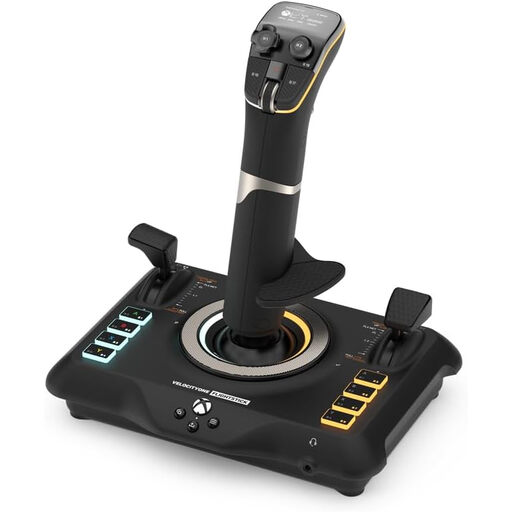 No image available
Turtle Beach VelocityOne Flight Stick Simulator Control for Xbox/PC
Consider this flight stick if you want a primary flight control and physical inputs rather than a dedicated checklist panel.
The product name specifies Xbox/PC use. Before assigning cockpit checks to it, confirm that your simulator and aircraft support the actions you need and how you will verify their resulting states.
View on Joybuy
 No image available
HORI HOTAS Flight Control System & Mount (PC Windows 11/10)
Consider this HOTAS if you need primary flight controls for a PC desk setup and want a mount alongside them.
The product name specifies PC Windows 11/10 and a mount. Check that the mounted controls fit your desk and that your simulator and aircraft support the cockpit actions you intend to assign.
View on Joybuy
Frequently asked questions
Will a panel replace learning the virtual cockpit?
No. A panel can move repeated inputs off-screen, but you still need the virtual cockpit and aircraft checklist to confirm the sequence and resulting states. Aircraft-specific Stream Deck profiles are not universal representations of every cockpit.
Can I use a PC flight-simulator panel on Xbox?
Only if the exact device supports Xbox and the simulator features you need. Microsoft Flight Simulator warns that most PC flight-simulation peripherals are not compatible with Xbox Series X|S; Turtle Beach lists both Xbox and Windows for VelocityOne Flight, but describes its Status Indicator Panel function for MS Flight Simulator on PC.
What should I check before buying a programmable panel?
Start with your exact simulator, aircraft version and operating system, then find a profile for the panel model. Check whether that profile needs AAO, PilotsDeck, MobiFlight or another integration component, and whether its commands cover the checks you want to practise.
Does a home simulator panel qualify for UK flight-training credit?
A panel purchase alone does not establish that a home setup qualifies for training credit. If recognised credit is your goal, check the specific Flight Simulation Training Device and training arrangement against the UK Civil Aviation Authority’s qualification records.


