What to check before buying
Choose the control layout around your usual aircraft and available desk space, then check the exact model’s platform support and the view and trim commands you can bind.
Standalone flight stick
Consider it when: You want pitch, roll and throttle control in one compact arrangement and can use mapped inputs for views and other frequent commands.
Trade-off: You may still need a mouse or keyboard for cockpit interaction, and the simulator’s instrument views need setting up separately.
Separate stick and throttle
Consider it when: You want a distinct physical throttle unit and have space to place it where you can reach it comfortably.
Trade-off: Two units occupy more desk space without changing what fits on your single display.
Yoke and throttle quadrant
Consider it when: Most of your approach practice is in yoke-equipped aircraft. Microsoft Flight Simulator identifies the Cessna 172 and Boeing 787 as examples where a yoke matches the aircraft’s control type.
Trade-off: This is a different, less compact control layout; check the space it needs and how you will control the rudder.
| Concern |
What to check |
Who this matters to |
| Instrument views |
Look for a POV hat or other mappable input. Check whether your simulator can bind the cockpit, instrument and reset-view commands you want. |
When I switch between instruments and an outside reference on one screen, I need view controls I can reach during the approach; around 33% of consumers put view access first. |
| Integrated flight controls |
Check the pitch and roll axes, throttle and your intended yaw input. Identify where you would bind trim. |
If desk space is tight, I want the main flight controls close together rather than relying on several devices; roughly 33% of consumers prioritise an integrated setup. |
| Platform and mapping |
Confirm the exact model’s PC or Xbox support and the commands available to bind in your simulator. |
I need the controller to work with my platform before its other features matter, and I want usable bindings for approach practice; around 20% of consumers make compatibility their primary concern. |
| Aircraft control layout |
Compare a stick with a yoke and throttle quadrant against the aircraft you fly most often, allowing for desk space and rudder control. |
If I mainly practise in yoke-equipped aircraft, I care most about matching their primary control layout; approximately 14% of consumers put aircraft layout first. |
Joybuy controller choices
These choices cover a standalone flight stick, a stick with a separate throttle, and a yoke-based alternative. Match the layout to your usual aircraft and desk space rather than treating the three as equivalent flight sticks.
 No image available
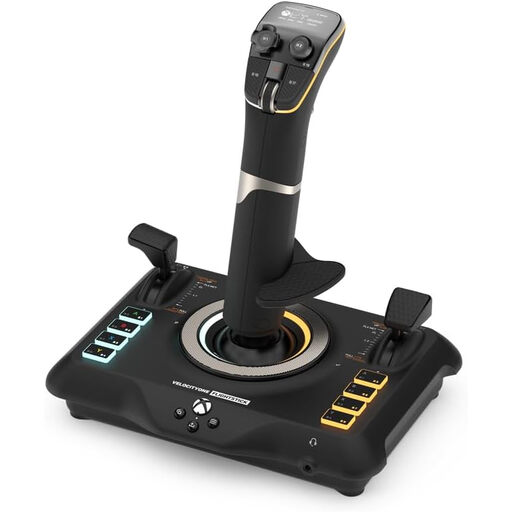
Turtle Beach VelocityOne Flightstick for Xbox/PC
Consider this standalone stick if you want throttle and view inputs within one controller arrangement for single-monitor practice.
Turtle Beach lists eight axes, 27 programmable buttons and an eight-way POV hat for the original VelocityOne Flightstick. Set up the view bindings in your simulator, and confirm the yaw control you intend to use.
Joybuy
 No image available
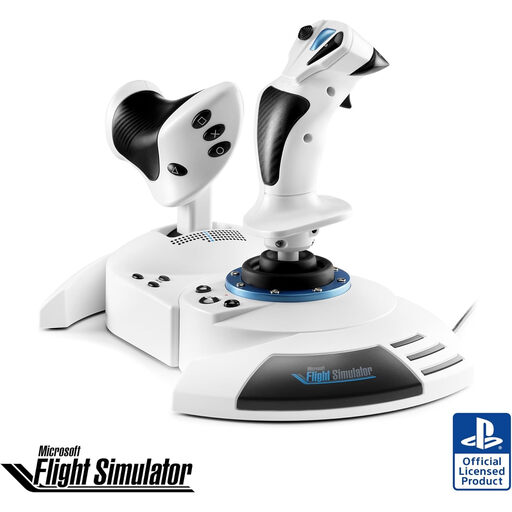
Thrustmaster T.Flight Hotas 5 for PS5, PS4 and PC
Consider this stick-and-throttle arrangement if you want a separate throttle for approach practice and have room to position both controls.
Check compatibility with your exact simulator and plan where you will bind trim and instrument-view commands.
Joybuy
 No image available
Turtle Beach VelocityOne Flight Universal Control System
Consider this yoke-based alternative if your usual virtual aircraft has a yoke and you want to practise with that control layout rather than a flight stick.
Check that the system fits your desk and plan how you will access instrument views on your single monitor.
Joybuy
Frequently asked questions
Which flight-stick controls matter most for instrument approaches on one monitor?
Prioritise pitch and roll axes, accessible throttle, a yaw-control route and a way to bind trim and view changes. Microsoft Flight Simulator provides IFR-focused and individual instrument views, but you must configure how you reach them; a POV hat alone does not determine what appears on screen.
Will I still need a mouse or keyboard with a flight stick?
Keep another suitable input available for menus and cockpit interaction. Microsoft Flight Simulator 2024 says menu navigation requires a mouse, keyboard or Xbox controller, so check how your chosen stick’s controls work with your simulator and platform.
Can twist rudder take the place of pedals in a compact setup?
A stick with a twist-rudder axis provides yaw input without adding pedals to the initial setup. If you intend to add pedals later, check whether the exact stick lets you lock or disable its twist axis; that feature varies by model.
Should I choose a flight stick or a yoke for approach practice?
Choose according to the aircraft you fly most often and the space you have. Microsoft Flight Simulator identifies the Cessna 172 and Boeing 787 as yoke-equipped aircraft; a yoke can match that primary control layout, while a stick keeps the setup more compact for consumers flying varied aircraft.
Will a PC flight stick work on Xbox?
Only if the exact model is specified as Xbox-compatible. Microsoft Flight Simulator cautions that most PC flight peripherals are not compatible with Xbox Series X|S; check the manufacturer’s platform statement and your simulator before buying.


