For repeated virtual take-offs and landings, start with a compact stick-and-throttle setup if you want separate power control, or an integrated flight stick if desk space matters more. Choose a yoke when it suits the aircraft you intend to fly; whichever layout you prefer, confirm compatibility with your simulator and platform before comparing extra buttons.
Who each setup suits
New virtual pilots practising consistent landings
If you want repeatable stick, throttle and rudder inputs without assembling a full cockpit, a compact HOTAS with an integrated rudder control is a starting layout to consider. Check how those controls are mapped in the aircraft you fly.
Sim pilots with limited desk space
When you need to put the controller away between sessions, an integrated flight stick keeps its controls in one unit. Turtle Beach lists throttle and flap levers on the VelocityOne Flightstick; consider whether their placement suits you better than a separate throttle.
Players choosing for a specific platform
If you fly on PC, Xbox Series X|S or PlayStation, narrow your choices to exact models listed for that platform. Microsoft Flight Simulator cautions that most PC flight peripherals are not compatible with Xbox Series X|S.
Which controls matter for take-offs and landings?
Stick with separate throttle
Choose it when: You want to move the throttle independently of the stick during a take-off or approach.
Bear in mind: The throttle needs its own position unless the particular HOTAS can join its two units.
Integrated flight stick
Choose it when: You want throttle and other approach controls close to hand in a single unit.
Bear in mind: Its controls are concentrated around the stick rather than positioned like a separate throttle quadrant.
Yoke setup
Choose it when: Yoke-style control suits the aircraft you regularly practise flying.
Bear in mind: Plan where the yoke and any accompanying controls will sit before giving up desk space to them.
| Concern |
What to check |
Who this matters to |
| Platform compatibility |
Confirm the exact model and variant are listed for your simulator and PC, Xbox Series X|S or PlayStation setup. |
If I play on a console, my controller needs to work with it before any control layout matters. Around 33% of consumers put compatibility first. |
| Fine control and trim |
Check the available stick axes and trim control, then test sensitivity and dead-zone settings in your simulator. |
For repeated approaches, I want manageable pitch and roll corrections and trim within reach. Roughly 27% of consumers prioritise those controls. |
| Throttle and rudder workflow |
Look for the throttle arrangement and a usable rudder input; check whether your aircraft profile needs flap or reverser assignments. |
I want to adjust power and yaw without hunting for commands during take-off or landing. About 20% of consumers make that workflow their main concern. |
| Space and setup |
Check whether the units join or separate, and measure the surface needed for a yoke or mounted controls. |
When I have a small desk or put my equipment away after each session, a manageable layout comes first. Around 20% of consumers prioritise a compact setup. |
Mistakes to avoid when choosing flight controls
-
Assuming a PC flight stick will work on Xbox
Microsoft Flight Simulator warns that most PC flight peripherals are not compatible with Xbox Series X|S. A shared connector or product-family name does not establish console support.
Check the manufacturer's compatibility information for the exact variant and console before choosing it.
-
Choosing by button count alone
Extra programmable controls are less useful for landing practice if you cannot comfortably reach or map the throttle, rudder and trim inputs you need. More assignments can also take more time to set up.
Work through pitch, roll, throttle, rudder, trim and any aircraft-specific flap controls before deciding whether additional buttons would help.
-
Picking a yoke before checking where it will fit
Honeycomb Aeronautical lists the Alpha Flight Controls XPC body at 273 mm wide and 410 mm deep, with a weight of 4.65 kg. That is a different desk-planning decision from placing a compact stick.
Measure the usable depth and check where the base or clamps would sit alongside your other controls.
Relevant flight-control brands
Thrustmaster
Its flight-simulation range includes compact HOTAS layouts and Airbus-inspired controls.
- Thrustmaster lists the T.Flight HOTAS One Microsoft Flight Simulator Edition for PC and Xbox Series X|S, and the HOTAS 5 edition for PC, PS4 and PS5.
- The standard TCA Sidestick Airbus Edition is specified for PC; a matching TCA Quadrant is a separate addition to that setup. Check the exact bundle and variant rather than applying one model's compatibility to another.
Turtle Beach
Its VelocityOne Flightstick is an integrated-control option for Xbox and Windows PC simulation.
- Turtle Beach specifies eight axes, a trim wheel and multifunction levers on the VelocityOne Flightstick, giving users several controls to assign for approach practice.
- Those controls share a single-unit layout rather than the hand positions of a separate stick and throttle. Confirm the functions you want to map in your simulator.
Honeycomb Aeronautical
Its Alpha Flight Controls XPC is a yoke-based alternative when cockpit-style control matters more than a compact stick.
- Honeycomb Aeronautical lists PC, Mac and Xbox compatibility for the Alpha Flight Controls XPC, along with an integrated switch panel.
- Its yoke body needs more planning for desk placement than a compact stick; measure your setup before choosing this control type.
Logitech G
Its X56 is a PC-oriented HOTAS aimed at users who also want configurable controls for other simulation styles.
- Logitech G describes twin throttles and additional programmable inputs on the X56.
- Mapping those extra inputs can add complexity when your immediate aim is straightforward take-off and landing practice.
Flight controls for different practice setups
These Joybuy choices include stick-and-throttle layouts, an Airbus-themed bundle and a yoke-style alternative. Match the exact platform version and the space each arrangement needs to the aircraft and simulator you use.
 No image available
Thrustmaster T.Flight HOTAS 5 – PS5, PS4, PC
Consider this stick-and-throttle layout if you want to manage power separately while practising take-offs and approaches. The product name lists PS5, PS4 and PC; check your simulator's control assignments, including how you will handle trim.
View on Joybuy
 No image available
Thrustmaster TCA Captain Pack X Airbus Edition – Xbox Series X/S, PC
Consider the Airbus-themed flight-control bundle if that aircraft style is central to your practice rather than choosing a stick-only layout. The product name lists Xbox Series X/S and PC; check the space required and how your chosen aircraft profile assigns rudder control.
View on Joybuy
 No image available
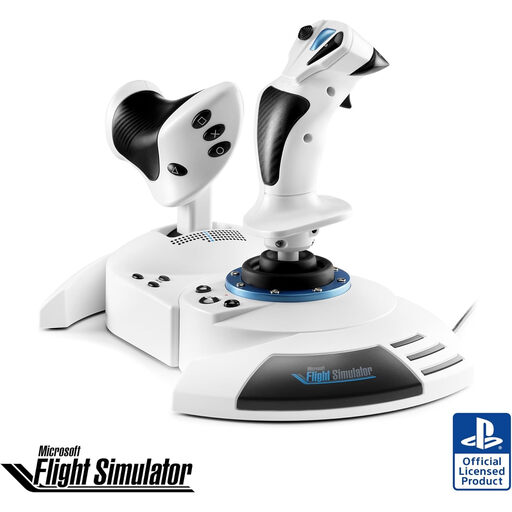
HORI HOTAS Flight Control System & Mount – Windows 11/10 PC
Consider this mounted HOTAS arrangement if you have a place for separate flight and power controls during PC practice. Its product name specifies a mount and Windows 11/10; confirm where it can be secured and how you will assign trim in your simulator.
View on Joybuy
 No image available
Turtle Beach VelocityOne Flight Universal Control System
This yoke-based alternative suits practice with aircraft for which you want yoke-style control rather than a flight stick. Check its platform compatibility, the space available on your desk and where its clamps would sit.
View on Joybuy
Questions about virtual flight controls
Do I need a HOTAS instead of a single flight stick to practise landings?
No: an integrated stick can serve landing practice if its throttle, rudder and trim inputs can be mapped usefully in your simulator. A HOTAS is worth considering when you want to move the throttle independently; a single unit may suit a smaller desk.
Will a PC flight stick work on Xbox Series X|S?
Only choose it for Xbox if the manufacturer explicitly lists compatibility for that exact model. Microsoft Flight Simulator says most flight peripherals sold for PC are not compatible with Xbox Series X|S, so a PC label alone is not enough.
Do I need rudder pedals when starting virtual take-off and landing practice?
You can start without pedals if your chosen stick offers a rudder input that works with your simulator and aircraft profile. Consider pedals later if you want separate rudder controls and have room for them.
What should I map before my first take-off and landing session?
Map and test pitch, roll, throttle and rudder in the selected aircraft profile before flying. Check brakes, flaps, landing gear and trim there too, so each needed command is accessible during the approach rather than assumed to work from a different profile.


