For take-off practice on one monitor, choose a flight stick that puts pitch and roll, throttle, rudder and a view control within reach. A compact layout suits a small desk, while a separate stick and throttle give PC users more room for assignable controls but take more space and setup; check the exact controller’s platform and simulator support before buying, particularly for Xbox.
Who is this for?
Beginners with a compact desk
If you practise take-offs on one monitor, keeping the stick, throttle, rudder input and view control close together may matter more than building a larger cockpit. The control layouts described by Thrustmaster and Turtle Beach show different ways to arrange those inputs.
PC users who want more controls
A separate throttle and additional assignable buttons may appeal if you have desk space and want physical controls for views, trim or aircraft functions. Check what your particular simulator lets you map.
Buyers choosing between PC and Xbox
Check the exact model’s stated platform support before comparing its controls. Microsoft Flight Simulator cautions that most flight peripherals sold for PC are not compatible with Xbox Series X|S.
What matters when choosing?
Compact stick and throttle
Choose when: You want take-off controls close together on a small desk, with a model explicitly supported by your PC or Xbox.
Allow for: An integrated unit and a detachable-throttle HOTAS arrange the controls differently; check which layout fits your space.
Separate PC HOTAS
Choose when: You use a PC, have space for a separate throttle and want to map more aircraft functions to physical controls.
Allow for: More desk space and initial control mapping. Do not assume a PC-focused model works on Xbox.
Standalone PC stick
Choose when: You want to start with stick control and are willing to use another input for throttle changes.
Allow for: A compatible throttle that can be added later is not necessarily supplied with the stick.
| Concern | What to check | Who this matters to |
|---|
| Take-off controls and desk space |
Check whether a throttle is supplied and how the stick, throttle and rudder input fit your available space. |
If my desk is small, I want power and yaw controls within reach without spreading equipment across it; roughly 31% of consumers put compact take-off controls first. |
| Views and commands |
Look for a reachable POV or hat control, then check which functions your simulator lets you assign. |
With one screen, I need to change cockpit views without repeatedly reaching for the keyboard; around 31% of consumers prioritise view and command access. |
| Platform compatibility |
Match the exact model and variant to your PC or Xbox and the simulator you intend to use. |
If I play on Xbox, a useful control layout is no help unless that model works with my console; approximately 23% of consumers make platform compatibility their primary concern. |
| Controls for future expansion |
Check the exact stick’s axes and controls, and distinguish supplied equipment from optional throttles or pedals. |
I may want more separate controls later, but I do not want to mistake an optional accessory for part of the bundle; about 15% of consumers put control depth and expansion first. |
Buying pitfalls
-
Assuming a PC flight stick works on Xbox
Microsoft Flight Simulator says most PC flight peripherals are not compatible with Xbox Series X|S. A suitable-looking stick may therefore fail your platform requirement.
Check the manufacturer’s platform listing for the exact model and variant before comparing buttons or sensors.
-
Confusing optional throttle support with a supplied throttle
A standalone stick can provide rudder and view controls without including a separate throttle, which matters when you change power repeatedly during take-offs.
Check the bundle contents and decide whether you want throttle control supplied from the outset.
Adding a separate throttle later means accommodating another component in your setup.
-
Choosing by button count alone
Extra controls need to be mapped, and they do not increase how much of the simulator you can see on one display.
Start with reachable throttle, rudder and view inputs, then consider which additional functions you would actually assign.
Brands to consider for these control layouts
Thrustmaster
Thrustmaster offers both PC/Xbox and PC-focused flight-control layouts; platform support depends on the model.
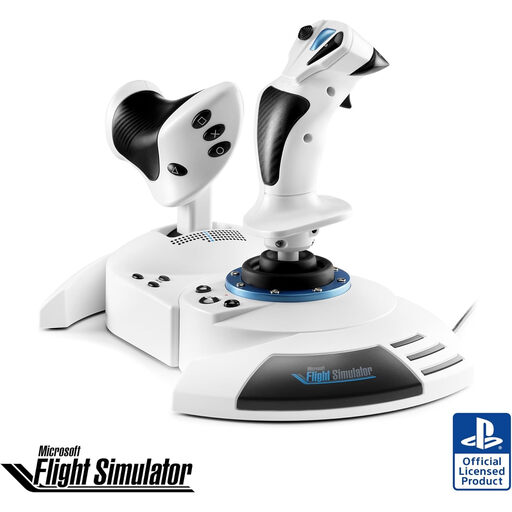
- Its T.Flight Hotas One Microsoft Flight Simulator Edition is listed for PC and Xbox, while Thrustmaster lists the T.16000M FCS stick with twist rudder and a POV hat.
- The T.16000M FCS HOTAS uses a separate throttle, so check desk fit and do not assume its PC-focused platform listing extends to Xbox.
Turtle Beach
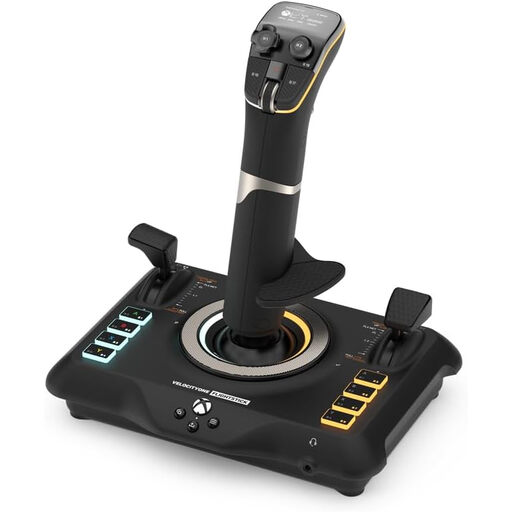
The VelocityOne Flightstick is a compact stick-and-lever option listed by Turtle Beach for Xbox Series X|S, Xbox One and Windows 10/11.
- Turtle Beach specifies throttle and flap levers, a POV hat, eight axes and 27 programmable buttons.
- Check physical fit and the mappings available in your intended simulator before relying on those controls for take-off practice.
Logitech G
The X52 Pro is a PC-focused option for buyers considering a separate stick and adjustable throttle.
- Logitech G specifies twist rudder, adjustable throttle resistance and throttle detents for the X52 Pro.
- Confirm support and control profiles for your exact simulator; the PC-focused product information does not establish Xbox compatibility.
Joybuy flight-control options
These options cover compact stick-and-throttle arrangements, a separate PC HOTAS and an Airbus-oriented control bundle. Choose by the controls you need, available desk space and stated platform support rather than treating the layouts as interchangeable.
 No image available
Thrustmaster T.Flight Hotas 5 stick and throttle — PS5, PS4, PC
Consider this stick-and-throttle option if you want both controls for repeated take-off practice on PC, PS5 or PS4. Check its rudder and view controls and support for your exact simulator; do not assume Xbox compatibility.
View on Joybuy
 No image available
Turtle Beach VelocityOne Flightstick — Xbox, PC
Its integrated throttle levers and POV hat suit a setup where you want power and view inputs near the stick. Turtle Beach specifies eight axes and 27 programmable buttons; confirm the yaw control and simulator mappings you need, along with current availability.
View on Joybuy
 No image available
HORI HOTAS Flight Control System & Mount — Windows 11/10
This PC-focused HOTAS is worth considering if you have room for a mounted, separate-control layout. Check the space needed, your simulator’s control mapping and the exact platform support before buying for another system.
View on Joybuy
 No image available
Thrustmaster TCA Captain Pack X Airbus Edition — Xbox Series X/S, PC
Consider this Airbus-oriented flight-control pack if that aircraft layout matches what you intend to practise on Xbox Series X/S or PC. Check the included rudder and view controls, simulator support and space needed for the pack.
View on Joybuy
Common questions
Can I practise virtual take-offs with a flight stick and one monitor?
Yes, provided your setup gives you reachable stick, throttle, rudder and view inputs for the simulator you use. A POV or hat control can help you change virtual views, but a controller does not remove the visual limits of one display.
Do I need rudder pedals for virtual take-offs?
Not necessarily: some documented flight sticks provide twist-rudder control, while the T.Flight Hotas One also offers a rudder lever. Check the exact model’s controls; pedals are a separate option if you want foot input and have space for it.
Will a PC flight stick work on Xbox?
Only if the exact model supports Xbox. Microsoft Flight Simulator cautions that most peripherals sold for PC are not compatible with Xbox Series X|S; check the manufacturer’s platform listing rather than relying on the controller’s appearance or PC compatibility.


