Glider sim pilots short on floor space
If pedals would get in the way, an integrated twist-rudder axis lets you assess yaw control without planning space for a floor-mounted set. Thrustmaster lists this control on the T.16000M FCS.


For simulated glider flying without floor-mounted pedals, start by looking for a desktop flight stick with a twist-rudder axis. Microsoft Flight Simulator identifies side joysticks as typical glider controls, and Thrustmaster lists twist rudder on its T.16000M FCS. Check that your chosen stick also gives you workable assignments for spoilers and tow release; consider a separate-throttle setup only if it fits your desk and you want its additional lever.
If pedals would get in the way, an integrated twist-rudder axis lets you assess yaw control without planning space for a floor-mounted set. Thrustmaster lists this control on the T.16000M FCS.
If you want to operate spoilers and tow release without relying mainly on the keyboard, look at the stick’s levers and assignable buttons. A Microsoft Flight Simulator community configuration uses a lever for spoilers and a button for tow release; your own aircraft profile may need different assignments.
If one controller must work on both platforms, check the exact model’s stated compatibility. Turtle Beach lists Xbox and PC support for its VelocityOne Flightstick models, while Thrustmaster’s T.16000M FCS product page specifies PC USB support.
Set your available floor and desk space first, then check yaw control, glider-function assignments and platform compatibility on the exact stick you intend to use.
| Concern | What to check | Who this matters to |
|---|---|---|
| Keeping the floor clear | Check for a twist-rudder axis and measure the space available for the stick’s base on your desk. | I cannot leave pedals under the desk, so yaw control needs to stay within the desktop setup. Around 36% of consumers put this space requirement first. |
| Glider controls | Check the available axes, levers and buttons against your simulator’s spoiler, airbrake and tow-release assignments. | I want to adjust spoilers and release the tow rope from reachable controls rather than depend on keyboard shortcuts. For around 29% of consumers, direct glider-control access is the main priority. |
| Stick feel | Consider the stated tension or centring options and whether the grip and base suit your hand and desk. | During repeated pitch and roll corrections, I care most about how comfortably I can control the stick. That feel takes priority for around 21% of consumers. |
| Platform fit | Confirm support for your PC operating system or Xbox model and check the intended simulator’s controller settings. | I need the same stick to work with my actual PC or console setup, not just carry a general flight-stick label. Around 14% of consumers make platform compatibility their primary concern. |
A pedal set uses the floor space you are trying to preserve. Twist rudder offers a desktop way to control yaw, although it does not reproduce foot-operated rudder control.
Look for an integrated twist-rudder axis first, and check whether it can be mapped in your simulator. If you might add pedals later, check whether the stick’s twist can be locked.
Platform support differs by model: Thrustmaster specifies PC USB support for the T.16000M FCS, while Turtle Beach lists Xbox and PC support for its VelocityOne Flightstick models.
Match the exact model to your console or PC and intended simulator before buying; do not infer compatibility from the brand or control layout.
A Microsoft Flight Simulator community configuration assigns spoilers to a lever and tow release to a button. That arrangement is a useful starting point, not a default to assume for every aircraft or profile.
Check your simulator’s current control names and the stick’s assignable inputs before choosing where those functions will go.
Allow time to create or adjust a control profile.
A stick and separate throttle can offer a dedicated lever, but they need more desktop placement space than a single stick unit.
Choose that layout only if both controls will fit and the lever matters more to you than keeping the setup compact.
The T.16000M FCS is a PC-focused standalone-stick option for a compact glider-sim desk.
The VelocityOne Flightstick models combine stick controls with onboard levers for buyers considering a single-unit setup.
The X52 Pro is a stick-and-separate-throttle option for a PC desk with room for both units.
These choices include two stick-and-throttle setups for desks with room for separate controls, plus a single-unit flight stick. Check yaw control and glider-function mapping on the exact product before deciding whether it meets your no-pedals requirement.
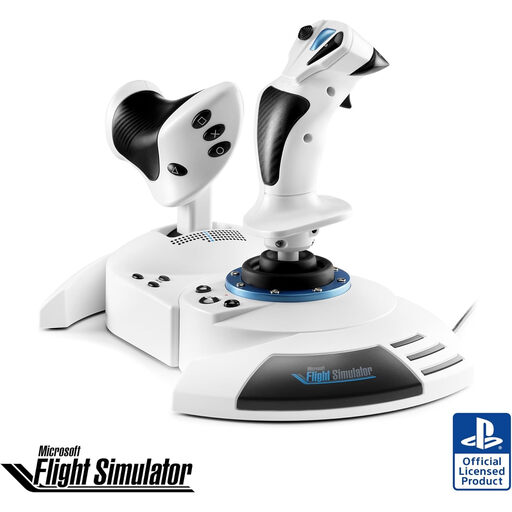 No image available
Consider this stick-and-throttle option if you can accommodate its controls on your desk. The product name lists PS5, PS4 and PC; check its exact yaw-control method, placement dimensions and your simulator’s glider bindings before buying.
 No image available
This mounted HOTAS is a consideration if your desk can take a separate control setup. Its product name specifies Windows 11/10; check the mount’s fit, the yaw-control arrangement and the intended simulator’s glider bindings.
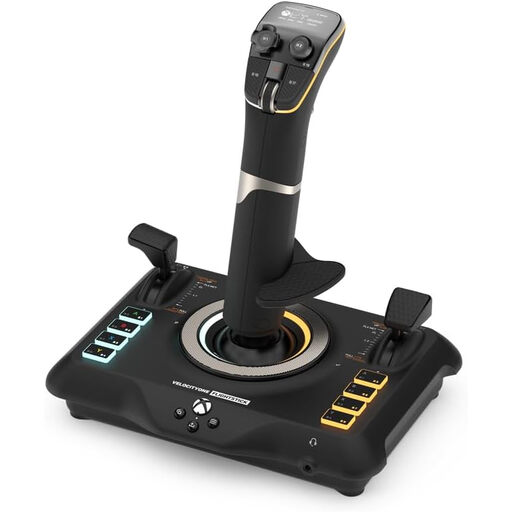 No image available
Consider this single-unit stick if you want onboard controls without placing a separate throttle on the desk. Turtle Beach lists multifunction throttle and flap levers for the original VelocityOne Flightstick; confirm this product’s yaw-control method, base dimensions and simulator bindings for your setup.
Not if your chosen stick offers usable twist-rudder control in your simulator. That keeps yaw input on the desktop and avoids a floor pedal set, though it does not provide the same foot-operated arrangement. Check the exact stick and aircraft bindings before relying on twist rudder.
A flight stick directly reflects the side-joystick control type that Microsoft Flight Simulator associates with gliders. You can still consider a yoke if it suits your preferences, but compare its placement and control assignments against the small-space setup you want.
Check your simulator’s spoiler or airbrake and tow-release assignments, then match them to the controls you can reach comfortably. A Microsoft Flight Simulator community configuration uses a lever for spoilers and a button for tow release; confirm the behaviour in your own aircraft profile.
Yes, if the exact model explicitly supports both platforms and works with your intended simulator. Turtle Beach lists Xbox and PC compatibility for its VelocityOne Flightstick models; by contrast, the cited Thrustmaster T.16000M FCS page specifies PC USB support.