Relaxed virtual sightseers
If you mainly want to take off, explore scenery and land, a compact stick with throttle and twist-rudder controls can keep the setup manageable without building a larger cockpit.


Check platform and simulator compatibility before choosing a flight stick: Microsoft Flight Simulator cautions that most PC flight peripherals do not work on Xbox Series X|S unless Xbox support is specified. For relaxed virtual sightseeing, consider a compact stick with throttle and rudder controls within reach; choose a separate throttle or expandable setup when you want more dedicated controls and have room for them.
If you mainly want to take off, explore scenery and land, a compact stick with throttle and twist-rudder controls can keep the setup manageable without building a larger cockpit.
When looking down at a keyboard interrupts the virtual view, controls you can recognise by touch matter. Check whether your simulator lets you map the flight, trim and camera actions you use most often.
If you regularly want separate access to engine and cockpit controls, an airliner-style sidestick system or a stick-and-throttle setup may suit you. Allow for the extra components and desk space.
Confirm the exact platform and simulator first, then decide which controls you need within reach while wearing a headset. A larger setup is worth considering only if its dedicated controls match how you fly.
| Concern | What to check | Who this matters to |
|---|---|---|
| Platform and simulator compatibility | Match the exact model and variant to your PC or console, then check the simulator’s device support and control mapping. Microsoft Flight Simulator warns against assuming that a PC peripheral works on Xbox Series X|S. | If I fly on a console as well as a PC, the stick must work with the platform I will actually use. Around 40% of consumers put compatibility first. |
| Controls within reach | Check for mappable buttons, view controls, throttle, trim and rudder input that suit your preferred aircraft. Check headset connections separately from flight controls. | With a headset on, I want to steer and adjust frequently used controls without searching for the keyboard. For around 30% of consumers, reachable controls are the primary need. |
| Dedicated flight controls | Decide whether a stick’s integrated throttle is enough or you want a separate throttle or airliner-style controls. Check what the chosen package includes and how much desk space it needs. | If I regularly fly airliner routes or want a separate engine control, I am willing to accommodate a larger setup. Dedicated controls come first for around 30% of consumers. |
Microsoft Flight Simulator says most PC flight peripherals are not compatible with Xbox Series X|S unless support is specifically stated. A USB connection alone does not establish console compatibility.
Check the exact variant against your platform and simulator before comparing its controls. Treat PC, Xbox and PlayStation support as separate questions.
A compact stick can suit sightseeing, but frequent throttle, trim, camera or cockpit adjustments may still send you back to the keyboard.
Identify the actions you want at your fingertips, then compare an integrated stick with a separate throttle or expandable system.
A later move to separate controls may also mean finding space for a throttle, quadrant, pedals or mounting hardware.
A 3.5 mm socket does not establish compatibility with USB, wireless or proprietary-console headsets, or confirm every audio function on your platform.
Check your headset connector and the controller manual. If you do not need audio through the flight stick, check how the headset connects to your PC or console instead.
Its flight-control range includes Airbus-style sidesticks and expandable controls across different platforms.
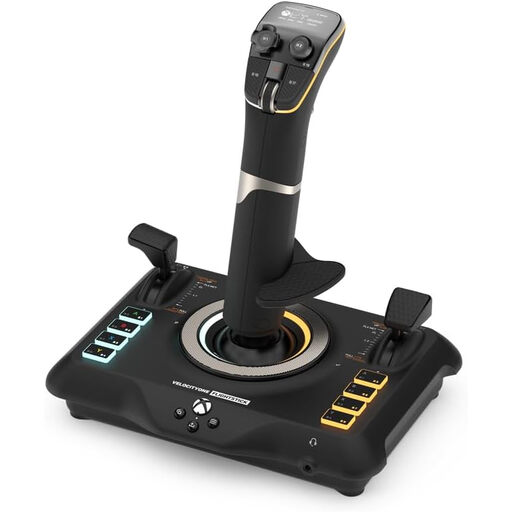
The VelocityOne Flightstick is an integrated-control option that Turtle Beach lists for Xbox Series X|S, Xbox One and Windows 10/11.
Its X52 Pro and X56 families offer PC-focused stick-and-throttle layouts.
These options range from an integrated stick for sightseeing to airliner-oriented and stick-and-throttle layouts. Choose by your platform and the controls you want to keep within reach, rather than treating a larger setup as necessary for every flight.
 No image available
Consider this integrated stick if you want flight controls close at hand for sightseeing on a supported Xbox or Windows PC. Turtle Beach specifies compatibility with Xbox Series X|S, Xbox One and Windows 10/11, alongside 27 programmable buttons, eight axes and two multi-function levers.
Check your simulator’s mappings and arrange a compatible headset connection separately rather than assuming the stick will route your audio.
 No image available
Consider this Airbus-style control pack if you want an airliner-oriented setup rather than a minimal sightseeing stick. Thrustmaster lists the TCA Captain Pack X Airbus Edition for Xbox Series X|S and PC.
Check the space needed for the pack and how you will connect your headphones; confirm support for your intended simulator before buying.
 No image available
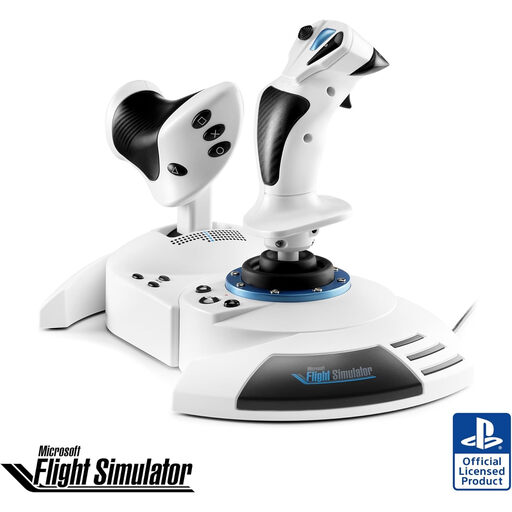
Consider this stick-and-throttle layout if you want a dedicated throttle alongside flight controls for sightseeing. The product name identifies PS5, PS4 and PC variants; check that this exact model works with your chosen simulator on your platform.
Allow room for the controls and plan a separate compatible connection for your headphones if needed.
 No image available
Consider this mounted HOTAS layout if you fly on Windows PC and want a more involved stick-and-throttle setup. The product name specifies Windows 11/10 and a mount; make sure your desk can accommodate it.
Check your simulator’s support and control mapping, and confirm your headphone connection separately. Do not assume console compatibility.
Only if the exact model states Xbox support. Microsoft Flight Simulator warns that most PC flight peripherals are not compatible with Xbox Series X|S; also check the simulator’s current device support and mappings.
Not if a compatible stick’s twist control meets your rudder needs. Pedals are an optional way to give rudder input its own physical controls; check the stick’s controls and your simulator’s mappings before adding them.
Some models have a headset socket, but the socket alone does not establish that your headset and platform audio functions will work through it. Turtle Beach specifies a 3.5 mm connection on the VelocityOne Flightstick; check your connector and the controller manual, or use a compatible connection to your PC or console.
Treat an old flight stick as electrical waste rather than putting it in general rubbish. GOV.UK says waste electrical products can be taken to a local household waste recycling centre.