Who this guide is for

Households planning router relocation

If the planned fibre entry or ONT position may not suit Wi-Fi, discuss a permitted Ethernet route to a powered router position. Openreach advises agreeing the fibre entry point with the engineer and planning power at the equipment location.

Households with weak rooms

If Wi-Fi is weak beyond the main router, compare whether mesh nodes can connect suitably or Ethernet can reach a wired access point. Ofcom notes that walls and other obstacles affect Wi-Fi signals.

Households adding wired devices

If you need more Ethernet connections, distinguish a switch, which adds wired ports, from an access point, which provides Wi-Fi at another location. Openreach and TP-Link product information describe the relevant cabling and device options.

What to consider before buying

Ethernet to relocate the router

Choose when: The agreed ONT position is poor for Wi-Fi, but a permitted, powered router position is reachable by Ethernet.

Trade-off: You need a suitable cable path and compatible Ethernet connections at both ends.

Router placement accessories

Choose when: The router can remain connected where it is but would benefit from a more open or raised position.

Trade-off: A shelf or mount cannot solve an unsuitable ONT-to-router route or make an unapproved drilling position acceptable; check the router’s mounting instructions and ventilation.

Mesh Wi-Fi

Choose when: Several rooms remain weak after sensible router placement and nodes can be positioned with usable connections to one another.

Trade-off: Nodes need power and suitable placement; Ofcom warns that adding too many can make problems worse.

Wired access point

Choose when: Ethernet can reach a particular weak room and you want Wi-Fi there while keeping the main router.

Trade-off: You need a suitable cable route, mounting position and compatible power arrangement.

Network switch

Choose when: The router has too few Ethernet ports for your fixed devices.

Trade-off: A switch adds wired ports, not Wi-Fi; check whether a connected access point needs a separate PoE power source.

Concern What to check when buying Who this matters to
Router position and cable route Agree the ONT position and route with the installer; check Ethernet connections and power at the planned router location. If the approved ONT point is awkward for Wi-Fi, I would prioritise a permitted route to a better-powered router position. Around 40% of consumers put router relocation first.
Wi-Fi across several rooms Test the installed router in the rooms you use; check mesh placement and access-point mode if retaining the provider router. When several rooms still need usable Wi-Fi, I would look for coverage that fits the home without adding unnecessary nodes. Around 30% of consumers prioritise wider Wi-Fi coverage.
Wi-Fi in one weak room Check whether Ethernet can reach the room and confirm the access point’s compatible power supply. If one room is the main problem and a cable can reach it, I would consider a wired access point there. Around 20% of consumers prioritise connecting one weak room by wire.
More wired ports Count the Ethernet connections required and check whether any connected access point needs PoE. When fixed devices need more wired connections, I would choose a switch for ports rather than expecting it to improve Wi-Fi. Around 10% of consumers prioritise adding wired ports.

Common buying pitfalls

  • Buying mesh before checking router placement

    Walls and obstructions affect Wi-Fi, and added Wi-Fi equipment cannot improve the incoming broadband connection itself. Ofcom also cautions that too many mesh units can worsen problems.

    Agree the installation position, then test the supplied router in the rooms that matter before choosing additional equipment.

    Unneeded nodes add equipment and power requirements.

  • Treating a switch, access point and mesh kit as interchangeable

    A switch adds Ethernet ports, a cable-fed access point provides Wi-Fi at another position, and mesh links multiple Wi-Fi units. Buying the wrong type may leave the original coverage or port problem unsolved.

    Decide whether you need more wired ports, Wi-Fi in one reachable weak room, or coverage across several rooms before choosing.

  • Assuming every switch can power an access point

    The cited TP-Link EAP610 V2 supports specified PoE+ or DC arrangements, while NETGEAR lists no PoE budget for the GS305v3.

    Check the exact access-point version, included accessories and the power specification of any proposed switch or injector.

    A compatible injector or other power source may be needed separately.

  • Fixing a permanent cable route before approval

    The installer must agree the fibre entry and route, and property permissions may affect drilling or other alterations.

    Discuss the proposed entry and route with the provider or installer, and obtain any applicable property permission before drilling or fixing cables.

    An unapproved route can mean reworking the installation plan.

Relevant networking brands

TP-Link

Relevant product lines include mesh systems, wired access points and switches, which serve different network needs.

  • TP-Link specifies optional Ethernet backhaul and three Gigabit ports for Deco X50 V2; its EAP610 V2 has a Gigabit port and specified PoE+ support.
  • Those features apply to the cited models, not every TP-Link product. Check the exact version, power arrangement and provider-router compatibility.

ASUS

ZenWiFi XD5 is a mesh option for households considering Ethernet-linked nodes or a model-supported wall position.

  • ASUS states that the XD5 supports Ethernet backhaul and wall mounting.
  • Published coverage and wireless-speed claims do not establish results in a particular home; check the pack and router arrangement.

NETGEAR

The GS305v3 is a switch option when the need is more wired ports rather than additional Wi-Fi coverage.

  • NETGEAR specifies five Gigabit ports and plug-and-play operation for the GS305v3.
  • NETGEAR lists no PoE budget for this model, so it is not a PoE power source for an access point.

Ubiquiti

UniFi U6+ is a ceiling-mounted access-point option for households planning Ethernet, mounting, power and network management.

  • Ubiquiti specifies one GbE RJ45 interface and a supported 44–57 V DC range for the U6+.
  • Its mounting and UniFi management requirements make it a more involved choice than simply adding a switch or moving a router.

Belkin

Belkin lists a Category 6 UTP patch cable for connecting compatible Ethernet endpoints.

  • The listed product is the High Performance Category 6 UTP Patch Cable, SKU A3L980b10M-WHTS.
  • That listing does not establish suitability for concealed building installation or a particular proposed cable run.

Joybuy product choices

These choices cover mesh Wi-Fi for multi-room coverage and switches for additional wired connections. Check your layout, existing router and cable routes before choosing equipment.

NETGEAR Orbi 370 RBE373 WiFi 7 Mesh System, 3-Pack

NETGEAR Orbi 370 RBE373 WiFi 7 Mesh System, 3-Pack

Consider this mesh set if several rooms need Wi-Fi coverage and you can position the units with suitable connections to one another.

The set is described as one router and two satellites. The listed ports include a 2.5Gbps WAN port on the router and a 2.5Gbps LAN port on each satellite.

Joybuy

TP-Link Deco BE22 (3-Pack) BE3600 Whole Home Mesh Wi-Fi 7 System

TP-Link Deco BE22 (3-Pack) BE3600 Whole Home Mesh Wi-Fi 7 System

Consider this three-unit mesh set if you need Wi-Fi in multiple rooms and want the option of wired or wireless connections between units.

The listed description specifies two 1Gbps Ethernet ports per unit and support for wired and wireless backhaul.

Joybuy
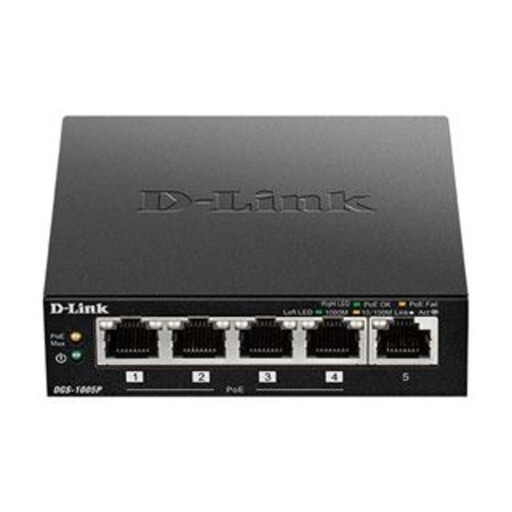
D-Link DGS-1005P 5-Port Desktop Gigabit PoE+ Switch

D-Link DGS-1005P 5-Port Desktop Gigabit PoE+ Switch

Consider a switch when you need additional wired connections; it does not provide Wi-Fi coverage by itself.

The listed description specifies five Gigabit Ethernet ports, including four PoE+ ports, with a 60W total PoE budget.

Joybuy
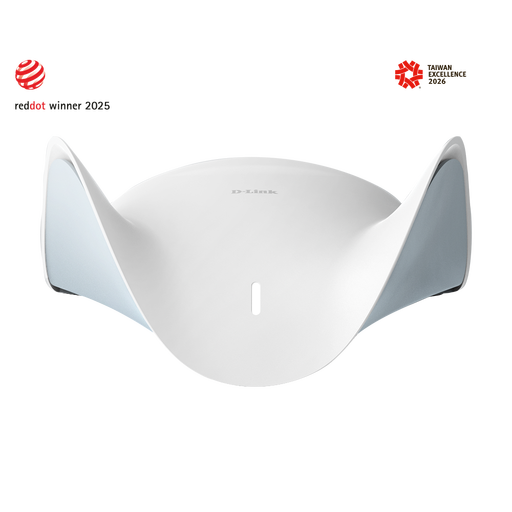
D-Link BE9500 Wi-Fi 7 Smart Mesh Router M95

D-Link BE9500 Wi-Fi 7 Smart Mesh Router M95

Consider this mesh router if you are planning Wi-Fi coverage and have checked how it will connect with your existing network.

The listed description specifies tri-band Wi-Fi, a 2.5-Gigabit WAN port and three 2.5-Gigabit LAN ports. Mesh expansion is described for compatible AQUILA PRO AI routers or extenders.

Joybuy
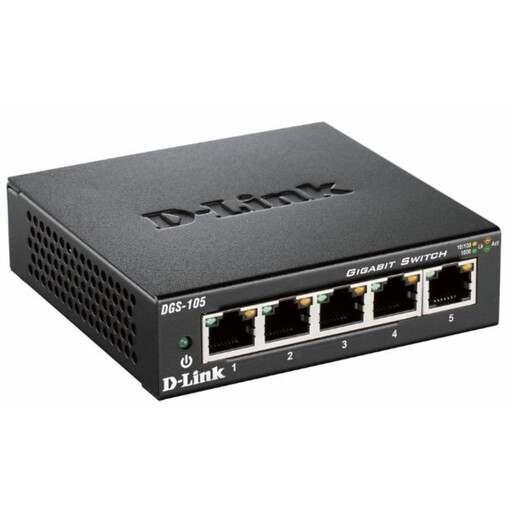
D-Link DGS-105 5-Port Gigabit Unmanaged Desktop Switch

D-Link DGS-105 5-Port Gigabit Unmanaged Desktop Switch

Consider this switch if you need more wired connections for fixed devices rather than a way to extend Wi-Fi.

The listed description specifies five Gigabit ports and unmanaged plug-and-play operation.

Joybuy

Frequently asked questions

Can I insist on a particular ONT position or fibre entry route?

A requested position is not guaranteed by the cited Openreach guidance. Discuss the proposed route and entry point with the engineer, and agree what is feasible before committing to an internal Ethernet run. Confirm the process with your own network or provider.

Where do I need power sockets for full-fibre equipment?

Plan suitable power at the ONT and router positions, and confirm the arrangement for your installation. Openreach’s July 2026 developer guidance specifies a socket at the planned ONT point and recommends a double socket if the router will also be there; a router moved elsewhere needs suitable power at its new position.

Should I replace my provider’s router to use mesh?

Not necessarily: compatible mesh equipment with access-point mode may work with an existing router. Check your provider and plan before buying for router replacement. Vodafone, for example, says its router is required on specified Pro, 5G and Digital Voice plans.

How should I check a weak room after installation?

Check the broadband connection and router position, then test the room you actually use. Ofcom advises considering mesh for weak areas but warns that excessive nodes can make matters worse; if Ethernet can reach the room, compare a wired access point.

May I drill or fix cables in a rented or listed property?

Do not assume that you can make alterations without permission. Openreach asks renters to obtain landlord permission before installation drilling, and the requirements for other work depend on the property and location. Check with the landlord or building owner and the relevant local authority where needed; Wiltshire Council states that listed-building work affecting special character or appearance requires consent.

Who should I contact if the broadband stops working after I add equipment?

Contact your broadband provider about a suspected service fault. Ofcom says the provider is responsible for fixing faults even when another company owns the network, but it may be unable to help set up a separately purchased router. Check your provider’s troubleshooting requirements before replacing its equipment.