What to check before choosing
Measure the desk and settle on a comfortable screen position first; then compare resolution and the refresh rate your computer can actually use.
| Concern |
What to check |
Who this matters to |
| Desk fit and placement |
Measure usable desk depth and the stand footprint. Check height adjustment or mounting compatibility if screen position may be difficult. |
With a laptop and study materials on a confined desk, I need a screen I can place without sitting too close. Around 46% of consumers put desk fit and placement first. |
| Readable menus and study work |
Compare Full HD with QHD at your intended screen size, and check your computer’s supported resolution and comfortable text scaling. |
I want to read hospital-management panels and coursework on the same display without choosing a size my desk cannot accommodate. For around 36% of consumers, interface clarity and study use are the primary concern. |
| Smoothness in other games |
Check the refresh rate supported at native resolution through your chosen computer port and cable. |
If I also play faster games, I want to know whether my computer can make use of a higher-refresh monitor. Smoother play in those games comes first for around 18% of consumers. |
Joybuy monitors for this setup
These monitors cover QHD choices for a desk with room for a larger screen and compact Full HD choices for tighter setups. They differ in panel type, refresh rate and adjustment, so match the individual model to your desk and computer rather than treating them as interchangeable.
 No image available
ASUS ProArt PA278CFRV IPS QHD 100Hz
Consider this QHD model when menu detail and study work matter alongside gaming. The product name specifies an IPS panel and 100Hz refresh rate; check your computer’s supported QHD mode and the space available for the intended screen position.
If connectivity or integrated audio matters to your setup, confirm the configuration of this variant before choosing.
View on Joybuy
 No image available
Samsung Odyssey G6 S27DG612 27-inch QHD OLED 240Hz
Consider this 27-inch QHD model if the screen will also be used for faster games. Its product name specifies an OLED panel and 240Hz refresh rate; measure your desk and check the QHD refresh rate your computer can deliver through the connection you plan to use.
View on Joybuy
 No image available
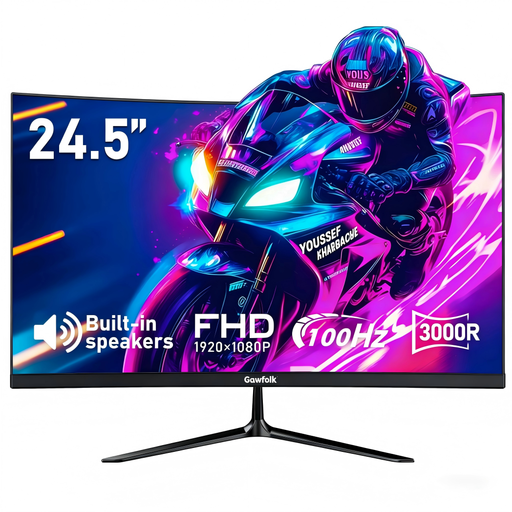
Gawfolk 24.5-inch Full HD curved 100Hz monitor
This compact Full HD option suits a desk where a larger QHD screen would be difficult to place. The product name specifies a curved screen, built-in speakers, HDMI and 75 × 75mm VESA mounting.
Check whether tilt adjustment gives you the screen position you need. The stated 100Hz mode is for HDMI; check your computer’s connection before relying on it.
View on Joybuy
 No image available
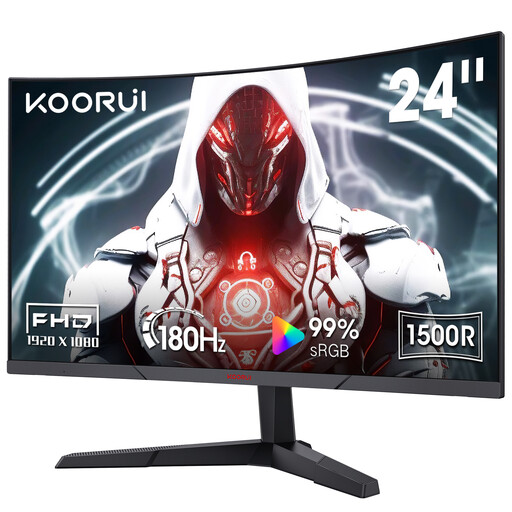
KOORUI MG24A12FV2 24-inch Full HD VA 180Hz
This 24-inch Full HD model is a compact choice if you also want to assess a higher refresh rate for other games. Its product name specifies a curved VA panel, Adaptive Sync, HDMI, DisplayPort, tilt adjustment and VESA compatibility.
Check that tilt adjustment will place the screen comfortably and confirm the refresh rate available through your computer’s chosen connection.
View on Joybuy
 No image available
ASUS ProArt PA278CV IPS WQHD
Consider this WQHD IPS model when study work and readable management-game menus matter more to you than a gaming-first refresh-rate specification. Check the screen’s fit on your desk and confirm the resolution and refresh rate available through your computer’s intended connection.
View on Joybuy
Questions about the setup
Is a 27-inch QHD monitor necessary for a virtual-hospital game?
No. A 23.8–24-inch Full HD monitor may fit a shallow student-room desk more easily, while 27-inch QHD provides more pixels for menus and study work if you have room to position it comfortably. Check your desk dimensions and computer output before choosing.
Do I need 180Hz for a management game?
Not for the management-game scenario alone. A higher refresh rate becomes more relevant if you also play faster games, provided your computer and connection can deliver the intended mode at the monitor’s native resolution.
How should I position a monitor in a student room?
Place it directly in front of you and arrange the desk so you can sit without twisting towards the screen. The Health and Safety Executive advises positioning the top roughly at eye level and the display about an arm’s length away; adjust lighting to reduce reflections and glare.
Does a student need a formal workstation assessment for personal gaming?
The Health and Safety Executive’s workstation-assessment guidance addresses employers and workers rather than a student’s personal gaming setup. You can still use its screen-positioning advice; if the same desk is used for employment, ask your employer about the arrangements that apply to your work.


