Student game-menu creators
If you keep a UI editor, references and a game preview open while working, consider the available screen space alongside refresh rate and the room your desk gives you for a monitor.


Choose a 27-inch QHD IPS monitor with a refresh rate of at least 144Hz if your desk has room and your computer can run the resolution and refresh rate you want: it gives you more pixels for arranging menu-work panels than Full HD while also serving game testing. If desk space or your computer’s capabilities are the deciding constraint, consider a roughly 24-inch Full HD high-refresh monitor instead. For either choice, check the stand footprint and the display mode available through the port and cable you will use.
If you keep a UI editor, references and a game preview open while working, consider the available screen space alongside refresh rate and the room your desk gives you for a monitor.
If the desk also holds your computer and study materials, measure where the screen and its stand will sit. Check that your computer can use the refresh rate you want through its chosen connection.
If you move between coursework, menu creation and gaming, stand adjustment and suitable connections may matter as much to your setup as the headline refresh rate.
Choose the screen size and resolution that fit your menu work and desk first; then check whether your computer and connection can run the game-testing mode you want.
Choose it when: desk space or a Full HD computer setup takes priority over extra room for editor panels.
Trade-off: 1920 × 1080 gives you fewer pixels for panels and fine menu details than 2560 × 1440 QHD.
Choose it when: you want more room for menu layouts and can accommodate a 27-inch screen and drive QHD from your computer.
Trade-off: QHD places greater demands on the computer during games, and the stand must still fit the desk.
| Concern | Buying checks | Who it matters to |
|---|---|---|
| Menu workspace | Compare native resolution and screen size; confirm your computer can output the resolution you choose. | If I arrange editor panels beside a game preview, I want enough pixels to inspect menu details without constantly rearranging windows. Around 36% of consumers put workspace first. |
| Room fit | Measure usable desk width and depth, including the stand, before choosing a screen size. | When the monitor shares a small desk with study materials, I need its screen and stand to leave usable space. Roughly 29% of consumers make room fit their main concern. |
| Game-test motion | Check native versus overclocked refresh rates and the mode supported by your device, port and cable. | For rapid menu navigation and animated transitions, I care most about the refresh mode I can actually use. About 21% of consumers prioritise game-test motion. |
| Setup convenience | Check stand adjustment and the inputs you need; decide whether built-in speakers would be useful. | If I work and play at the same desk, I want positioning and connections that suit both activities. Around 14% of consumers put setup convenience first. |
A headline rate may describe an overclocked mode with specific equipment requirements. LG says the 200Hz overclocked mode on its 27GS85Q-B requires a DisplayPort 1.4-capable graphics card and cable.
Check the native rate and the supported mode for the exact input, cable and computer you plan to use.
Screen size alone does not tell you how much desk depth the supplied stand occupies or how you can position the display. BenQ lists a 252.5 mm depth and 100 mm of height adjustment for the EX2710Q.
Measure your usable desk depth and check the exact model’s stand dimensions, adjustment and mounting options.
If the supplied stand cannot provide the position you need, an alternative stand or monitor arm may be necessary.
Refresh rate matters for game testing, but resolution affects how much space you have for the editor, references and preview. A Full HD display has fewer pixels than a QHD display.
Decide whether compact desk fit or QHD workspace is more important for your work, then compare refresh rates available through your connection.
These model examples show which specifications are worth comparing; a feature listed for one model does not apply to every monitor from its brand.
The ASUS UK listing for the VG27AQL3A offers a 27-inch QHD IPS example for menu work and high-refresh game testing.
LG UK describes the 27GS85Q-B as a 27-inch QHD Nano IPS gaming monitor with a native 180Hz refresh rate.
BenQ UK lists the EX2710Q as a 27-inch QHD IPS monitor with a 165Hz refresh rate and integrated setup features.
Dell UK lists the G2725D as a 27-inch QHD Fast IPS gaming monitor whose supported refresh rate differs by input.
These choices span compact Full HD, 27-inch QHD and 27-inch 4K monitors for student-room menu work and game testing. The QHD models include different panel types and refresh rates, so choose by your working priorities rather than treating them as interchangeable.
 No image available
Consider this 27-inch 4K UHD model if menu workspace and a high-refresh gaming mode both matter to you.
The product name specifies Nano IPS, dual-mode 240Hz/480Hz, DisplayPort 2.1 and HDMI 2.1. Check which mode your device and chosen connection can run, and measure the stand against your desk.
 No image available
This 27-inch QHD option suits a setup where menu workspace and a stated 240Hz gaming mode are both priorities.
The product name identifies an OLED panel and a 240Hz refresh rate. Confirm the mode available through your computer and connection, and check the stand footprint before choosing it for a small desk.
 No image available
This model follows the 27-inch QHD IPS route for arranging menu panels and testing games.
Its product name specifies 2560 × 1440 resolution and 220Hz. Check the supported refresh rate for the input you intend to use, along with stand adjustment and desk depth.
 No image available
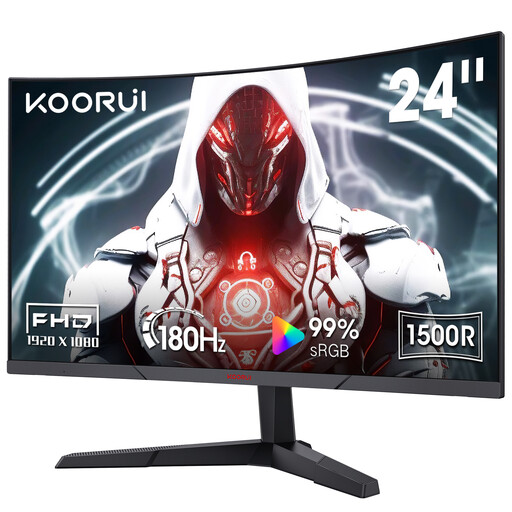
Consider the 24-inch Full HD format when a compact screen matters more than the extra menu-workspace pixels of QHD.
The product name specifies a VA panel, 1500R curve, 180Hz, two HDMI inputs, DisplayPort, tilt adjustment and VESA compatibility. Check the usable refresh mode and whether the supplied stand positions the screen as you need.
 No image available
Consider this QHD IPS option if arranging and reviewing menus takes priority over reaching the 144Hz-or-above QHD gaming target.
Its product name specifies 100Hz. Decide whether that refresh rate meets your game-testing needs, and confirm the mode available through your chosen connection.
Yes, if your computer and connection can run QHD at the refresh rate you want. SCAN UK identifies around 27-inch QHD at 144Hz or above as a performance gaming configuration; check the exact monitor’s input limits before relying on its advertised rate.
No: the advertised figure may be an overclocked mode with specific requirements. LG states that the 200Hz mode on its 27GS85Q-B needs a DisplayPort 1.4-capable graphics card and DisplayPort 1.4 cable; the model’s native refresh rate is 180Hz.
Keep proof of purchase, any warranty paperwork and a record of the fault. Citizens Advice explains that a warranty or guarantee adds to, rather than replaces, legal rights; check which remedy applies to your purchase and circumstances.
For an online purchase from a business in England, Citizens Advice says a 14-day cooling-off period generally starts the day after delivery, subject to exceptions. Check the seller’s return instructions and any applicable postage arrangements; a fault is a separate reason to seek a remedy.
Use an appropriate electrical-waste collection point or household waste recycling centre rather than ordinary household rubbish. GOV.UK says a retailer must also accept an old like-for-like electrical item free of charge when you buy a replacement, including online; check the retailer’s take-back arrangements.