Check the computer before choosing an adapter: Microsoft says a USB Bluetooth adapter can add Bluetooth when a Windows device does not have it. If Bluetooth is needed for basic controller pairing, choose an adapter that supports your Windows version and check the exact controller’s Bluetooth capabilities. For Xbox controller audio or attached accessories, Xbox identifies USB and the Xbox Wireless Adapter—not Bluetooth—as the supported connections.
Who needs which connection?
Windows student needing a straightforward connection
If your laptop or desktop has no usable built-in Bluetooth, a USB adapter may provide a way to pair a Bluetooth-capable controller. Microsoft recommends checking whether Bluetooth is already available; before buying, also match the adapter to your Windows version and the controller to your intended connection.
Student with a crowded desk
If the PC sits under a desk or behind furniture, antenna placement may matter more to you than a compact shape. TP-Link offers the UB500 Plus with an adjustable antenna, but that feature alone does not establish lower input latency.
Xbox player who needs more than basic pairing
If you need audio through an Xbox controller or accessories attached to it on a Windows PC, do not assume a generic Bluetooth adapter will provide those functions. Xbox lists USB and the Xbox Wireless Adapter as supported routes for them.
What should you check before buying?
Check the Windows computer’s existing Bluetooth connection first, then decide whether adapter placement or controller-specific features change the connection you need.
| Concern |
What to check |
Who this matters to |
| A necessary adapter |
Check whether Bluetooth can be enabled in Windows. If it is present but pairing fails, check the controller’s pairing mode and the existing connection before adding another adapter. |
I want a simple connection without adding a device my computer does not need; around 40% of consumers put avoiding an unnecessary adapter and setup first. |
| Practical placement |
Check the available USB connector and where the adapter would sit. TP-Link’s UB500 Plus has an adjustable antenna; that is a placement option, not a latency guarantee. |
My PC sits behind furniture, so I want more flexibility in positioning the connection; around 30% of consumers make placement their primary concern. |
| Controller features |
Identify the exact controller and the functions you need. Xbox and PlayStation describe connection-dependent limits that a Bluetooth adapter cannot remove. |
I need more than basic button input and do not want to lose a controller function I use; around 30% of consumers put feature compatibility first. |
Common buying mistakes
-
Buying a dongle before checking the PC
A second Bluetooth device may be unnecessary if the Windows computer already has working Bluetooth. Microsoft describes a USB adapter as a way to add Bluetooth when it is absent.
Open Windows Bluetooth settings and try pairing the controller before ordering an adapter. If pairing fails, check the controller’s pairing mode and the existing Bluetooth connection.
-
Treating a Bluetooth version as a compatibility promise
A Bluetooth 5.x label does not establish support for every controller, game or controller feature, or prove a particular input latency.
Match the adapter’s stated operating-system support to your computer, then check the controller maker’s guidance for the exact model and features you intend to use.
-
Choosing an audio transmitter for controller pairing
Avantree describes its DG80-Gaming as an audio transmitter for headphones and gaming consoles. That purpose is different from receiving controller input on a Windows PC.
Check the supported devices and functions before buying; choose a PC Bluetooth adapter only where its maker identifies the intended computer and controller use.
-
Expecting Xbox controller audio over Bluetooth
Xbox states that controller audio, attached accessories and controller firmware updates are not supported over Bluetooth on Windows.
If you need those functions, use a supported USB connection or an Xbox Wireless Adapter rather than buying a generic Bluetooth dongle for them.
Relevant adapter brands
TP-Link
TP-Link documents both compact and antenna-equipped USB Bluetooth adapters for Windows. Its UB500 guidance identifies controller connectivity, while the UB500 Plus offers an adjustable antenna.
- The UB500’s stated Windows support covers Windows 11, 10, 8.1 and 7, giving you a model-specific operating-system check.
- Check controller features separately; an antenna or stated Bluetooth version does not guarantee a gaming-latency outcome.
ASUS
The ASUS USB-BT500 is another USB Bluetooth adapter to compare by its stated interface and operating-system support rather than its version number alone.
- ASUS lists Bluetooth 5.0+EDR and Bluetooth Low Energy for the USB-BT500, with a USB 2.0 Type-A interface.
- ASUS’s cited comparison lists Windows 8.1, Windows 10 and Linux; check support for your installed operating system and exact controller before choosing it.
Avantree
Avantree’s DG80-Gaming illustrates why a gaming-labelled Bluetooth dongle should be checked for its intended job: Avantree describes this model as an audio transmitter for headphones and consoles.
- Its stated audio-transmitter purpose helps distinguish it from a general Windows controller-pairing adapter.
- Do not assume an audio dongle receives controller input unless the maker explicitly confirms that use with your host device.
Joybuy products for compact Windows setups
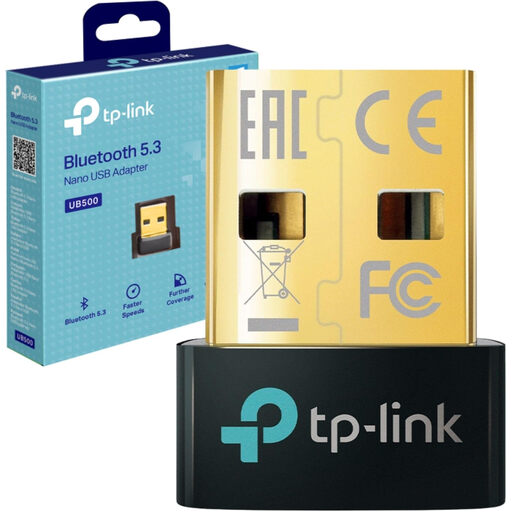
The compact adapter below is relevant when a Windows computer needs Bluetooth for basic controller pairing. Confirm that your computer lacks usable Bluetooth and that your exact controller supports the connection before choosing it.
 No image available
TP-Link UB500 Bluetooth 5.0 Nano USB Adapter
Consider this compact adapter if your Windows computer needs Bluetooth for basic pairing with a compatible controller.
TP-Link documents controller connectivity for the UB500 and lists support for Windows 11, 10, 8.1 and 7. Check your controller’s connection-dependent features separately.
View on Joybuy
Frequently asked questions
Do I need an adapter if my Windows laptop already has Bluetooth?
Not if its Bluetooth works with your controller. Microsoft describes a USB Bluetooth adapter as a way to add Bluetooth when a Windows device lacks it; try enabling Bluetooth and pairing the controller before buying another device.
How do I pair a controller after adding an adapter?
Enable Bluetooth in Windows, put the controller into its maker-specified pairing mode, then select it from the available Bluetooth devices. The button sequence varies by controller; PlayStation says to hold the create and PS buttons on a DualSense controller until its light bar blinks.
Can Bluetooth carry every Xbox controller feature on Windows?
No. Xbox states that controller audio, attached accessories and controller firmware updates are not supported over Bluetooth on Windows; use USB or an Xbox Wireless Adapter if you need those functions.
Does DualSense haptic feedback work over Bluetooth on PC?
PlayStation says haptic feedback on PC requires USB when the game supports it. It also says the controller’s headset jack requires a wired connection with a PC or Mac, so check the features you need rather than treating Bluetooth pairing as full feature support.


