Who this is for

Parents buying a first online-capable gaming device

Set up a separate child account and an adult family organiser account before online play begins. Account structure matters for age-rated content, playtime, spending and communication settings across major platforms.

Families choosing around friends and existing games

Check where the child’s friends play and whether the intended games need a membership for online multiplayer. Platform compatibility, accounts and game requirements can matter more than console hardware alone.

Households considering a tablet or PC

A supervised account and app limits can suit a multi-purpose device, but each game still needs its own review of chat, direct-link content and payment settings.

What to check before buying

Console family ecosystem

Choose this when: The child’s friends and requested games are mainly on Nintendo, Xbox or PlayStation, and an adult can manage the family account.

Key trade-off: Online membership rules, account setup and communication controls differ between platforms and games.

Tablet or computer setup

Choose this when: The device also needs to support schoolwork, general apps or portable gaming under an adult-managed account.

Key trade-off: Device-level limits do not replace checking chat, linked accounts and purchases inside each game.

Priority What to check Your needs
Child account and family setup Confirm that the platform supports a separate child or supervised account; check the adult organiser, family-manager or family-group setup; use the child’s correct date of birth. I want settings to apply to my child’s account rather than relying on an unrestricted adult profile.
Communication and privacy Review voice chat, text messages, friend requests, multiplayer access and privacy settings; check linked third-party services in the games the child will use. I need to decide who can contact my child and whether they can join online sessions or cross-network play.
Age ratings and purchases Set content or maturity filters at platform and store level; review spending controls; check whether a game has separate payment or account settings. I want account age, game access and buying permissions to work together as clearly as possible.
Playtime and shared use Check whether settings are managed by account or across the whole device; consider app-based controls and activity information; decide how siblings and adults will share the device. I need a routine that works for the household without restricting every user in the same way.
Online-play membership List the child’s intended games; confirm platform, cross-play, chat and online multiplayer requirements; distinguish free-to-play exceptions from title-specific subscriptions. I want to know whether online play needs an ongoing membership before choosing the device ecosystem.

Common buying mistakes

  • Buying before checking where friends and games are

    Online play, friend access and membership requirements vary by game and platform. A console can be the wrong fit if the child’s requested games or friends are elsewhere.

    List the child’s most-played or most-requested games, then confirm platform, cross-play, account, chat and online-play requirements before choosing a device.

    Some games or platforms may require a paid online membership after the console purchase.

  • Using an unrestricted adult account for the child

    Family and child-account controls may be incomplete if the child does not sign in with the managed account.

    Create the adult organiser or family-manager account first, add the child’s separate account with the correct date of birth, configure communication and spending settings, then test the child sign-in.

  • Treating device filters as a complete safeguard

    Device-level content controls may not cover search results, direct links, linked services or every route to communication inside an online game.

    Use platform controls as a baseline, then check privacy, chat, friend-request, linked-service and payment settings in every online game the child uses.

  • Ignoring how controls work on a shared device

    Nintendo states that Switch parental controls apply to the console rather than to individual users, while other ecosystems can use account and family-group settings for a particular child.

    If siblings or adults share the device, decide whether console-wide restrictions are acceptable or whether individually managed child profiles would suit the household better.

Relevant platform ecosystems

Nintendo

Nintendo Switch and Nintendo Switch 2 can suit families considering portable and TV gaming with Nintendo Account family controls and the Nintendo Switch Parental Controls app.

  • Nintendo says its app offers playtime, gameplay-history, age-rating, communication and social-network restrictions.
  • Core Switch parental controls are set for the console, so a shared console should be configured for the youngest user.
  • Some Switch games require Nintendo Switch Online for online play.

Xbox

Xbox and Windows PC can suit households using a Microsoft family group and wanting app-managed controls for content, screen time, social communication and multiplayer.

  • Xbox states that organisers can manage privacy, communication, age-based content, multiplayer and screen-time settings through family tools.
  • The Xbox Family Settings app provides mobile management for supported family settings.
  • The child account must be in the family group and added to the console for console management.
  • Online-play subscription needs vary by game.

PlayStation

PlayStation can suit families that need a family-manager account, a separate child account and account-linked controls for communication, content, playtime and spending.

  • PlayStation says family managers can restrict communication, user-generated content, web access, spending and playtime for each child account.
  • The PlayStation Family app can be used alongside web account management or console settings.
  • The child must use the managed account and complete email verification for account-linked controls to apply.
  • Check individual games and linked third-party services as well as platform settings.

Google

Android tablets and Chromebooks can suit households wanting a supervised Google account with Family Link controls over apps, screen time and Google Play maturity restrictions.

  • Google states that Family Link can manage app access, permissions, screen time and Google Play mature-content restrictions on supported Android devices and Chromebooks.
  • Family Link does not supervise iPhones, iPads or non-Chromebook computers.
  • Google Play purchase approvals apply only to Google Play billing, and content restrictions do not block restricted material reached through search results or direct links.

Apple

iPad and iPhone gaming can suit families already using Apple Family Sharing and looking for general Screen Time controls alongside gaming.

  • Apple states that Screen Time can track use and apply Downtime and App Limits to websites, individual apps and categories such as Games.
  • Check child-account, multiplayer chat, friend-request and purchase settings within each intended game.

Joybuy product options

Joybuy console options for households considering the Xbox family-group ecosystem for a child who plays online.
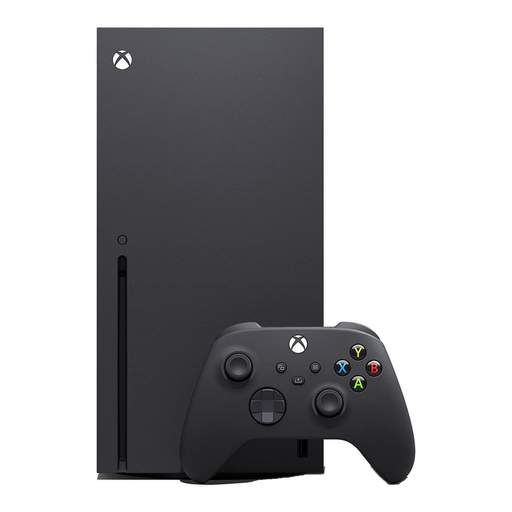
Xbox Series X Console 1TB Black

Xbox Series X Console 1TB Black

Consider this Xbox route when the child’s friends or intended games use Xbox and an adult can manage a Microsoft family-group account.

1TB console with an included controller and 4K UHD Blu-ray drive for compatible physical discs. Check the game’s chat, friend-request, linked-account, payment and online-membership settings before use.

Joybuy
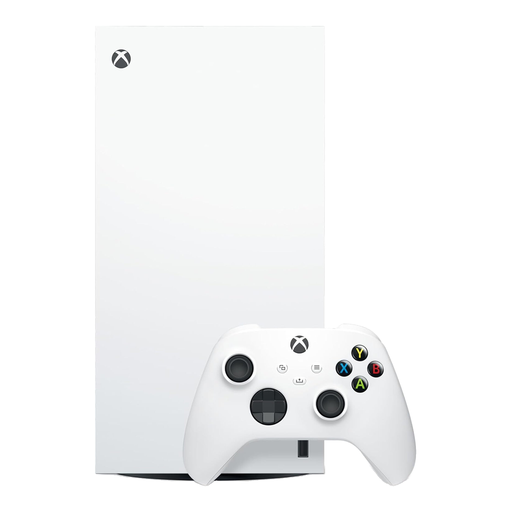
Xbox Series X 1TB Digital Edition Console White

Xbox Series X 1TB Digital Edition Console White

This option suits a digital-game household using the Xbox family-management route with a child signed in to a managed account.

1TB all-digital Xbox Series X console with no optical drive, so it cannot use physical Xbox game discs. Confirm whether digital purchasing, game subscriptions and the child’s intended games fit the household.

Joybuy

Frequently asked questions

Should I create a child account or let my child use my adult gaming account?

Create and use a separate child account managed by an adult family account where the platform supports it. PlayStation requires a separate child account for its online services, while Xbox family organisers manage members in a Microsoft family group; using the child’s correct date of birth helps platforms apply age-related restrictions.

Can I turn off voice chat and messages before my child starts playing online?

Usually, but check both the platform and each individual game. PlayStation can restrict communication and user-generated content, Xbox privacy settings can manage who communicates with a family member, and Nintendo offers communication restrictions, but game-level and linked-service settings still matter.

Do parental controls eliminate online-gaming risks?

No. Ofcom advises parents to check settings, register the child’s correct age and talk regularly about games, contacts and upsetting experiences. Controls are a useful baseline, but they should be combined with review of the games and services the child uses.

Will I have to pay a subscription for my child to play online?

It depends on the platform and game. Nintendo says certain Switch games require Nintendo Switch Online, PlayStation includes online multiplayer with PlayStation Plus memberships, and Xbox states that free-to-play multiplayer is available without an Xbox subscription while some paid games have their own requirements. Check the exact game before buying.

Can Family Link supervise an iPad or a standard Windows PC used for gaming?

No. Google states that Family Link does not supervise iPhones, iPads or computers other than Chromebooks. For Windows PC gaming with Xbox services, use Microsoft family-group settings where applicable; for iPad gaming, use Apple family and Screen Time tools and review each game’s own account and chat controls.