Controls to check before buying
Decide where the child will play, then check how that platform handles a separate child account, communication, purchases and everyday supervision before setting up online play.
Games console
Consider it when: The child will mainly play console games and a parent can manage the platform's family account and store controls.
Keep in mind: PlayStation, Xbox and Nintendo use different account and app workflows; console settings do not replace checks inside individual games.
iPad
Consider it when: The child will mainly use mobile games and the family can set up an Apple Child Account, Family Sharing and Screen Time.
Keep in mind: Supervision also covers apps, websites and communication beyond games; some controls depend on device, region, age and compatible software.
Windows gaming PC
Consider it when: The household is prepared to manage a standard Windows child account and relevant Microsoft Family Safety settings.
Keep in mind: Browser sign-in requirements, other apps and individual game accounts add settings to supervise beyond the PC itself.
| Concern |
What to check |
Who this matters to |
| Multiplayer communication |
Check child-account communication controls and the game's own chat, friend-request and reporting settings. |
I want my child to play online without leaving messages or voice chat with unfamiliar players unrestricted; around 36% of consumers put communication safeguards first. |
| Purchases and add-ons |
Check purchase approval, stored balances and whether the game has its own spending options. |
When my child asks for add-ons, I need to know what requires my approval and what can use existing credit; spending control is the primary concern for around 29% of consumers. |
| Age settings and playtime |
Create the account with the child's correct age, set time and content rules, and review each game's PEGI information. |
I need games to fit my child's age and a play routine we can maintain; around 21% of consumers place those checks first. |
| Supervision across devices |
List the devices used for gaming and chat, then check account roles, connected-device limits and reporting. |
If my child switches between devices, I need the supervision arrangements to remain workable; that is the leading need for around 14% of consumers. |
Windows gaming PCs on Joybuy
These Windows gaming PCs fit the PC route for families prepared to set up a standard child account and manage Microsoft Family Safety. Compare the included equipment as well as the PC specifications; communication settings in individual games still need separate attention.
 No image available
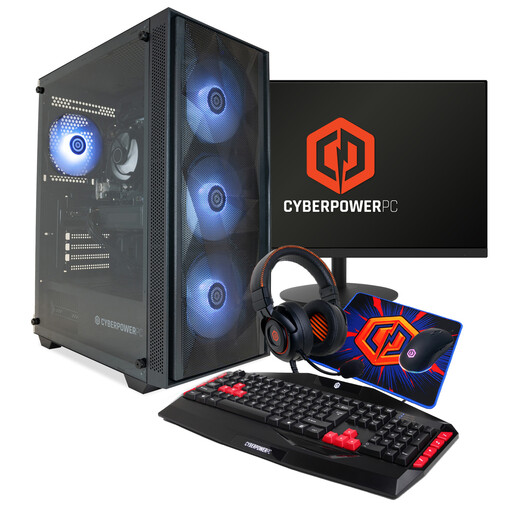
CyberPowerPC JOYB1004 gaming PC bundle
For a family choosing a Windows desktop setup with a monitor and input equipment in the bundle. The stated configuration includes an AMD Ryzen 5 7500F, NVIDIA GeForce RTX 5060 8GB, 16GB DDR5, 1TB NVMe SSD and Windows 11 Home, plus a monitor, keyboard, mouse, headset and mousepad; check the exact monitor and peripheral configuration. Set up a standard child account and check browser and game communication settings before online play.
View on Joybuy
 No image available
CyberPowerPC JOYB1010 gaming desktop PC
For a family choosing a Windows desktop and arranging its display and input equipment separately. The stated configuration includes an Intel Core Ultra 7 265KF, NVIDIA GeForce RTX 5070 12GB, 32GB DDR5, 1TB NVMe SSD and Windows 11 Home. A monitor, keyboard, mouse, headset and mousepad are not included; configure a standard child account and check the browser and games used for online play.
View on Joybuy
 No image available
Stormforce Defiance gaming PC, AMD Ryzen 7 5700X
For a family considering a Windows gaming desktop and willing to confirm what equipment accompanies it. The stated configuration includes 32GB RAM, a 2TB SSD, RTX5070 and Windows 11. Check whether a monitor and peripherals are supplied, then configure a standard child account and review browser and game communication settings.
View on Joybuy
Questions parents ask
Does my child need a separate gaming account?
Use a child account linked to the relevant family group rather than an adult profile. Ofcom advises entering the child's correct age so platforms can apply age-related settings; PlayStation, Apple and Nintendo also describe family or child accounts as part of their supervision workflows.
Can parental controls stop contact with strangers in online games?
Platform settings can restrict some messages, voice chat and interactions, but check each game's own controls too. PlayStation documents a restriction that disables text and voice chat with other players, Xbox provides communication privacy settings, and Nintendo offers parent-managed Switch 2 GameChat settings for supervised users. Discuss blocking and reporting with your child as well.
Will purchase approval prevent all spending on add-ons?
Purchase approval is one control, not a complete block on every spending route. Xbox says approval is not required to use currency or Xbox gift cards; check stored balances and each game's purchasing options. Nintendo eShop restrictions are managed through a supervising parent or guardian's Nintendo Account.
Are PEGI age ratings legally binding in the UK?
The Games Rating Authority says physical games rated PEGI 12, 16 or 18 cannot be sold or rented in the UK to anyone below the stated age. PEGI says its ratings indicate content age suitability, not game difficulty; review a game's descriptors and online features separately.
What needs extra attention if I choose a gaming PC?
Set up a standard Windows child account, connect the relevant devices to Microsoft Family Safety and check the browser and game accounts the child will use. Microsoft says web and search filters require a supported browser while signed in, and warns that a child with administrator access can change or break Family Safety settings.


