Choose a device that runs the games your child wants to play and has an account system your household can manage. A console can suit shared-home play, a tablet can suit app-based games, and a PC may be needed for PC-only games; in each case, set up a child account and check the game’s own chat and purchase settings rather than relying on device controls alone.
Who is this for?
Parents setting up a first gaming account
If you are choosing a first console, tablet or computer, plan for a separate account registered with your child’s correct age. Check its communication settings and any approval options before the child starts playing online.
Families replacing a shared device
When adults and children use the same screen or computer, separate sign-ins help you apply rules to the child’s account without treating an adult profile as a managed one. Review spending and playtime settings as part of the move.
Households using cross-platform games or voice chat
A child may talk through a game or a separate service such as Discord. Check those accounts and communication controls as well as the settings on the console, tablet or PC.
What should you check before choosing?
Start with the intended games and where the child will use the device. Then check the accounts and services that will govern play, chat and purchases.
Games console
Consider it: When the intended games run on the chosen console and the household wants play through its family-account system.
Check separately: A cross-platform game or separate voice service may have controls outside the console account.
Tablet or phone
Consider it: When the child’s intended games are apps for the chosen device and the household can manage a separate child account.
Check separately: App and in-app purchase approvals have conditions and exceptions; confirm how they apply before adding payment options.
Gaming PC
Consider it: When the child needs games that run on the selected computer and the household can manage its user accounts.
Protect the setup: Microsoft says a child with Windows Administrator access can change or break Family Safety settings.
| Priority |
What to check |
Your needs |
| Game fit |
List the exact games and editions. Confirm device compatibility, internet or online-service requirements, storage needs and any required controller or headset. |
I want the child to play their chosen games, not choose a device on its category name alone. |
| Child account |
Set up a separate account with the child’s correct age where age-based restrictions apply. Check how it joins the platform’s family group and which adult account manages it. |
Our household needs rules tied to the child’s own sign-in, particularly on a device adults also use. |
| Communication |
Identify whether chat runs through the platform, the game or a separate service. Check each account’s voice, messaging and privacy settings. |
If the child plays with others online, I need to know which settings govern each way they can talk. |
| Purchases |
Review approvals, spending limits and exceptions before adding a payment method, wallet funds, gift credit or codes. Apple Support describes Ask to Buy for eligible downloads and in-app purchases; Xbox Support says approval is not needed to use currency or Xbox gift cards. |
I want to understand when a purchase needs approval and when a child could use funds already on the account. |
| Time and access |
Check schedules on every device the child will use and protect adult sign-ins. Microsoft Support says Family Safety schedules cover connected Windows and Xbox devices, while mobile screen-time limits apply only to Android. |
Rules need to work across the devices we actually share, without giving the child an adult or administrator account. |
What can go wrong during setup?
-
Choosing hardware before checking the game’s chat
A game account, cross-platform chat or separate voice service may have settings outside the device platform’s family controls.
List the intended games and chat services before buying. Check where each runs and how its account, communication and parent-approval settings work.
-
Using an adult account for convenience
Child-specific restrictions depend on the platform recognising the child’s account or family membership. Ofcom advises registering children with their correct age.
Create a separate child account, add it to the appropriate family group and keep adult sign-in credentials private.
-
Assuming purchase approval covers every transaction
Approval rules have exceptions. Xbox Support says approval is not needed when currency or Xbox gift cards are used; Apple Support identifies eligible purchases and downloads for Ask to Buy.
Review the chosen platform’s rules before adding funds, gift credit, codes or payment methods, and configure available spending restrictions for the child account.
-
Making the child a Windows Administrator
Microsoft Support says a child with Administrator access can change or break Family Safety settings.
Use a standard Windows account for the child and keep the administrator password with a trusted adult.
Which account systems are relevant?
These platform and service controls are worth checking against the games and devices your family will use; a brand’s controls do not automatically govern a separate game or chat service.
PlayStation
For a PlayStation console used with a child member of a family group.
- PlayStation Support lists games, online communication and spending restrictions among the settings managed for a child.
- Check communication settings within individual cross-platform games and linked services separately.
Xbox / Microsoft
For households managing connected Xbox and Windows devices through a Microsoft family group.
- Microsoft Support describes schedules across connected Windows and Xbox devices; mobile screen-time limits apply only to Android.
- Review purchase approvals after adding funds or payment methods, and use a standard rather than Administrator Windows account for the child.
Apple
For app-based gaming on an iPhone or iPad with a separate child Apple Account.
- Apple Support describes Screen Time controls for apps, websites, communication and device use, plus Ask to Buy for eligible downloads and in-app purchases.
- Check the feature’s device, software, region and age conditions, as well as purchase-approval exceptions.
Nintendo
For families considering a Nintendo Switch or Nintendo Switch 2 console.
- Nintendo Support describes parental controls for console features and games, and eShop restrictions for a supervised Nintendo Account.
- The cited Nintendo support guidance is from Nintendo Americas; confirm the applicable account and store settings for the intended UK setup.
Discord
A separate communication service to consider if a teen uses it alongside gaming.
- Discord says Family Center offers an activity feed, weekly summaries and selected safety and privacy controls after the teen accepts the family connection.
- Console family settings do not automatically manage a separate Discord account.
Joybuy console option
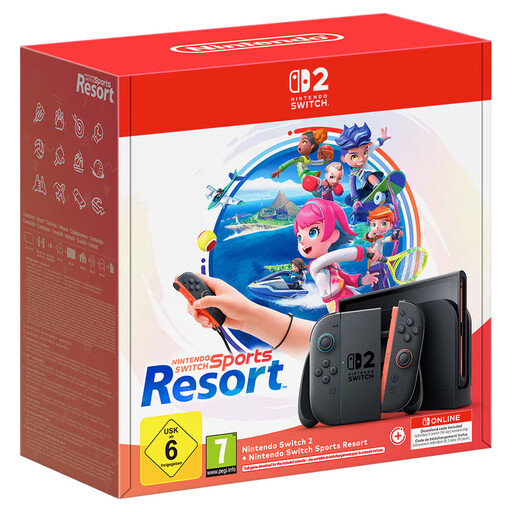
This Nintendo Switch 2 bundle is a console option for a family considering that route. Check the child’s intended games, account controls and any online-service requirements before deciding whether it fits.
 No image available
Nintendo Switch 2 Console + Nintendo Switch Sports Resort
This bundle is relevant if your family is considering a Nintendo console for the child’s online games. Confirm that the intended games work with this console and check their storage, online-service and chat requirements. For a UK child account, review the applicable Nintendo parental controls and supervised-account purchase settings before relying on them.
View on Joybuy
Questions parents ask
Should my child use my adult gaming account?
Use a separate child account or child family member where the platform provides one. Ofcom advises registering children with their correct age so age-based settings can apply; Apple Support also recommends a child’s own Apple Account rather than a shared family member’s account.
Will console controls cover Discord and cross-platform chat?
Do not assume they will. Console settings govern that platform’s account and features, while Discord Family Center is a separate service that requires a family connection accepted by the teen. Check whether each intended game uses its own chat, console party chat or another service.
How should I manage game and in-app purchases?
Set up the child account and review its approval and spending settings before adding payment options. PlayStation Support lists child spending restrictions; Apple’s Ask to Buy applies to eligible downloads and in-app purchases; and Xbox Support says its purchase approval does not apply when currency or Xbox gift cards are used.
What should I check before buying a gaming PC for a child?
Check the intended games’ operating-system, storage, internet, accessory and online-service requirements. If you plan to manage the PC with Microsoft Family Safety, give the child a standard Windows account: Microsoft Support says Administrator access can let a child change or break those settings.


