What matters when choosing?
Choose the account and control arrangement before comparing hardware. A dedicated console, a mobile device and a Windows PC each call for different checks once the child moves between games, apps and online services.
Dedicated console
Consider it when: Most play will happen on a gaming console and you want to manage rules within its family system.
Allow for: Nintendo says its console parental controls apply to the console rather than each user, whereas PlayStation describes child-account controls. Check the chosen console’s setup and each game’s online-play requirements.
Tablet or smartphone
Consider it when: The child will also use apps and websites, and device-wide schedules and approvals matter alongside gaming.
Allow for: Apple and Google say control availability varies with the device or child’s setup. Check the game’s own communication and payment settings as well as the device controls.
Windows PC
Consider it when: Your household wants to manage a child’s Windows gaming account through Microsoft family settings.
Allow for: Xbox and Microsoft family settings do not establish control coverage for every third-party PC launcher, game or chat service. Check each one the child will use.
| Concern | What to check | Who this matters to |
|---|
| Online contact |
Check child-account restrictions for messages, voice chat and friends, then check interaction settings in the intended games. |
When my child plays with others online, I want to manage who can contact them without assuming one setting covers every game. Roughly 29% of consumers would put online contact first. |
| Play-time routines |
Check schedules and limits, whether an app is needed and whether rules apply per child or to the whole device. |
If play tends to run past our agreed stopping time, I need a routine I can set and review. Around 29% of consumers would make play-time management their primary concern. |
| Spending and memberships |
Check purchase approvals for the relevant store and whether the chosen games require a paid online-play membership. |
I want an adult involved before eligible purchases go through, and I need to know which online features carry a recurring charge. Roughly 24% of consumers would prioritise spending control. |
| Shared-device rules |
Check which settings follow a child account and which affect everyone using the console or device. |
With children of different ages sharing a device, I need rules that the household can apply consistently. Around 18% of consumers would put shared-device management first. |
Joybuy gaming-device choices
These consoles and Windows PCs are options for households considering a dedicated gaming setup. Compare their account and game-service arrangements against your family’s needs; the devices themselves do not replace those checks.
 No image available
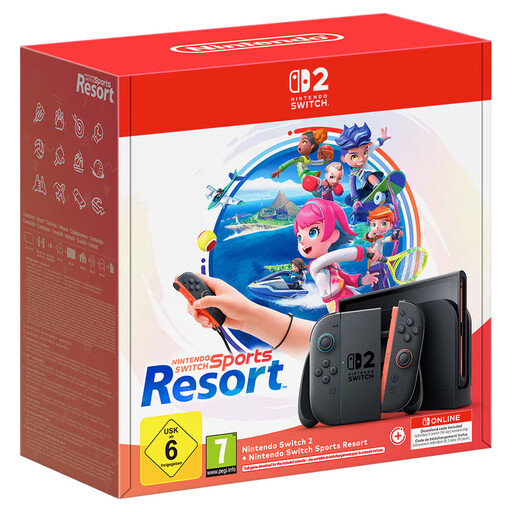
Nintendo Switch 2 Console + Nintendo Switch Sports Resort
Consider this console bundle if your household wants a dedicated device for shared gaming. Nintendo says Switch 2 parental controls include age-related and play-time settings, but console controls apply to everyone using the console. Check the bundle contents and the chosen game’s online-play requirements before ordering.
View on Joybuy
 No image available
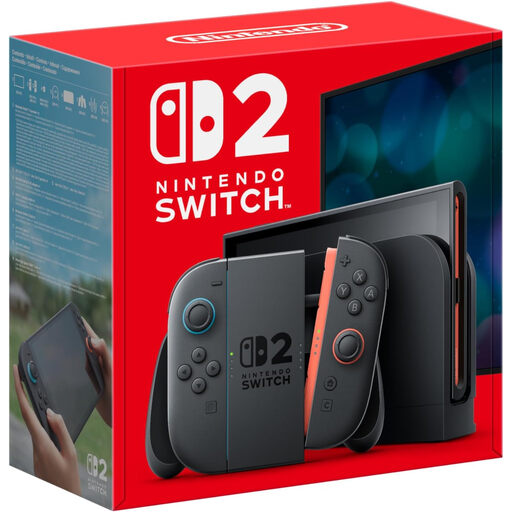
Nintendo Switch 2 Console (UK Version)
This is a dedicated-console choice for families planning to use Nintendo’s parental controls. Nintendo says those controls apply to the console rather than separately to each user, so consider how one set of restrictions would work for everyone sharing it. Check the app setup and the online requirements of the games you intend to buy.
View on Joybuy
 No image available
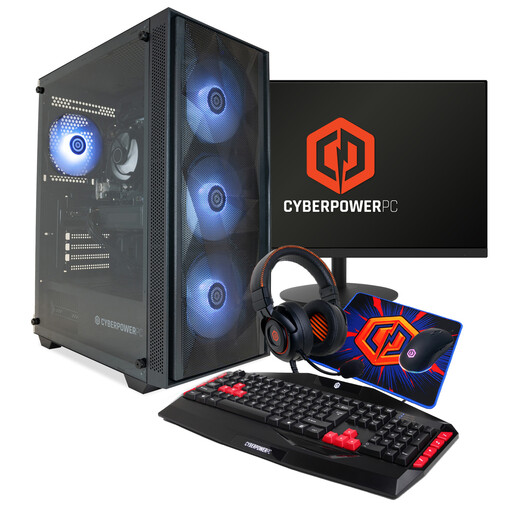
CyberPowerPC JOYB1004 Gaming PC Bundle
Consider this Windows 11 Home bundle if you are setting up a PC gaming space and want to assess Microsoft family settings alongside the child’s individual games. It lists an AMD Ryzen 5 7500F, NVIDIA GeForce RTX 5060 8GB, 16GB DDR5 and a 1TB NVMe SSD, plus a monitor, keyboard, mouse, headset and mousepad. Confirm the exact monitor and peripheral specifications, and check controls in any third-party launcher the child will use.
View on Joybuy
 No image available
CyberPowerPC JOYB1013 Gaming Desktop PC, White
This Windows 11 Home desktop is an option if your household intends to set up a child’s PC gaming account and check controls service by service. Its listed configuration is an AMD Ryzen 7 9800X3D, NVIDIA GeForce RTX 5080 16GB, 32GB DDR5 and a 2TB NVMe SSD. Plan for a monitor and peripherals separately, and check the settings in each game launcher and chat service.
View on Joybuy
 No image available
CyberPowerPC JOYB1010 Gaming Desktop PC, Black
This Windows 11 Home desktop suits a household prepared to configure a child account and review controls across the PC services the child will use. Its listed configuration is an Intel Core Ultra 7 265KF, NVIDIA GeForce RTX 5070 12GB, 32GB DDR5 and a 1TB NVMe SSD. Plan for a monitor and peripherals separately; Microsoft family settings should not be assumed to cover every third-party game or chat service.
View on Joybuy
Common questions
Should my child use an adult gaming account if I enable parental controls?
Use the child’s own account with their correct age where the platform provides child accounts. Ofcom says correct age registration helps services apply relevant age-based restrictions; PlayStation, Apple and Microsoft also describe controls linked to child or family accounts.
Can parental controls replace conversations about online gaming?
No. Ofcom advises parents to review settings and talk regularly with children about what they play and who they play with. Use controls alongside household rules and a way for the child to raise concerns about online interactions.
Does every online multiplayer game need a paid membership?
No single membership rule covers every game and platform. Nintendo says certain Switch and Switch 2 games require Nintendo Switch Online for online play, while PlayStation includes online multiplayer in PlayStation Plus memberships. Check the exact game’s requirements before subscribing.
Can I approve purchases made on my child’s device?
Approval or spending controls are available in several family systems, but their coverage differs. Xbox describes purchase approval, PlayStation describes child spending limits, Apple offers Ask to Buy, and Google Family Link supports approvals for purchases through Google Play billing. Check which store or payment route the game uses.
Are mobile-network parental controls switched on automatically?
Not necessarily. Ofcom says UK mobile providers offer free parental-control services for under-18 content, but the controls may not already be enabled. Check the mobile-provider account or ask the provider about its settings.


