Who is choosing?
The device decision changes depending on whether the household is choosing a first setup, adding voice chat or managing a shared device.
Families choosing a first gaming setup
A console, tablet and computer offer different routes to online games. Start with the intended games, then check the available child-account settings for content, playtime, communication and purchases. Ofcom’s UK research identifies both online gaming and internet access through tablets and games consoles as part of children’s online use.
Families considering multiplayer voice chat
If a child wants to talk to friends while playing, check the game’s chat options and the platform’s communication permissions before choosing a headset. The UK Government’s Kids Online Safety campaign notes that game chat can also allow contact with strangers.
Families sharing devices or payment methods
A separate child account makes it possible to apply the relevant family settings instead of relying on an adult profile. Check how the chosen platform handles purchases and whether restrictions apply to an individual account or the whole device.
What should you check?
Settle the games and multiplayer requirements before choosing hardware. Then check the account controls on the exact platform and add accessories only for a clear use.
Games console
Consider it when: The intended games and friends’ multiplayer platforms fit the console you are considering.
Check carefully: Restrictions differ by platform; Nintendo UK says its Switch console controls apply to the whole console, not separately to each user.
Tablet
Consider it when: The child’s intended games are available as tablet apps and their online features meet the household’s needs.
Check carefully: On an iPad, Apple’s family controls require the child’s own Apple Account in Family Sharing; review purchase and communication settings as part of setup.
Windows computer
Consider it when: The required games are PC-based and the computer meets those games’ stated requirements.
Check carefully: Microsoft says a child with administrator rights can change or break Family Safety settings, so use a standard child account.
| Priority |
What to check |
Your needs |
| Game access |
Confirm each intended game runs on the exact device. Check multiplayer access, friends’ platforms and any account or online-play requirements. |
I want my child to play their intended games with friends, rather than choose a device on the assumption that every online game works on it. |
| Communication |
Review who can contact the child through the platform and the game. If voice chat is needed, check the headset’s connection, microphone and game-chat compatibility. |
Voice chat matters in our household, but I want to decide who can communicate with my child before adding a headset. |
| Purchases |
Set up the child account and check available approvals, spending limits or in-app-purchase restrictions. Review access to adult profiles and saved payment methods. |
I want downloads and purchases to follow our household rules, including when the device is shared. |
| Age suitability |
Read the exact game’s PEGI age label and content descriptors. Set the platform’s content restrictions and review the game’s online features separately. |
A game’s content should suit my child, and I also need to check how its online interactions work. |
| Playtime |
Check whether the platform offers child-account time limits or activity settings and which devices those settings cover. Confirm they apply to the account the child will use. |
Our household needs a way to manage playtime without assuming that a setting on one device covers every device. |
Relevant platform brands
These platform controls are useful reference points when choosing a setup; their availability here does not imply that a particular device is included in the product options below.
PlayStation
Relevant when the child will use a PlayStation console and the family wants to manage a child member’s game access, communication and spending.
- Sony Interactive Entertainment says the PlayStation Family app includes controls for games and apps, online communication and monthly spending limits.
- Check the intended game’s own online and chat features as well as the child member’s platform settings.
Xbox / Microsoft
Relevant to Xbox households and families considering a Windows gaming computer.
- Microsoft describes family settings for Xbox communication and app or game limits across connected Windows and Xbox devices.
- The child needs the relevant family account; Microsoft warns that a child with administrator rights on a Windows computer can change or break Family Safety settings.
Nintendo
Relevant when choosing a Nintendo Switch setup and considering console restrictions alongside account-level purchase settings.
- Nintendo UK describes playtime, age-rating and player-communication restrictions for Switch, with eShop content and purchase restrictions managed through Nintendo Account settings.
- Nintendo says console parental controls apply to the whole console rather than to each individual user, an important distinction for a shared device.
Apple
Relevant when considering an iPad for app-based games in a household using Apple Family Sharing.
- Apple describes Screen Time controls for accessible apps, content and communication, alongside Ask to Buy and in-app-purchase settings.
- Apple says each child needs their own Apple Account in the family group; check the device’s software and the exact game’s account and chat requirements.
Joybuy headset options
These options cover gaming headsets, not the choice of console, tablet or computer. Consider one only if the child needs voice chat, and check its connection and microphone with the intended device and game before buying.
 No image available
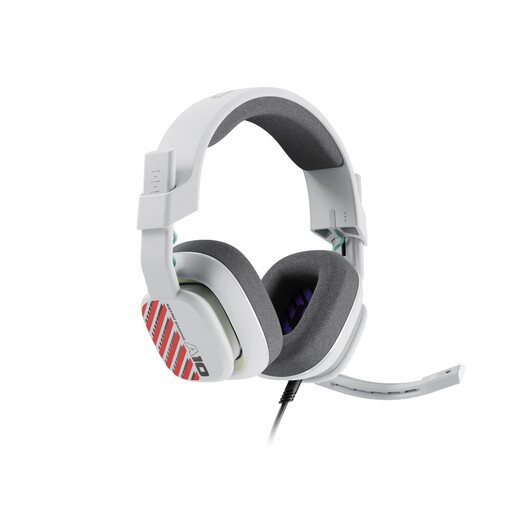
Logitech ASTRO A10 Gen 2 wired headset, white
A wired headset to consider when voice chat is needed. Check that its audio and microphone connections work with the child’s device and intended game; set communication permissions separately.
View on Joybuy
 No image available
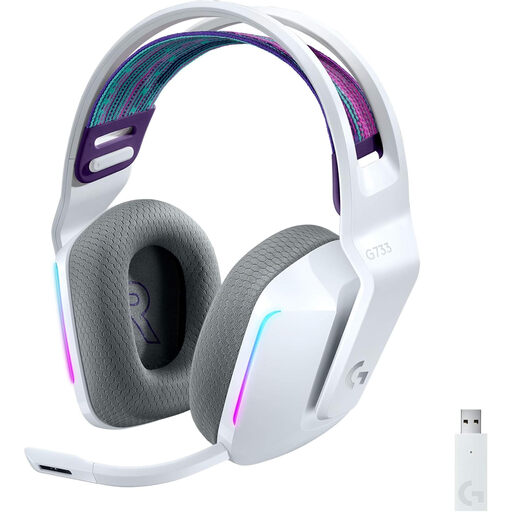
Logitech G G733 LIGHTSPEED wireless headset, white
A wireless option for a household that needs voice chat. Confirm how it connects to the chosen device and whether its microphone works in the intended game; do not assume wireless compatibility across platforms.
View on Joybuy
 No image available
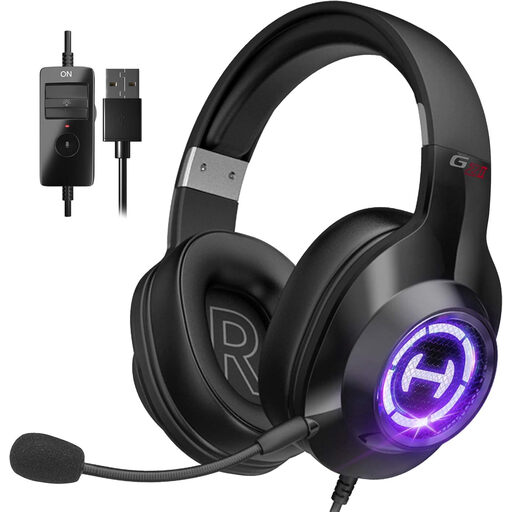
Edifier G2II USB-wired headset for PC and PS4, black
The title identifies a USB-wired headset with 50 mm drivers and a microphone for PC and PS4 setups. Check microphone and game-chat support on the exact device; the platform’s contact settings still need configuring.
View on Joybuy
 No image available
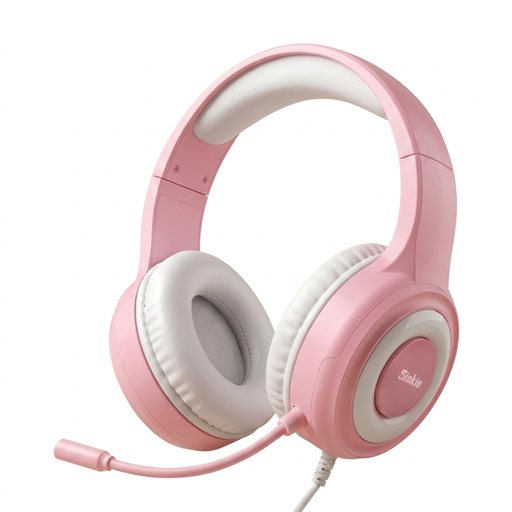
Siukie CH25 wired headset, 50 mm, blue LED
This headset is described with a microphone, USB and 3.5 mm connections. Check which connections the child’s device needs for both sound and microphone input, and confirm chat support in the intended game.
View on Joybuy
Common questions
What does a PEGI rating tell me before choosing a game?
PEGI’s age label and content information help you assess whether a game’s content is suitable for your child. Check the exact game’s rating and descriptors, then review its online communication and purchase features separately; the label does not configure those settings.
Is a console’s parental-control menu enough without a child account?
Do not assume console settings and child-account settings do the same job. PlayStation and Xbox use family-member settings for child controls, while Nintendo UK says Switch console restrictions apply to the whole console and eShop purchase restrictions are managed through Nintendo Account settings. Check both levels on the platform you choose.
Does every child who games online need a headset?
No. Consider a headset when voice chat serves a particular game or group of friends, then check its connection and microphone with that device and game. Set the child account’s communication permissions and review the game’s own chat controls before enabling it.
How can I manage purchases on an iPad or console?
Use the purchase controls available for the child’s account and check the setting on the chosen platform. Apple describes Ask to Buy and in-app-purchase restrictions; Sony Interactive Entertainment describes PlayStation child-member spending restrictions; Nintendo UK directs families to Nintendo Account settings for eShop purchase restrictions. Keep adult-profile access separate on a shared device.
What should I check before choosing a Windows gaming computer?
Check the intended games’ PC requirements and online features, then set up the child as a standard user in the relevant Microsoft family group if you plan to use Family Safety. Microsoft says its app and game filters work on Windows and Xbox, and warns that an administrator account can change or break Family Safety settings.


