Choose the device and account setup that let you manage the parts of online play that matter most to your household. PlayStation, Xbox, Nintendo Switch and supervised tablet setups offer different ways to manage content, communication, spending and play time; some settings depend on a child account, parent app, store or individual game. Parental controls add boundaries and oversight, but cannot guarantee online safety.
Who is this for?
Parents prioritising communication boundaries
If chat, contact with strangers or multiplayer access is the deciding issue, compare the child-account and game-level settings before choosing hardware. Ofcom identifies strangers and bullying among parents’ concerns about online gaming.
Parents managing content and spending
If age ratings, downloads or in-app purchases matter most, check both the child’s account and the payment route used by their games. PEGI recommends using parental controls for age, spending and online access, while platform tools differ in what they cover.
Parents overseeing shared or multi-device play
If a console is shared or a child plays on more than one device, establish whether limits apply to each child, the whole console or a supervised account. Nintendo’s general Switch restrictions, for example, apply to the console rather than individual users.
Which controls matter most?
Decide which boundary you need to manage first, then check where that setting lives: on the child account, in a parent app, in the store or inside the game. The routes below differ most in how families set and apply those boundaries.
PlayStation
Consider it when: You want a console with separate child accounts and per-child communication, content, play-time and spending settings, as described by PlayStation.
Account requirement: A family manager must set up the child account; PlayStation also advises protecting the adult account and requiring a checkout password.
Xbox
Consider it when: Your household uses Xbox and Windows devices and wants family-group settings for content, screen time, social features and multiplayer.
Account requirement: The child must belong to the Xbox family group; Xbox says app features can vary by locale.
Nintendo Switch
Consider it when: Handheld play matters and console-wide content and play-time rules would work for everyone using the device.
Shared-device limit: Nintendo sets general parental controls for the console, not each user; eShop restrictions use the Nintendo Account.
iPad
Consider it when: You also want a general-purpose tablet and can use Apple Family Sharing, a Child Account and Screen Time.
Setup requirement: Apple says updated Screen Time controls need compatible current software across the family group; Ask to Buy applies to eligible requests.
Android tablet
Consider it when: A supervised Google Account and Family Link suit the apps and Google services your child will use.
Payment boundary: Google Play purchase approvals apply to purchases through Google Play billing, so check each game’s payment route.
| Concern |
What to check |
Who this matters to |
| Communication and multiplayer |
Check child-account limits for chat, multiplayer and user-created content, then check the intended games’ own settings. |
If my child plays with others online, I want to know who can contact them without ruling out every game with friends. Around 33% of consumers put communication boundaries first. |
| Age and content settings |
Check that you can create an account with the child’s correct age and set content restrictions; use PEGI information when assessing individual games. |
Before my child starts playing, I need their account and accessible content to reflect their age. For around 27% of consumers, that is the primary concern. |
| Spending and downloads |
Check store approvals or spending limits and whether they cover the games’ actual billing routes. |
I want to approve downloads or limit purchases without assuming one store setting covers every in-game payment. Around 20% of consumers make spending controls their first priority. |
| Play time and oversight |
Check whether limits apply per child, per app or to the whole console, and whether reports need a parent app. |
When devices are shared or play moves between them, I need limits I can manage without changing everyone else’s access. Play-time and oversight needs come first for around 20% of consumers. |
Setup mistakes to avoid
-
Letting the child use an adult account
Child-specific restrictions may not apply as intended on a parent’s account. PlayStation and Apple both describe separate child accounts as part of their family-control setups.
Create an account with the child’s correct date of birth, add it to the relevant family group and test the settings before online play.
-
Looking only for settings on the device
Some controls sit in a parent app, family account or store. Nintendo, for example, separates general console restrictions from Nintendo Account eShop restrictions.
Check where you set each needed limit, who can change it and whether the parent needs a compatible mobile device.
-
Assuming store approval covers every payment
Google says its Google Play purchase approvals apply to purchases made through Google Play billing, not necessarily another payment route used by a game.
Check the payment arrangements for the games and subscriptions your child intends to use, and secure the adult purchasing account.
-
Expecting separate limits for every Switch user
Nintendo states that general Switch parental controls apply to the console rather than individual users, which matters when family members share it.
Decide whether shared limits are workable before choosing a Switch; otherwise compare systems built around per-child account settings.
Relevant platforms and brands
PlayStation
A console account system for families who want to manage settings for each child.
- PlayStation describes child-account controls for communication, user-created content, play time, spending and browser access.
- These controls require family and child-account setup; PlayStation also recommends safeguards on the adult account.
Xbox
A family-group route for households considering Xbox and Windows use.
- Xbox describes age-based content, screen-time, social and multiplayer settings, with activity reports in its Family Settings app.
- The child needs to be in the family group, and Xbox notes that app-feature availability varies by locale.
Nintendo
A handheld and home-console route for families considering Nintendo Switch or Nintendo Switch 2.
- Nintendo documents content and play-time restrictions, app-assisted management and additional controls for Switch 2 GameChat.
- General parental restrictions apply to the console, not each user; eShop restrictions are managed through the Nintendo Account.
Apple
An iPad route when the family also needs a general-purpose tablet.
- Apple describes Screen Time controls for apps, content, communication and use time, plus Ask to Buy for eligible requests.
- Family Sharing and an individual Child Account are important to remote management; updated controls depend on compatible software.
Google
A supervised-account route for families considering a compatible Android tablet.
- Google describes Family Link tools for app and screen-time limits, account settings and content restrictions on supported services.
- Google Play purchase approvals apply to Google Play billing, so a game’s own payment arrangements need a separate check.
Joybuy product choices
These choices include two gaming consoles and a children’s tablet. Compare their account and game settings against the boundaries your family needs; a device name alone cannot establish which online interactions or payments you can manage.
 No image available
Xbox Series X 1TB Digital Edition Console, White
Consider this console if Xbox family-group settings for content, screen time, communication and multiplayer suit your household.
1TB Digital Edition; white. The child must join the Xbox family group, and some Family Settings app features vary by locale. Check purchase controls for the games and payment routes your child will use.
View on Joybuy
 No image available
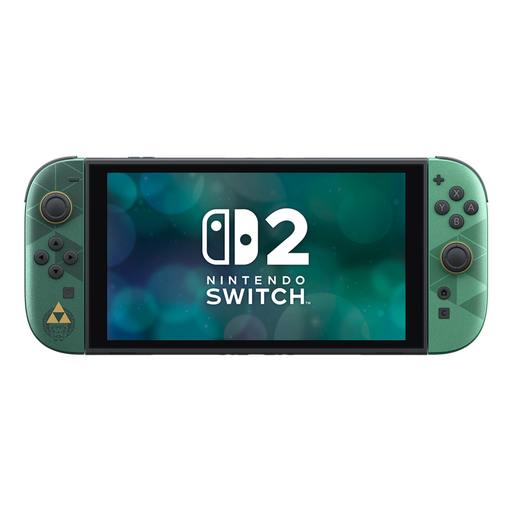
Nintendo Switch 2 The Legend of Zelda 40th Anniversary Edition Console
Consider this Switch 2 if handheld play matters and console-wide parental restrictions would work for everyone sharing it.
Nintendo sets general parental controls for the console rather than each user; eShop restrictions use the Nintendo Account. Check the account, app and service requirements for any online features, including GameChat, that your child intends to use.
View on Joybuy
 No image available
HONOR X8A Kids 11-Inch WiFi 128GB, Space Grey
Consider this tablet if you want a device for games as well as other apps, provided its controls cover your child’s intended use.
11-inch, WiFi and 128GB are stated in the product name. Check game and multiplayer compatibility, communication restrictions, purchase approvals and any account or companion-app requirements before choosing it for online play.
View on Joybuy
Common questions
Do parental controls make online gaming safe for a child?
No: they can restrict or supervise selected features, but cannot guarantee safety. Ofcom advises checking settings and account ages and talking regularly with children about their games and fellow players; PEGI also recommends discussion and agreed rules alongside controls.
Why give a child their own account instead of sharing mine?
A child account lets supported platforms apply age-related and family settings to that child rather than an adult profile. PlayStation calls for a separate child account for each child using its online services; Apple uses an individual Child Account in Family Sharing for Screen Time management.
Will I need an app or family group to manage the controls?
That depends on the platform and the controls you want to manage. Xbox uses a family group for its child settings, Nintendo places some Switch functions in its linked parent app, and remote tablet supervision relies on Apple Family Sharing or a supervised Google Account. Check the parent-device and connection requirements for your chosen setup.


