Buying priorities
Start with the device and game mode you want to use, then check connections, physical fit and accessories before choosing extra features.
| Priority |
What to check |
Your needs |
| Console video compatibility |
Check the monitor’s HDMI input, intended resolution, 120Hz, VRR and HDR support. For Xbox Series X 4K/120Hz, Xbox Support specifies an HDMI 2.1 display and an Ultra High Speed HDMI cable. Test with a direct connection before adding a receiver, soundbar or switch. |
I want the console, display and cable to support my chosen resolution and refresh mode together. On PS5, the Video Output screen can show the connected display’s detected resolution, VRR and HDR capabilities. |
| PC refresh and adaptive sync |
Compare refresh rate at the native resolution you plan to use, the required input and your graphics output. Where available, a VESA Certified AdaptiveSync Display value identifies the maximum Adaptive-Sync frame rate tested at native resolution in factory-default settings. |
Fast motion matters, but I need a mode my PC and games can actually drive rather than a lower-resolution boost mode that I will not use. |
| Audio and chat route |
Confirm the headset’s console connection method, microphone and chat functions, and whether it needs a supplied USB adaptor. A compatible wired headset can connect through the 3.5 mm port on an Xbox Wireless Controller with that port. |
I want game and chat audio that works with my console or controller, without relying on uncertain monitor-speaker support. |
| Desk fit and accessories |
Match an arm’s stated load and screen-size range to the exact monitor, as well as its VESA mounting pattern. For a replacement cable, match the category and length to the video mode you need. |
I need the display to fit the desk and sit at a comfortable position without buying an incompatible arm or underspecified longer cable. |
Joybuy product options
Joybuy gaming-monitor options for home desk setups where PC or console connections, refresh modes and screen positioning are central to the decision.
 No image available
LG UltraGear G8 27G850A 27-inch Dual-Mode Gaming Monitor
For a PC or console desk setup needing HDMI 2.1 and DisplayPort connectivity.
Listed specifications include a 27-inch 4K Nano IPS display, two HDMI 2.1 ports, DisplayPort 2.1, FreeSync Premium Pro and Dual Mode with 4K 240Hz or 1080p 480Hz operation.
Check the monitor manual and console video-output screen for the intended 4K/120Hz, VRR and HDR combination. The 1080p 480Hz mode is separate from the 4K 240Hz mode.
Joybuy
 No image available
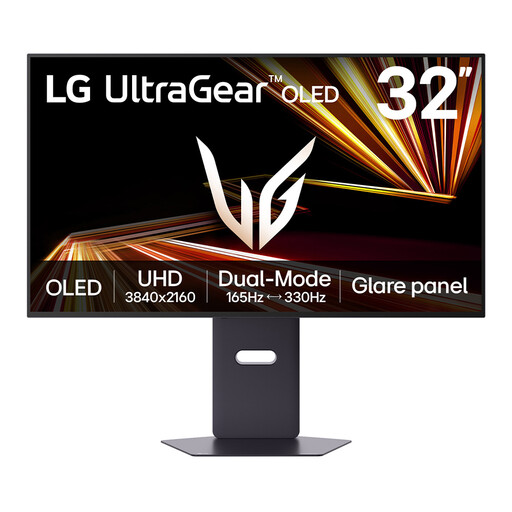
LG UltraGear 32GX850A-B 32-inch OLED Dual-Mode Monitor
For a permanent desk setup that alternates between detailed 4K play and lower-resolution high-refresh gaming.
The listing states a 32-inch OLED panel, HDMI 2.1, DisplayPort 1.4, 4K 165Hz and Full HD 330Hz Dual Mode, G-SYNC Compatible and FreeSync Premium Pro support.
Confirm the required resolution, refresh rate, VRR and HDR combination for your console. Follow the model’s OLED protection guidance and avoid prolonged static images.
Joybuy
 No image available
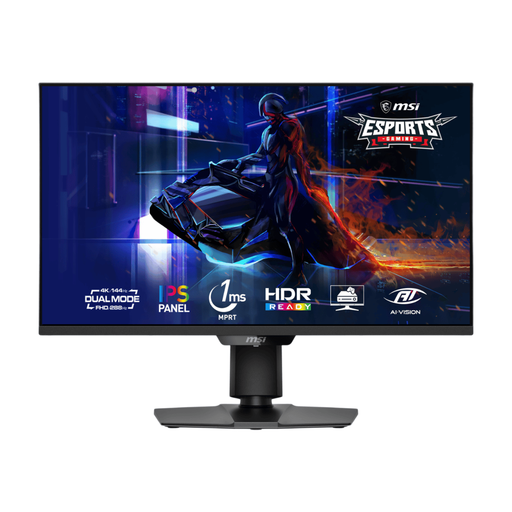
MSI MAG 275UPD E14 27-inch Dual-Mode Gaming Monitor
For gamers choosing between a 4K presentation mode and a faster Full HD mode on a compact desk display.
Listed features include two HDMI 2.1 ports, DisplayPort 1.4a, Adaptive Sync, VRR, ALLM, 100 mm VESA mounting and Dual Mode with UHD 144Hz or Full HD 288Hz.
Check the manual and console output information for the resolution, refresh, VRR and HDR combinations available through each HDMI input. The stated 288Hz mode applies to Full HD rather than UHD.
Joybuy
 No image available
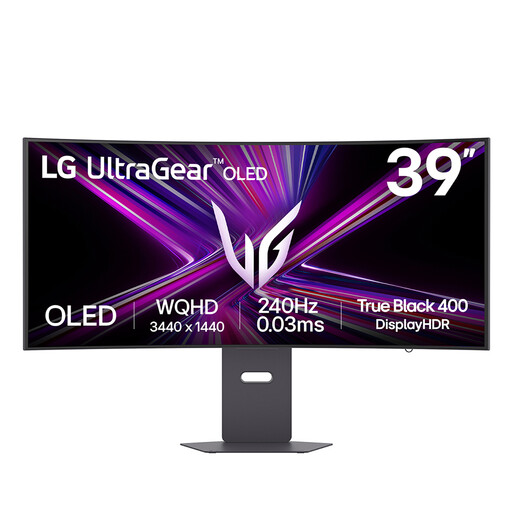
LG UltraGear 39GX900A-B 39-inch OLED QHD 240Hz Monitor
For PC gaming focused on a large panoramic screen and high refresh rate, with room for a substantial curved display.
The listing states a 39-inch 21:9 WQHD OLED panel at 240Hz, DisplayPort 1.4, HDMI 2.1, USB-C, dual 7W speakers, headphone output and an 11.4 kg weight.
The listing names PC, PS5 and PS4 use; check the desired console aspect ratio, refresh mode, VRR and HDR behaviour. Confirm desk space and an appropriately rated mount if you will not use the supplied stand.
Joybuy
 No image available
Dahua 32-inch 4K 165Hz Curved OLED Gaming Monitor
For a fixed PC or console desk setup that also needs peripheral and laptop connections.
Listed specifications include a 31.5-inch 4K QD-OLED panel at 165Hz, two HDMI 2.1 ports, DisplayPort 1.4, USB hub, Type-C 65W, audio output, dual 5W speakers and 75 × 75 mm VESA mounting.
Verify the exact console mode for 4K/120Hz, VRR and HDR before buying. For an arm, match both the stated VESA pattern and the monitor’s dimensions to the arm’s rated limits.
Joybuy
Frequently asked questions
Do I need HDMI 2.1 for 4K gaming at 120Hz on Xbox Series X?
Yes. Xbox Support states that 4K gaming at 120Hz on Xbox Series X requires the console, an Ultra High Speed HDMI cable supporting HDMI 2.1, and a TV or display supporting HDMI 2.1. If the display does not support HDMI 2.1, 120Hz may still be available at a lower resolution.
How can I check whether a PS5 monitor supports the mode I want?
Open Settings, then Screen and Video, then Video Output on the PS5. PlayStation says the console can show information for the connected HDMI device, including resolution, VRR and HDR; 1440p testing and 120Hz settings are also available for compatible displays. Results still depend on the display and game.
Can I put a receiver, soundbar, switch or adapter between my Xbox and monitor?
Only rely on an intervening device after confirming that its exact pass-through specification supports your required video mode. Xbox Support advises connecting directly to the display for the best video quality because receivers, soundbars and other devices can affect video features and quality.
Will an ordinary Bluetooth headset work as an Xbox console headset?
Do not assume so. Xbox Support distinguishes Xbox Wireless pairing with the console from Bluetooth connections to Windows, Android, iOS and smart-TV devices. A compatible wired headset can also connect through the 3.5 mm port on an Xbox Wireless Controller that has that port.
What must I verify before fitting a monitor arm?
Check the exact monitor’s mounting information and weight, then compare them with the arm’s supported load and screen-size range. VESA’s FDMI standard covers mounting interfaces, but it does not make every VESA-pattern monitor suitable for every arm.


