Choose the connection and microphone controls around the device you use to commentate: a wired PC setup can make use of software voice controls, while a wired headset with suitable connectors is worth considering if you switch devices. At a small desk, check how you will mute, route the cable and wear the headset through a full match; choose wireless for a genuine need to move or avoid a cable, while allowing for charging and connection management.
Who is this for?
PC commentators who tune their voice
If you produce commentary on a PC and are willing to configure microphone software, controls for noise reduction, compression and de-essing may matter to you. Logitech G specifies PC software requirements for these features on its PRO X Wired headset.
Commentators switching devices
If you move between a PC, console or mobile device, check the supplied connectors and how the microphone and mute control work with each intended connection. HyperX lists several connector options for Cloud III, but physical connection and software features are separate questions.
Commentators covering longer matches
If you expect to wear a headset throughout a match or extended coverage, compare stated weight, headband adjustment and ear cushions alongside your connection and microphone needs. Fit still needs a personal judgement; a weight figure alone cannot settle it.
What matters when choosing?
Start with the device and connection that will carry your commentary, then check the mute workflow and fit. A wireless connection can address cable routing, but a small desk alone does not make it necessary.
| Concern |
What to check |
Who this matters to |
| Voice and mute control |
Check the microphone controls, how mute is indicated and whether any voice-processing software works on your device. |
When I am speaking live, I need to know whether my microphone is muted without losing track of the match. Around 31% of consumers put voice and mute control first. |
| Long-session comfort |
Compare stated weight, headband adjustment and ear-cushion materials; consider whether you need to hear people nearby. |
For extended coverage, I need a fit I can tolerate through the session, not just an appealing audio feature. Comfort is the primary concern for around 25% of consumers. |
| Device connection |
Check your device’s jack or USB ports, the supplied connectors and any PC-only software requirements. |
If I switch commentary devices, I need the microphone to work through the connection I will actually use. Around 25% of consumers prioritise connection certainty. |
| Small-desk workflow |
Plan cable or receiver placement and decide whether room awareness matters more than earcup isolation. |
With equipment close to my seat, I want a workable cable route and need to decide how much of the room I must hear. Desk workflow comes first for around 19% of consumers. |
Buying pitfalls
-
Assuming a PC software feature works on consoles
A headset may connect to a device without bringing its software voice controls or virtual surround with it.
Match each desired feature to your operating system, connection and app. Logitech G limits Blue VO!CE and DTS Headphone:X 2.0 on PRO X Wired to PC use through G HUB.
-
Taking “multi-platform” to mean every connection is supplied
Connector options and microphone operation can differ between devices, even when a headset is described as suitable for several platforms.
Check your device’s port and the exact model’s included connections. HyperX lists 3.5 mm, USB-A and USB-C options for Cloud III; SteelSeries lists a 3.5 mm connection for Arctis Nova 1.
-
Choosing isolation without considering the room
Closed earcups may reduce distractions but can also make it harder to notice a nearby producer or equipment alert.
Decide what you need to hear while commentating. Razer describes the BlackShark V2 X USB’s closed earcups as providing greater sound isolation.
Brands to consider
Logitech G
The PRO X Wired line is relevant to PC commentary setups that use a USB sound card and software microphone controls.
- Logitech G lists Blue VO!CE controls including noise reduction, compression and de-essing.
- Its advanced microphone and DTS features require a PC running Logitech G HUB; do not assume they transfer to a console.
HyperX
Cloud III is relevant when a commentator needs to check wired connections across several device types.
- HyperX lists 3.5 mm, USB-A and USB-C options, earcup controls and an LED mute indicator for Cloud III.
- Those are Cloud III features, not specifications to assume for every HyperX headset; check microphone operation on your chosen device.
SteelSeries
Arctis Nova 1 is relevant to buyers comparing a wired 3.5 mm connection and stated fit details.
- SteelSeries lists Arctis Nova 1 at 253 g, with four-point adjustment and AirWeave memory-foam ear cushions.
- Its noise-cleaning microphone description refers to Sonar software; check whether your intended platform can use that function.
Razer
The BlackShark V2 X USB and wireless BlackShark V2 Pro offer different approaches to desk commentary.
- Razer describes the BlackShark V2 X USB with a cardioid noise-cancelling microphone, closed earcups and a 240 g weight.
- Its stated 7.1 surround feature is limited to Windows 10 64-bit. BlackShark V2 Pro is a separate wireless model; its microphone specifications should not be transferred to the V2 X USB.
Joybuy headset options
These wired and wireless headsets offer different starting points for match commentary at a small desk. Check the connection and microphone behaviour against your own commentary device before choosing.
 No image available
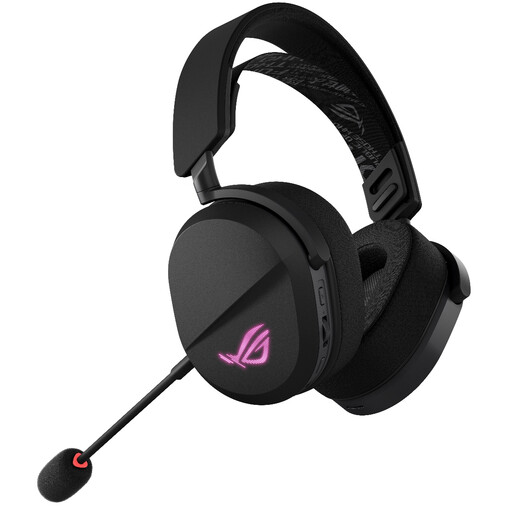
ASUS ROG Pelta Wireless Gaming Headset — Black
Consider this wireless model if avoiding a cable at the desk is important to your commentary setup.
Allow for charging, and confirm that its microphone works with your intended device and connection mode.
View on Joybuy
 No image available
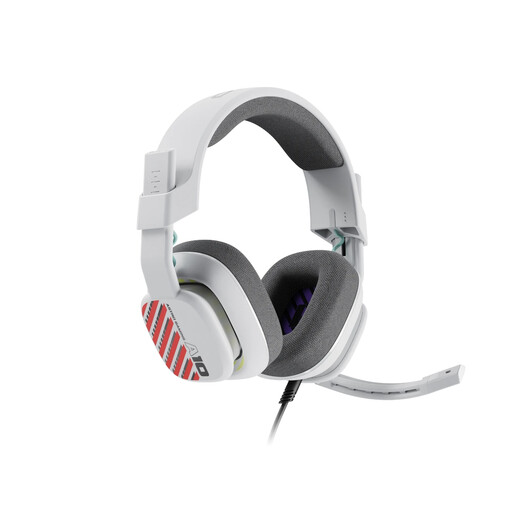
Logitech ASTRO A10 Gen 2 Wired Headset — White
Consider this wired option if you prefer a direct headset connection for commentary.
Check that your device accepts its 3.5 mm connection, whether you need the listed PC splitter and how the microphone works with your setup.
View on Joybuy
 No image available
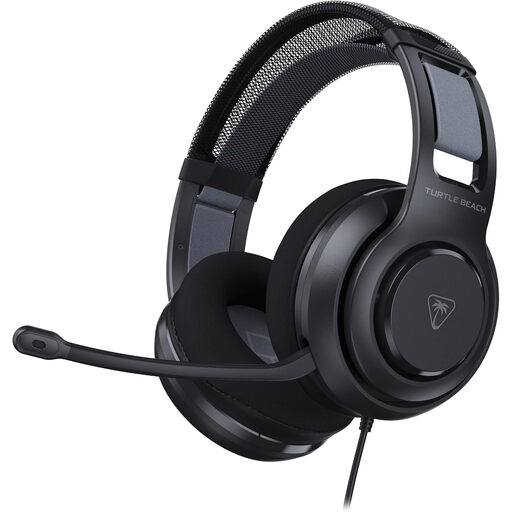
Turtle Beach Atlas 200 Multiplatform Gaming Headset — Black
Consider this wired model if you use more than one commentary device and want to assess fit for longer sessions.
Confirm that each intended device accepts the listed 3.5 mm connection and supports its microphone.
View on Joybuy
 No image available
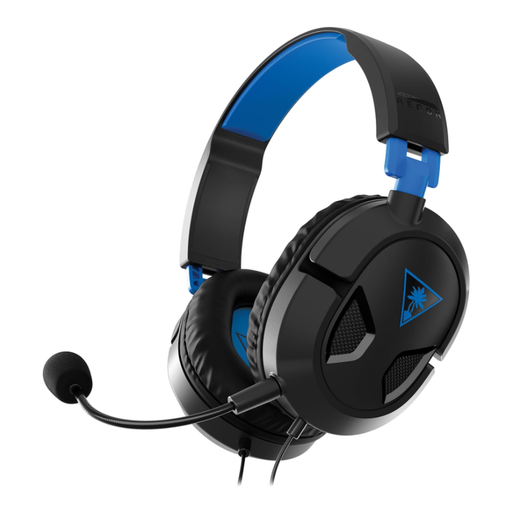
Turtle Beach Recon 50P Wired Headset — PS5/PS4
Consider this wired model if your commentary setup calls for a headset you can connect to the intended device.
Check its 3.5 mm microphone connection and whether your exact setup needs an adapter.
View on Joybuy
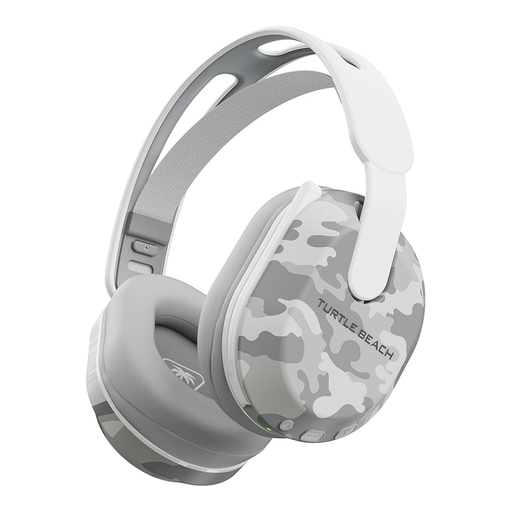 No image available
Turtle Beach Stealth 500 Wireless Headset for PS5, PS4 and PC — Arctic Camo
Consider this wireless model if cable placement is a concern at your desk.
Plan for charging and confirm that the microphone operates as you need on your chosen device and connection.
View on Joybuy
Common questions
Will a USB headset’s voice processing work on a console?
Do not assume that USB connection gives a console access to PC software features. Logitech G states that Blue VO!CE and DTS Headphone:X 2.0 on PRO X Wired function on PC through G HUB; check the platform and software conditions for any other model individually.
How can I tell whether I am muted during commentary?
Look for a mute control whose state you can confirm while speaking. HyperX lists earcup controls and an LED microphone-mute indicator for Cloud III; check how those controls behave with the connection you intend to use.
Should I choose 3.5 mm, USB-A or USB-C?
Choose a connection your commentary device accepts, then check microphone operation and software features separately. HyperX lists all three connection options for Cloud III, while SteelSeries lists a 3.5 mm connection for Arctis Nova 1; neither detail establishes how every feature works on your particular setup.


