Choose around the creative software you use regularly, not the gaming label alone: Adobe recommends at least 16 GB RAM for Photoshop on Windows, while the Blender Foundation recommends 32 GB RAM and 8 GB VRAM for Blender. A compact laptop can make sense if you carry it to classes; for a desk-based setup, compare larger screens alongside the exact display gamut, charger and space needed for a drawing tablet.
Who these laptops suit
Portable digital illustrators
If you take your laptop to classes and mainly paint 2D characters, a compact machine with adequate memory and a clearly specified display gamut may suit you. Check how much canvas space remains once your tools and references are open.
Hybrid 2D and 3D character creators
If Blender modelling, sculpting or rendering is a regular part of your work, check RAM, GPU memory and supported rendering backends as well as painting needs. The Blender Foundation recommends 32 GB RAM and 8 GB VRAM for Blender on Windows.
Desk-based student gamers and creators
If your student-room desk is your main workspace, a larger built-in screen may be worth the extra space taken by the laptop and charger. Allow room for a mouse or external pen tablet if you use one.
What matters when choosing
Start with your regular software workload, then decide how much built-in painting space you need and whether the complete setup will fit your room and journeys to class.
| Concern |
What to check |
Who this matters to |
| Memory and 3D work |
Check installed RAM, GPU VRAM and SSD capacity on the exact model. For GPU rendering, confirm that its graphics card and driver support the Blender backend you plan to use. |
If Blender sculpting or rendering will be a regular task, I need enough memory for that work rather than choosing solely for 2D painting. Around 42% of consumers put 3D headroom first. |
| Colour and canvas space |
Compare screen size, resolution and the named colour gamut. Check calibration or external-monitor requirements if your work has a colour-critical brief. |
When judging painted colours and keeping references beside the canvas, I care most about the screen I will actually use. For around 33% of consumers, the display is the primary concern. |
| Carrying and room fit |
Check laptop dimensions and weight, charger size, available desk space and the connections needed for a pen tablet or monitor. |
If I move between classes and a small desk, I need the laptop and drawing setup to fit both places. Room fit and portability come first for around 25% of consumers. |
Buying pitfalls
-
Treating every “100% colour gamut” label as the same
ASUS ROG UK specifies 100% DCI-P3 for the documented Zephyrus G14 GA403, while Lenovo UK and Acer United Kingdom specify 100% sRGB for the cited Legion 5i and Nitro V 16 configurations. Those labels describe different colour spaces.
Compare the exact panel specifications without dropping the colour-space name. If your course or client requires colour-critical output, check its calibration and external-display requirements.
-
Choosing memory for Photoshop when Blender is central
Adobe recommends at least 16 GB RAM for Photoshop on Windows; the Blender Foundation recommends 32 GB RAM and 8 GB VRAM for Blender on Windows. A 16 GB configuration meets the former memory recommendation but not the latter.
Choose for the more demanding software you use regularly, and check installed RAM and GPU VRAM on the exact laptop rather than relying on a series name.
-
Assuming a gaming screen accepts a pen
A dedicated graphics card does not tell you whether you can draw on the screen. Lenovo UK lists the cited Legion 5i 15 configuration as non-touch; the Blender Foundation also describes external pen tablets and displays as options for painting and sculpting.
If drawing directly on the laptop is essential, confirm touch and active-pen support for that exact model. Otherwise, check the connections and desk space needed for an external tablet.
An external tablet may also need a compatible cable or hub.
-
Leaving the charger out of the room plan
Lenovo UK specifies a 245 W power supply for the documented Legion 5i 15 configuration. The adapter, its cable and the laptop itself all need space at a student-room desk.
Check the exact model’s adapter and port placement, then plan where the laptop can sit with its ventilation unobstructed.
Brands to consider
ASUS ROG
For a portable, display-focused route, ASUS ROG UK documents a Zephyrus G14 (2026) GA403 configuration with a 14-inch 3K OLED panel, 100% DCI-P3 coverage and a 1.5 kg chassis.
- The documented panel specification gives colour-conscious illustrators a defined gamut to assess.
- A 14-inch screen leaves less built-in space for a canvas and references than the larger models discussed here. Check the specifications of the particular G14 configuration you choose.
Lenovo Legion
Lenovo UK documents a desk-oriented Legion 5i 15, SKU 83LY00H1UK, with a 15.3-inch 100% sRGB IPS display, 16 GB RAM, a 1 TB SSD and an RTX 5060 Laptop GPU with 8 GB GDDR7.
- Its stated screen, memory and GPU details make this exact configuration straightforward to compare with a painting-and-gaming workload.
- Its 16 GB RAM is below the Blender Foundation’s 32 GB Windows recommendation. Lenovo UK lists a 245 W power supply for this SKU; check the configuration and availability of any model you consider instead.
Acer Nitro
Acer United Kingdom documents a Nitro V 16 ANV16-41-R5Q3 configuration with a 16-inch 1920 × 1200 screen specified at 100% sRGB, 16 GB RAM and a 1 TB SSD.
- The stated screen size and sRGB coverage offer concrete specifications for comparing a larger painting workspace.
- This configuration’s 16 GB RAM falls below the Blender Foundation’s 32 GB Windows recommendation. Its stated sRGB coverage should not be read as a DCI-P3 specification.
Joybuy products for desk-based setups
These larger-screen laptops are choices to assess for painting at a student-room desk, with differing memory configurations for 2D and possible 3D work. Check each model’s display and drawing-device requirements before deciding; this list does not cover the compact route discussed above.
 No image available
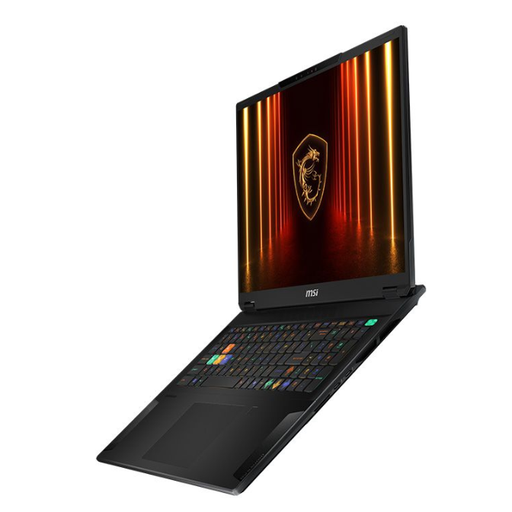
MSI Stealth 18 AI Studio A1VGG-001UK, 18-inch, 32 GB RAM, RTX 4070
Consider this larger-screen configuration if character work will mainly happen at a desk; check that an 18-inch laptop leaves room for your drawing tools.
Its named configuration includes an Intel Core Ultra 9 processor, 32 GB RAM and a 2 TB SSD. The Blender Foundation recommends 32 GB RAM for Blender on Windows; confirm the graphics-memory amount on this exact model if 3D work is central.
View on Joybuy
 No image available
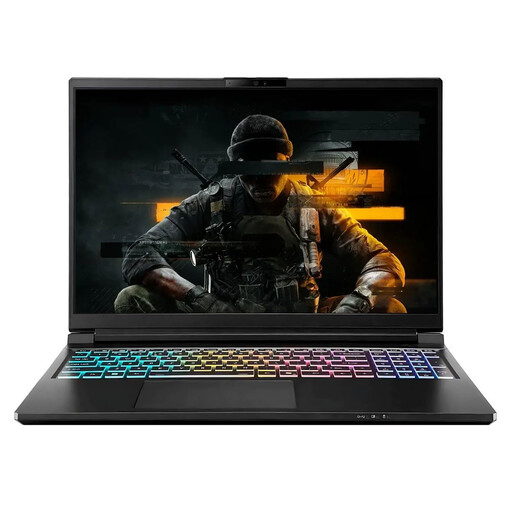
Stormforce Exobook 16 QHD+, Ultra 9, 32 GB, 4 TB, 5080
A 16-inch screen gives a desk-based painter space to arrange the canvas and references; check the panel’s colour gamut if the artwork has colour-critical requirements.
The named configuration has 32 GB memory and 4 TB storage. Confirm its exact graphics-memory capacity, charger and drawing-device connections for your intended Blender and room setup.
View on Joybuy
 No image available
Lenovo Legion Pro 7 16IAX10H 83F5000UUK, 16-inch, 64 GB, RTX 5090
If regular 3D work makes installed memory a priority, this 16-inch configuration is worth comparing with your software requirements and available desk space.
Its named specification includes an Intel Core Ultra 9 processor, 64 GB RAM, a 2 TB SSD and an NVIDIA GeForce RTX 5090. Check the exact GPU memory, panel gamut, charger and pen support before choosing it for a particular workflow.
View on Joybuy
 No image available
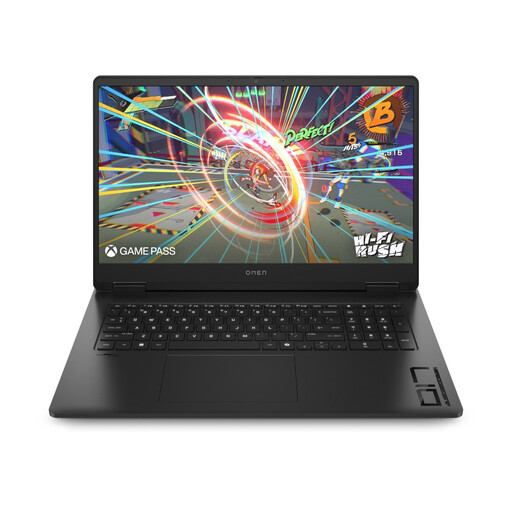
HP OMEN 17 17-db1000na, Ryzen AI 7 350, 16 GB, RTX 5060
For mainly 2D painting at a fixed desk, the 17-inch Full HD screen may appeal if you have space for a larger laptop.
The named configuration has 16 GB RAM and a 1 TB SSD. Its memory meets Adobe’s recommended Photoshop level on Windows but falls below the Blender Foundation’s 32 GB Windows recommendation; check upgrade options if Blender will be a regular task.
View on Joybuy
 No image available
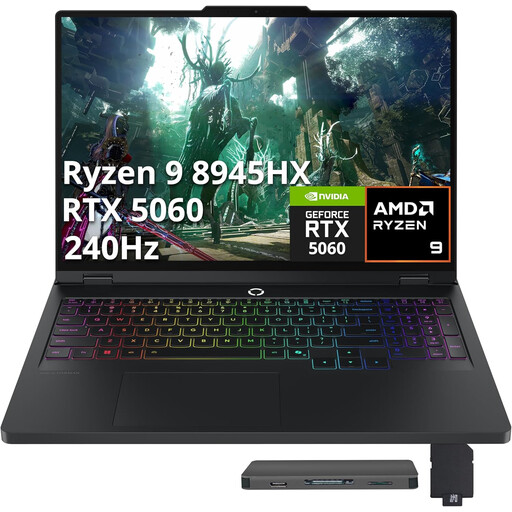
Lenovo Legion Pro 5 LEG P5 R9, 32 GB, 2 TB, 5060
This configuration is a desk-based option if installed RAM matters for your character-art workflow; do not use the graphics model number alone to judge its fit for Blender.
The named configuration includes 32 GB RAM and 2 TB storage. Check the exact GPU memory against Blender’s 8 GB Windows recommendation, as well as the panel gamut and room-fit details that matter to you.
View on Joybuy
Questions before you buy
Is 16 GB RAM enough to paint a game character?
It meets Adobe’s recommended Windows memory level for Photoshop, so it can be a starting point for a 2D-focused choice. If Blender is a regular part of your work, compare configurations against the Blender Foundation’s Windows recommendations of 32 GB RAM and 8 GB VRAM instead.
Do I need an RTX GPU for Blender character work?
Not necessarily: the Blender Foundation documents GPU-rendering backends for different supported graphics hardware. Check the exact GPU, operating system, driver and rendering backend you intend to use, along with the memory your scenes require.
Can I draw directly on a gaming laptop screen?
Only if the exact model supports the touch and active-pen input you need. Otherwise, an external pen tablet or display may provide a drawing surface; check its connections and the space it will take on your desk.
What should I check about graphics drivers for Blender?
Check that your graphics driver meets the requirements for your chosen Blender rendering backend. The Blender Foundation advises using current drivers from the graphics-card manufacturer; revisit compatibility after major driver or application changes.


