Choose a gaming laptop if the priority is reducing separately powered equipment: its built-in display removes the need to power a separate monitor for a basic setup. A desktop remains an option if you have room and safe power capacity for the tower and display, particularly if a compact chassis or future upgrades matter more. Whichever route you take, check the exact configuration against your game and display needs, and do not daisy-chain extension leads to make up for scarce sockets.
Who this setup suits
Players short of sockets
If one usable outlet must serve your playing area, the number of separately powered components matters alongside the extension lead’s marked rating. A laptop’s built-in display can simplify the layout, but its charger and anything else connected still count towards the load.
Desktop players with little room
You may prefer a separate monitor and desktop PC but need a smaller chassis for a shared room or narrow desk. A compact tower reduces the space it occupies; it does not remove the need to plan power for the monitor.
Players planning future upgrades
If your space and safe power arrangement can accommodate a tower and display, you may put more weight on the exact graphics configuration and whether the desktop supports the component changes you expect to make.
What matters when choosing
Gaming laptop
Choose it when: Reducing separately powered desk equipment is more important than having a separate monitor.
Trade-off: The built-in screen avoids a monitor plug, but the laptop still needs its charger for sustained play; displays, ports and graphics vary by configuration.
Compact desktop
Choose it when: You want a separate-monitor setup but have limited room for the PC itself.
Trade-off: A smaller chassis saves space, not monitor power, and expansion options depend on the exact model.
Upgrade-focused desktop
Choose it when: You can accommodate a tower and display and expect to change components later.
Trade-off: Plan power and space for the complete setup; an upgrade-oriented design does not establish how an unspecified arena game will run.
For any setup sharing an extension lead, Electrical Safety First advises checking its marked current rating and the combined load, using only one extension device per wall socket and never connecting extension leads together.
| Concern | What to check | Who this matters to |
|---|
| Socket use and safety |
Count powered components in the complete setup; check the extension lead’s marked rating against their combined load. |
If I have just one convenient outlet, I want fewer powered items without overloading it. Around 27% of consumers put this socket-and-safety need first. |
| Responsive online play |
Check the exact PC’s network ports and your display’s refresh rate; assess the connection available where you play. |
For online matches, I want a suitable display and a connection arrangement I can rely on, rather than a gaming label alone. This is the primary need for around 33% of consumers. |
| Game requirements |
Compare the exact CPU, GPU, memory and storage with your game’s published requirements and intended resolution. |
I want a configuration that meets the demands of my chosen game and display without selecting specifications I do not need. Around 27% of consumers make that their first concern. |
| Space and upgrades |
Measure the location and ventilation clearance; check the exact desktop’s expansion options and included accessories. |
If I want a desktop in a small space, I need it to fit now while leaving room for the changes I intend to make. Around 13% of consumers prioritise that combination. |
Mistakes to avoid
-
Treating a multi-way lead as unlimited sockets
More outlets on a lead do not increase its marked electrical capacity. Electrical Safety First warns that overloading can cause overheating and fire risk; some older leads and cable reels have lower ratings than others.
Check the rating printed on the lead and the combined load of connected equipment. Use one extension device per wall socket, without daisy-chaining leads.
-
Counting only the desktop tower
A compact PC may fit the desk while its separate monitor still needs power. Size and socket use are different constraints.
List the tower, monitor and any other powered accessories before deciding that a desktop setup fits your available outlets.
-
Reading PSU wattage as electricity use
The power-supply unit’s rated capacity is not a measurement of what a desktop draws from the wall during a match. MSI’s listed 500 W specification for MAG Infinite S AI 2nd configurations is a component rating.
Use documentation for the exact PC and monitor when planning their electrical load, then check everything connected to the lead against its marked limit.
-
Relying on a frame-rate claim for another game
Results for one title do not establish performance in your arena game at your chosen resolution and settings.
Start with your game’s published requirements and compare them with the exact PC configuration and display you intend to use.
Relevant brands to consider
Lenovo Legion
A gaming-laptop line worth examining when a built-in display would simplify your desk’s power layout.
- Lenovo UK lists a Legion 5i configuration with a 165 Hz display, 16 GB DDR5 memory, 1 TB SSD and a 245 W adapter.
- Those specifications belong to that configuration, not every Legion laptop. Check the display, graphics and charger for the exact model you choose.
HP OMEN
A desktop line to consider if you can power a separate monitor and value a tower designed with upgrades in mind.
- HP Store UK lists an OMEN 35L configuration with a Ryzen 7 7800X3D, 32 GB RAM, 1 TB SSD and RTX 5060 Ti 16 GB graphics; HP describes the range as upgradable.
- Plan monitor power separately and check upgrade compatibility for the particular configuration rather than applying these specifications to the whole range.
MSI MAG
A desktop line to examine if a wired-network option and the details of a tower setup matter to you.
- MSI UK lists MAG Infinite S AI 2nd configurations with Wi-Fi 6E, an RJ45 Ethernet port, 16 GB memory and a 1 TB SSD.
- The listed 500 W power-supply rating is not measured wall-power use; graphics configurations also vary.
Acer Nitro
A compact-desktop line for buyers who want a separate monitor but have limited space for the PC chassis.
- Acer United Kingdom describes the Nitro 20 as a 17.3 L compact gaming desktop.
- Acer’s range-level specifications include up to an RTX 5060 and up to 32 GB DDR5 memory. Confirm the exact configuration and remember that the monitor needs its own place in the power plan.
Gaming laptops with built-in displays
These Joybuy laptops represent the built-in-display route for playing with limited sockets. Compare each exact configuration with your game’s requirements, and allow for its charger and any other powered equipment in your setup.
 No image available
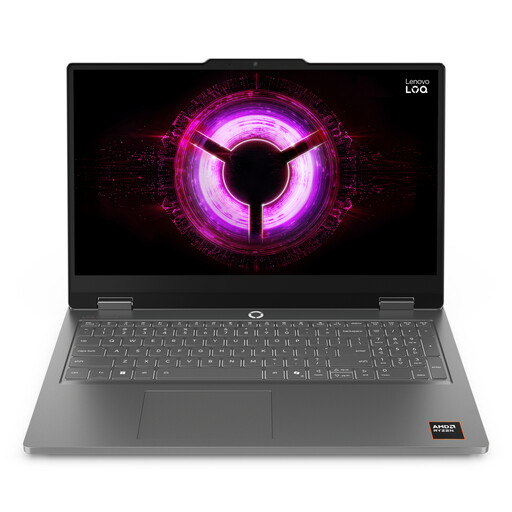
Lenovo LOQ Essential 15ARP11, Ryzen 7 170, RTX 5050
Consider this laptop if a built-in screen would remove the need for a powered monitor in your basic setup.
The listed configuration has a 15.6-inch FHD 144 Hz display, 16 GB RAM and a 1 TB SSD. Check its performance against your chosen arena game and include the charger when planning your electrical load.
View on Joybuy
 No image available
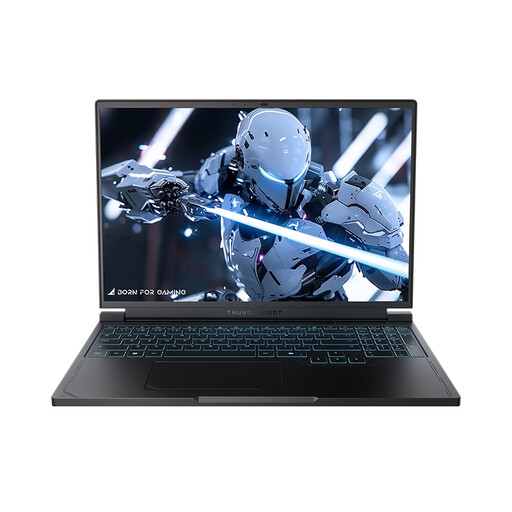
THUNDEROBOT Radiant S16, Ryzen 7 7745HX, RTX 5060
The integrated display suits a setup where you do not want to power a separate monitor.
This variant lists a 16-inch QHD+ 240 Hz display, 16 GB DDR5 RAM and a 1 TB SSD. The refresh-rate specification alone does not establish your game’s frame rate; check the game’s requirements and the charger’s rating.
View on Joybuy
 No image available
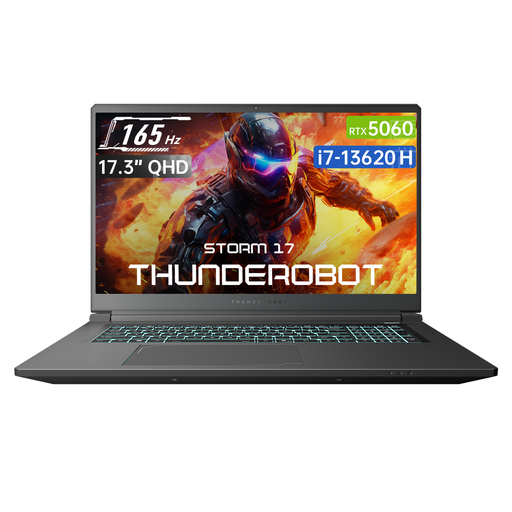
THUNDEROBOT Storm 17 5060, Core i7-13620H, RTX 5060
This built-in-display option avoids a separate monitor plug while offering a larger laptop screen.
Its listed configuration has a 17.3-inch QHD 165 Hz display, 16 GB DDR5 RAM and a 1 TB SSD. Check whether your game can meet your intended display target, and leave the laptop’s vents unobstructed on a hard, flat surface.
View on Joybuy
 No image available
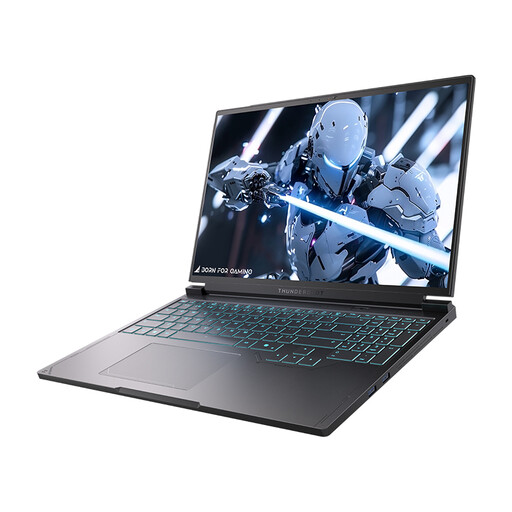
Thunderobot Radiant S16 5060, Core i7-13650HX, RTX 5060
Its built-in screen may suit a playing area where powering another display is impractical.
This Core i7-13650HX variant lists a 16-inch QHD+ 240 Hz display, 16 GB DDR5 RAM and a 1 TB SSD. Compare the exact configuration with your game’s requirements, check the charger’s rating and keep ventilation unobstructed.
View on Joybuy
 No image available
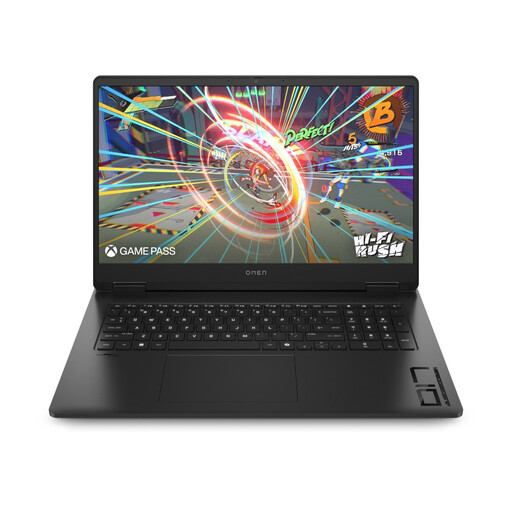
HP OMEN 17-db1000na, Ryzen AI 7 350, RTX 5060
This laptop keeps the display within the PC, rather than requiring a separately powered monitor for basic play.
Its listed configuration includes a 17-inch Full HD display, 16 GB RAM, a 1 TB SSD and Windows 11 Home. Check the exact display specification, your game’s requirements and the charger’s rating before settling the setup.
View on Joybuy
Common questions
Can an extension lead power my gaming PC setup?
It can, provided the combined load of everything connected stays within the lead’s marked rating. Electrical Safety First says most extension leads are rated at 13 A, but some older leads and cable reels may be rated at 10 A or less; check the lead you actually use.
Can I connect two extension leads to get more outlets?
No. Electrical Safety First advises using only one socket extension device per wall socket and not plugging an extension lead into another, because the wall plug can overheat and create a fire risk.
Will an Ethernet port guarantee better arena matches?
No. An RJ45 port offers a wired local-network option, but it cannot guarantee match performance. Ofcom notes that the in-building network and other connected devices can affect the speed a device receives; check broadband availability at your address and your own network arrangement separately.
What support terms should I check for a laptop or desktop?
Compare the warranty and repair arrangements for the exact model you intend to buy, including who handles support and how a repair is arranged. Product-family names alone do not establish the terms for a particular configuration.


