Dark-scene detail seekers
If clues, subtitles and environmental details are central to the games you play, start with the exact screen rather than a graphics specification alone. Check how the panel looks at the brightness you expect to use.


Choose the screen and viewing setup before deciding how much graphics power you need: check the exact laptop panel at a comfortable low brightness, then compare its configuration with the detective games you intend to play. An OLED screen is one option for dark scenes, but refresh rate and graphics specifications alone cannot establish how comfortable a particular laptop will be in your room.
If clues, subtitles and environmental details are central to the games you play, start with the exact screen rather than a graphics specification alone. Check how the panel looks at the brightness you expect to use.
If you regularly play in low ambient light, consider adjustable brightness, your preferred colour setting and where room lighting might cause reflections. A display choice does not replace a comfortable viewing setup.
If the laptop will move between rooms or travel with you, weigh its screen size against its carrying weight. A smaller screen may be easier to take along but gives maps, text and clue boards less physical space.
For detective games in a dark room, settle your screen and viewing needs before choosing a graphics configuration for the specific games and settings you plan to use.
| Concern | What to check | Who this matters to |
|---|---|---|
| Dark-scene visibility | Confirm the exact panel type and screen size; if possible, view a dark game scene at your intended brightness. | I need to read clues in dim scenes without choosing a screen on refresh rate alone. Around 40% of consumers put dark-scene visibility first. |
| Late-night viewing comfort | Try a comfortable low-brightness setting and position room lighting to avoid screen reflections. | If I play late, I want the screen and surrounding light to feel manageable throughout a session. Roughly 30% of consumers make viewing comfort their primary concern. |
| Game performance | Compare the exact CPU, GPU, RAM and storage with your games' requirements at your intended resolution and settings. | I want my chosen games to run at the settings I intend to use, without choosing graphics hardware solely by its tier. About 20% of consumers prioritise that performance fit. |
| Portability and screen area | Compare screen size and carrying weight, and consider whether you will usually play at a desk. | When I carry the laptop regularly, I need to decide how much viewing area I can give up for a smaller machine. Around 10% of consumers put that trade-off first. |
Manufacturer specifications can describe a product family rather than the laptop in a particular listing. ASUS, for example, describes different Zephyrus G14 configurations, so a family-level graphics specification does not identify every G14.
Match the retailer's full model number to the manufacturer's specification and check the panel, GPU, memory, storage, keyboard layout, charger and warranty for that configuration.
A 120 Hz or 240 Hz label describes refresh rate; it does not tell you how a particular panel presents a dim scene or looks at your preferred brightness.
Check the exact panel and, where possible, view it at a comfortable low setting. Consider refresh rate alongside the games you actually play.
Screen brightness and reflections are part of the viewing setup, not just laptop specifications. For workplace screen use, the Health and Safety Executive advises arranging screens and lighting to avoid glare and reflections; Microsoft Support explains how to adjust Windows display brightness.
Set a comfortable brightness, angle the screen away from reflections and consider a modest indirect room light. Take breaks during longer sessions.
Detective games differ in their system requirements. A laptop's GPU name alone does not establish the performance of a particular game at your chosen resolution and settings.
List the games you intend to play and compare their official requirements with the exact laptop's CPU, GPU and RAM.
The Zephyrus G14 is a compact-screen route worth considering if you want to carry a gaming laptop and still examine OLED configurations.
Lenovo's Legion and LOQ ranges offer gaming-laptop configurations to compare against the requirements of your chosen titles.
Acer's Helios Neo OLED models provide smaller- and larger-screen configurations to examine for this use.
The Blade 16 is a larger-screen OLED route to examine if you mainly play at a desk.
These listings offer different screen sizes and configurations for considering detective games in a dark room. The ProArt P16 is presented as a creator-focused laptop, so assess its fit for your games rather than assuming every model here serves the same gaming need.
 No image available
Consider this 16-inch model if you want more physical screen space for maps and written clues, while checking its display at the brightness you plan to use.
The named configuration has an Intel Core Ultra 9 processor, NVIDIA GeForce RTX 5090 graphics, 64 GB RAM, a 2 TB SSD and Windows 11 Home. Compare your games' requirements with this configuration rather than assuming the GPU name establishes game-specific performance.
 No image available
This creator-focused laptop is an option to assess if a 16-inch OLED touchscreen appeals to you for reading clues and maps; check your intended games before choosing it for gaming.
The named configuration has an AMD Ryzen AI 9 HX 370 processor, NVIDIA GeForce RTX 5080 graphics with 16 GB graphics memory, 64 GB RAM, a 2 TB SSD and Windows 11 Home. Check the screen at a comfortable low brightness if you expect to play in a dark room.
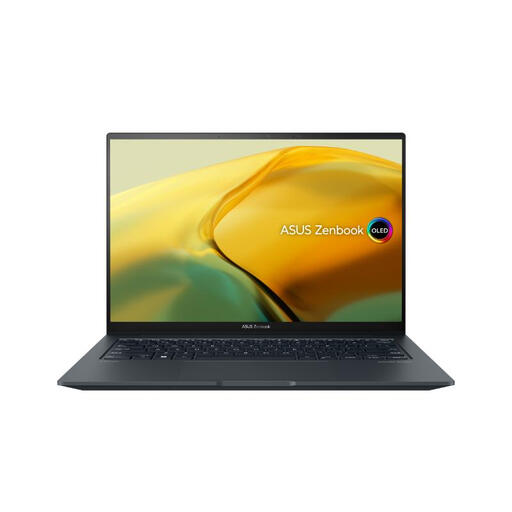 No image available
Consider this smaller OLED touchscreen if you will carry the laptop regularly, accepting less physical space for subtitles and clue boards than a 16-inch screen provides.
The named configuration has an Intel Core i9 processor, NVIDIA GeForce RTX 3050 graphics, 16 GB RAM, a 1 TB SSD and Windows 11 Home. Check your games' requirements and how the screen looks at your preferred low brightness.
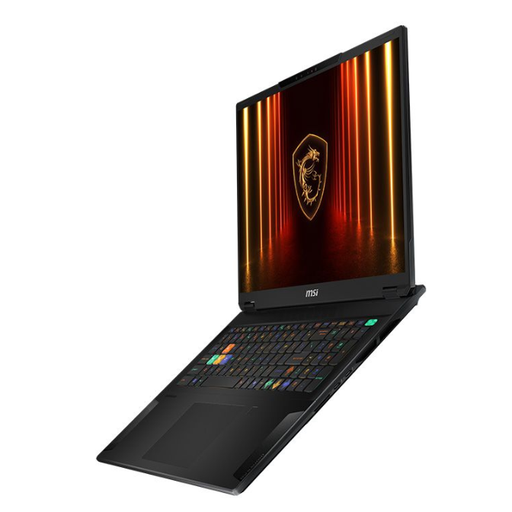 No image available
Consider this 18-inch laptop if you usually play at a desk and want ample physical space for text and evidence boards. Check the exact display's dark-scene appearance and low-brightness behaviour for your room.
The named configuration has an Intel Core Ultra 9 processor, NVIDIA GeForce RTX 4070 graphics, 32 GB RAM and a 2 TB SSD. Compare it with your games' requirements at your intended settings.
An OLED panel is not a reason to ignore the room setup. Set a comfortable screen brightness and position any room light to avoid reflections; for workplace screen use, the Health and Safety Executive also advises avoiding glare and taking breaks or changing activity.
Night light changes the display's colour setting, not its gaming performance. Microsoft Support describes it as making the display warmer; try it if you prefer that appearance late at night, but bear in mind that it changes how game artwork and colour clues look.
Not necessarily: choose refresh rate in the context of the games you intend to play, not as a substitute for assessing the panel. For dark-room detective games, also check the exact screen's presentation at a comfortable brightness, its size for reading clues and whether the laptop meets your games' requirements.