What matters when choosing?
1080p external screen
Consider this when: Your monitor or TV is 1080p, or you mainly use an older railway simulator and are willing to adjust visual settings.
Trade-off: It leaves less room to increase output resolution or detail later. The Train Sim World 7 Wiki lists 16GB RAM and an RTX 2060-class GPU for that game’s High 1080p target, not as a performance guarantee for a particular laptop.
1440p or 4K external screen
Consider this when: Higher output resolution and detail are central to the railway setup you want to run.
Trade-off: The Train Sim World 7 Wiki’s Epic 4K reference calls for 32GB RAM and a desktop RTX 5070 12GB- or RX 9070 16GB-class GPU. Check the actual laptop GPU, its graphics memory and your intended settings rather than treating a matching GPU name as equivalent.
Once you know the simulator and output resolution, check the connection to your screen and the space available for routes and add-ons. These are separate decisions: a capable internal display does not establish what the laptop can output externally.
| Concern |
What to check |
Who this matters to |
| Graphics at your chosen resolution |
Compare your simulator’s current requirements with the exact laptop GPU, its dedicated graphics memory and the installed RAM. |
If I want detailed scenery on a 1440p or 4K screen, I need to know whether the laptop fits my chosen game and settings. Around 37% of consumers put graphics headroom first. |
| External-screen connection |
Match the laptop’s documented HDMI or USB-C video output and supported mode to the screen’s input and desired resolution and refresh rate. |
For a desk setup, I need the large screen—and perhaps a separate display for maps or timetables—to connect as intended. Connecting external displays is the primary need for around 36% of consumers. |
| Routes, add-ons and multitasking |
Check supplied SSD capacity, M.2 expansion options and supported memory for the exact model. |
As my routes and add-ons grow, I want room for the library and any tools I use alongside the simulator. Storage and memory expansion come first for around 27% of consumers. |
Gaming laptops on Joybuy
These laptops represent two ways to approach a large-screen railway setup: a Legion Pro 7 configuration for a desk-based system with substantial listed memory and storage, and a LOQ configuration to assess against a more modest simulator and display target. Neither product specification establishes a frame rate for your chosen game.
 No image available
Lenovo Legion Pro 7 16IAX10H (83F5000UUK), RTX 5090, 64GB, 2TB
Consider this configuration if you are planning a desk-based railway setup and want substantial listed memory and storage for routes and other files.
The product name specifies a 16-inch model with an Intel Core Ultra 9 processor, 64GB RAM, a 2TB SSD, an NVIDIA GeForce RTX 5090 and Windows 11 Home.
Lenovo documents multiple external-display connections for the 16IAX10H platform. Confirm this part number’s supported output modes, including any display-stream compression requirements, against your monitor or TV; check the laptop GPU configuration against your simulator’s requirements.
Joybuy
 No image available
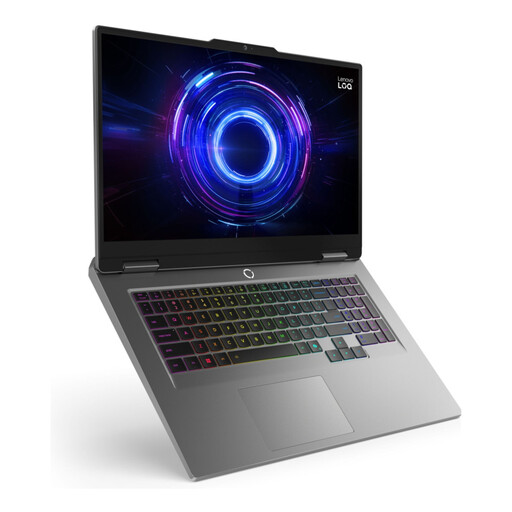
LOQ 17IRX10 i7-13650H, 24GB, 1TB, W11H
Consider this configuration for a more modest large-screen railway setup if its complete graphics and display-output specifications meet your chosen simulator and screen.
The product name identifies an i7-13650H configuration with 24GB memory, 1TB storage and the W11H variant designation.
Before choosing it for a particular monitor or TV, confirm the available video-output modes and compare the complete laptop configuration with the simulator’s requirements at your intended resolution.
Joybuy
Frequently asked questions
Do I need a 4K laptop screen to use a 4K monitor?
No. For an external 4K screen, check the laptop’s video output, the monitor’s input, the cable or dock and the GPU configuration against your simulator’s requirements. Lenovo documents HDMI and USB-C external-display support for the Legion Pro 7 16IAX10H platform, while ASUS ROG UK documents HDMI and USB-C display connections for the cited Strix G16 configuration; the exact supported modes still matter.
Will any USB-C port connect to my monitor?
No. Check that the particular USB-C port supports video output and that its documented mode fits your monitor. ASUS ROG UK explicitly lists USB-C display output and Thunderbolt 4 with DisplayPort support for the cited Strix G16 configuration; do not assume the same features on a different laptop.
How much RAM does a large-screen railway simulator need?
Start with the requirements for your chosen simulator and visual settings, rather than the physical size of the screen. The Train Sim World 7 Wiki lists 16GB RAM for that game’s High 1080p target and 32GB for its Epic 4K target; those are game-specific references, not requirements for every virtual railway.
What should I keep when buying a laptop online?
Keep the product listing, complete configuration, delivery details and cancellation information so you can refer back to what was offered. GOV.UK says online sellers must provide pre-contract information and describes a cancellation period for eligible distance purchases; change-of-mind cancellation is separate from remedies if goods are faulty, damaged or misdescribed.


