Bright-room rhythm players
If daylight or overhead lighting makes notes and menus hard to see, compare the exact panel’s brightness and surface finish before deciding which graphics configuration you need.


Choose the exact screen configuration before comparing graphics processors: check its stated brightness, glare or anti-glare finish, and refresh rate. A faster display can make motion appear smoother when the game and laptop can make use of it, but neither a high refresh rate nor a brightness figure alone establishes whether notes will remain readable amid reflections.
If daylight or overhead lighting makes notes and menus hard to see, compare the exact panel’s brightness and surface finish before deciding which graphics configuration you need.
If smooth motion matters most once the screen is readable, check the available refresh rate alongside your game’s requirements and the laptop’s ability to sustain your chosen settings.
If you play at different desks or might connect a monitor, check the exact laptop’s display outputs and the settings available for each screen. Microsoft Support explains that Windows lets you configure connected displays individually.
Start with whether you can see the game clearly in your room, then consider motion and timing, followed by any external-display setup you expect to use.
| Concern | What to check | Who this matters to |
|---|---|---|
| Screen readability | Check brightness in nits and whether the exact panel is labelled glare or anti-glare. Assess reflections in comparable lighting if they could affect play. | When room light obscures notes or lanes, I need a screen I can read before extra graphics capability matters. Around 50% of consumers put bright-room readability first. |
| Motion and timing | Check refresh rate at the selected resolution, then compare the intended game’s requirements with the laptop’s configuration. | If timing is my main concern, I want smooth, consistent play rather than a headline refresh rate I cannot use. Smoothness comes first for around 30% of consumers. |
| Setup flexibility | For an external monitor, confirm the laptop’s display outputs and the resolution and refresh rate supported by the complete connection. | I may play at more than one desk, so I need to know whether my monitor and connections will work together. Around 20% of consumers chiefly prioritise a flexible setup. |
A fast display does not establish how clearly you will see rhythm-game notes under your room lighting. ASUS ROG UK, for instance, specifies a 500-nit, 300Hz panel for one Strix G16 configuration, but those figures do not describe reflections.
Compare the exact screen’s brightness, surface finish, resolution and refresh rate before weighing graphics options.
Lenovo UK specifies both a 500-nit glare OLED Legion 5 Gen 10 configuration and a 500-nit anti-glare IPS Legion 5i Pro configuration. Their shared brightness figure does not make their finishes interchangeable.
Check brightness and finish together. If reflections could decide the purchase, inspect the selected screen in similar lighting or consult a model-specific reflectance test.
Microsoft Support notes that available Windows refresh rates depend on the display; some choices can also change the resolution. A screen’s maximum rate does not establish the frame rate your rhythm game will achieve.
Check the refresh rate available at your intended resolution and the game’s requirements before choosing a configuration for its headline figure.
These product-line examples show why the selected display configuration matters more than a brand name alone.
Lenovo UK lists Legion configurations with different screen finishes, making the line useful for comparing panel specifications.
ASUS ROG UK specifies a 16-inch, 500-nit, 300Hz IPS panel for a Strix G16 configuration relevant to players comparing motion-focused displays.
MSI UK specifies a QHD+ 240Hz display for the Crosshair A16 HX D7W, offering a model-specific refresh-rate reference.
These gaming-laptop configurations offer different built-in display and hardware choices for rhythm games. Compare the stated screen details with the lighting where you play; a listed refresh rate alone cannot settle bright-room readability.
 No image available
Consider this configuration if a stated built-in refresh rate matters, while checking how its screen looks under your room lighting.
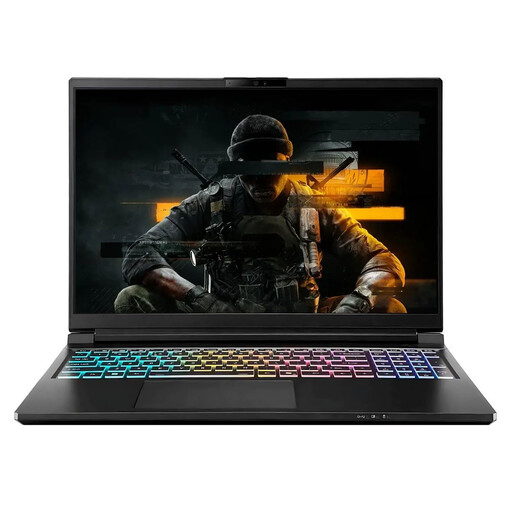 No image available
If this configuration interests you for rhythm games, establish the complete screen specification before deciding whether it suits a bright desk.
 No image available
Consider this configuration if its stated hardware meets needs beyond the screen, but assess the display separately for bright-room play.
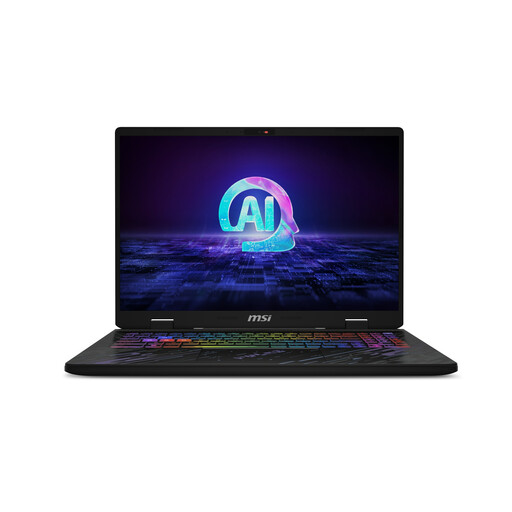 No image available
The stated display rate makes this a configuration to examine for smooth motion, provided the intended game and settings can make use of it.
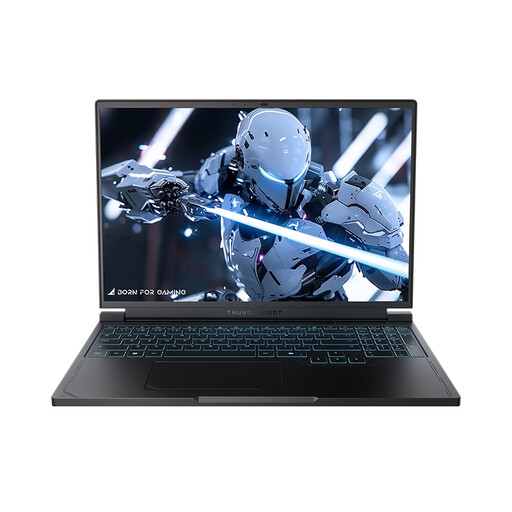 No image available
Consider its stated refresh rate for motion-focused play, while checking whether the screen remains readable in your lighting.
Open Settings, then System, Display and Advanced display, and select the screen you use for the game. Microsoft Support notes that the available rates depend on the display; choosing a rate marked with an asterisk can change the resolution.
No: a higher refresh rate can make motion appear smoother, but the game, resolution, settings and laptop performance determine how much of that rate you can use. Check the intended game’s requirements and any low-latency feature support before making those specifications a priority.
Yes, Windows supports configuring an external display, but the available resolution and refresh rate depend on the laptop output, connection and monitor. Microsoft Support explains how to adjust connected displays; check the exact laptop and monitor specifications before planning around that setup.
Use an appropriate electrical-waste collection route rather than household rubbish. GOV.UK says that when you buy a new electrical product, the retailer must accept an old like-for-like product free of charge; ask the retailer how to arrange take-back for your purchase.