A gaming laptop makes sense for shared-office UI design if your work also involves GPU-heavy creative applications, demanding local development or gaming; Figma’s predominantly browser-based workflow does not, by itself, call for a high-end gaming GPU. Prioritise the display, memory, monitor connection and carrying setup you will actually use, then check fan behaviour for the exact configuration before relying on it in a quiet office.
Who is this for?
Hot-desk UI designers
If you move between shared desks and meeting rooms, consider the laptop, charger and monitor connection as one carrying setup. A compact screen may suit the journey, while an external monitor can provide more room when you settle at a desk.
UI designers with graphics-heavy side work
Dedicated graphics and more memory are worth examining if your work extends to motion, 3D assets, other creative applications or gaming. Figma Help Center describes Figma as predominantly browser-based, so distinguish those additional workloads from interface design itself.
Desk-first work-and-play users
If the laptop usually stays at one desk, a 16-inch gaming model can give you more built-in screen space. Check whether its charger, screen reflections and desk footprint fit your workspace before accepting a less portable setup.
What matters when choosing?
Start with the applications you run alongside your design tool and where you work most often. Then assess the exact display and connection options, the equipment you will carry, and how the laptop behaves at a shared desk.
| Concern |
What to check |
Who this matters to |
| Design workspace and display |
Check the exact screen size, resolution, aspect ratio and finish. Confirm that its display output works with your intended monitor or dock; a stated colour gamut alone does not establish calibrated accuracy. |
If I compare layouts and keep design panels open throughout the day, I need usable screen space without troublesome reflections. Around 31% of consumers put the display and desk setup first. |
| Portability |
Compare the laptop’s listed mass and dimensions alongside the charger and adapters you would carry. Check the installed memory if a compact model uses fixed or onboard RAM. |
Moving between desks and meetings makes the whole kit, not just the laptop, important to me; roughly 31% of consumers prioritise that carrying burden. |
| Memory and graphics |
List your concurrent applications, then confirm installed RAM and the exact GPU configuration. Figma Help Center also advises enabling browser graphics acceleration where available. |
If local development, creative applications or gaming run alongside UI work, I want capacity for that combined workload. Around 23% of consumers make multitasking and graphics their primary concern. |
| Shared-office disruption |
Look for independent fan-noise results for the exact model under a relevant workload. Check exhaust placement and whether keyboard lighting can be adjusted. |
Working close to colleagues means I care about fan noise, warm exhaust and desk clutter during actual use; approximately 15% of consumers put minimising disruption first. |
Buying pitfalls
-
Buying a powerful GPU solely because the task is UI design
Figma Help Center describes Figma as predominantly browser-based and provides guidance on graphics acceleration. That does not make a high-end gaming GPU a requirement for every Figma workflow.
Write down the other applications you will run and choose graphics capacity for those tasks or for gaming, rather than for the job title alone.
-
Assuming every configuration has the same display
A model-family description may cover different memory and display configurations. For example, ASUS ROG lists distinct onboard-memory variants for the Zephyrus G14 (2026).
Match the seller’s exact model code to the installed RAM, panel resolution, stated colour gamut, screen finish, GPU and storage before ordering.
-
Judging portability by laptop weight alone
The power supply and any monitor adapters travel with you. Lenovo’s cited Legion Pro 7i Gen 10 UK configuration includes a 400 W three-pin adapter, a relevant consideration for frequent desk changes.
Check the full kit you would carry and the space it needs at your usual desk.
A larger charger or separate dock also adds to the equipment you need to carry and arrange each day.
-
Treating the laptop as the whole workstation
The Health and Safety Executive includes hot-desking in its display screen equipment guidance. For employees using display screen equipment daily as part of normal work for continuous periods of an hour or more, it says employers must carry out a workstation assessment.
Ask how your desk, chair, screen position and lighting will be assessed, and what monitor or dock is available for regular work.
Relevant brands to consider
ASUS ROG
The UK-listed ROG Zephyrus G14 (2026) illustrates a compact gaming-laptop route: ASUS ROG specifies a 14-inch 2880 × 1800 OLED display and USB4 with DisplayPort support for the cited GA403 family.
- Its listed 16:10 display and external-display connection are relevant to working across a laptop screen and monitor.
- The family includes different onboard-memory configurations. Check the exact variant, and do not infer quiet operation from its cooling description.
Lenovo Legion
Lenovo’s cited Legion Pro 7i Gen 10 UK configuration represents a desk-first route, with 32 GB RAM and a 16-inch 2560 × 1600 OLED display.
- The listed memory and larger built-in screen warrant consideration when several demanding applications share one workspace.
- That configuration includes a 400 W UK adapter, and Lenovo lists its display as glare; assess carrying needs and reflections at the intended desk.
Razer Blade
Razer’s UK Blade 14 information offers another compact gaming-laptop reference, listing a 2880 × 1800 OLED display and an approximate laptop weight of 1.63 kg.
- The listed screen and chassis size provide points to compare if you regularly move between workspaces.
- Razer lists fixed memory for the Blade 14, so choose the required configuration at purchase. Its size does not establish how quiet it will be under load.
Gaming laptops on Joybuy
These models cover compact 14-inch and larger 16-inch gaming-laptop choices for UI work with additional graphics or multitasking needs. Compare each exact configuration against your monitor setup and shared-office requirements rather than assuming that size or GPU name settles the choice.
 No image available
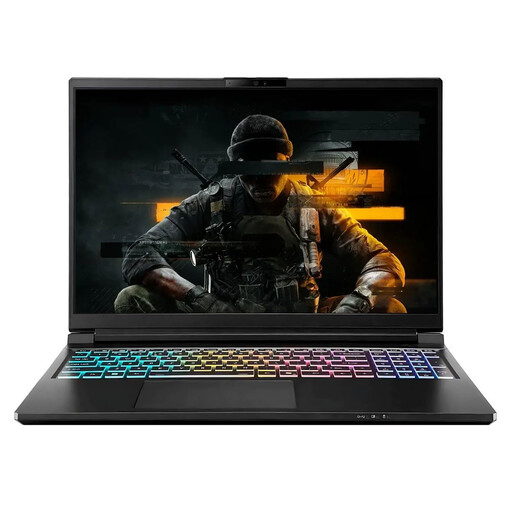
Stormforce Exobook 16 QHD+, Ultra 9, 32 GB, 4 TB, 5080
Consider this 16-inch option if you mainly work at a desk and want to assess a larger built-in display alongside 32 GB of memory and 4 TB of storage.
Confirm the shipped GPU before choosing it for graphics-heavy work: the available descriptions differ between RTX 5080 and “RTX 5080 or equivalent”. Check the supplied power adapter and independent fan-noise results for the exact configuration.
View on Joybuy
 No image available
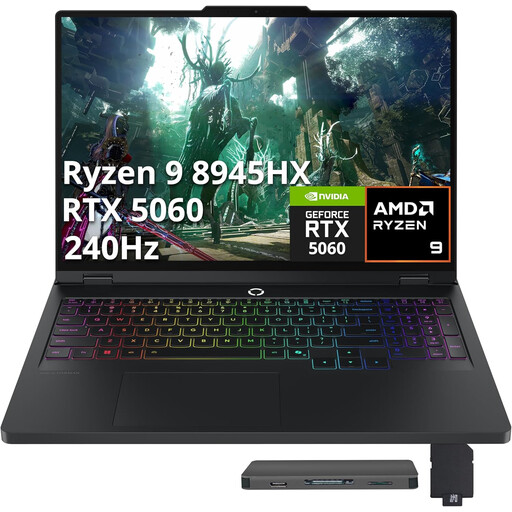
Lenovo Legion Pro 5 LEG P5 R9, 32 GB, 2 TB, 5060
This configuration is worth considering if concurrent design and development applications make its listed 32 GB of memory and 2 TB storage relevant to your work.
Check the exact panel’s colour and glare characteristics before using it for colour-focused work, and confirm its carrying setup and fan behaviour if you change desks often.
View on Joybuy
 No image available
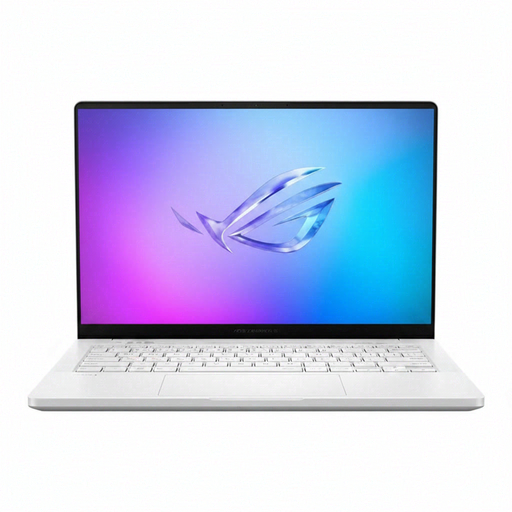
ASUS ROG Zephyrus G14 GA403WR-QS088W, RTX 5070 Ti, 32 GB, 2 TB, German Grey
The listed 14-inch format is worth examining if you move between shared desks but also want a configuration with dedicated graphics for other work or gaming.
This GA403WR-QS088W listing identifies a Ryzen AI 9 HX 370, 32 GB memory, a 2 TB SSD and RTX 5070 Ti graphics. Check its exact panel, external-monitor ports, charger and fan behaviour; specifications for another G14 variant should not be assumed to apply.
View on Joybuy
 No image available
Lenovo Legion Pro 7 16IAX10H 83F5000UUK, 64 GB, 2 TB, RTX 5090
Assess this 16-inch configuration if your workload genuinely calls for its listed 64 GB memory and RTX 5090 graphics as well as UI design.
Before choosing it for a shared desk, confirm the exact display finish, monitor connections, equipment you would carry and independent noise results. The specifications of a different Legion Pro 7i configuration do not establish those details for this model.
View on Joybuy
Common questions
Do I need a gaming laptop just to use Figma?
No: Figma Help Center describes Figma as predominantly browser-based and able to run on full desktop operating systems. Consider gaming-class graphics for additional creative applications or gaming, and check Figma’s browser graphics-acceleration guidance for the setup you intend to use.
Is a laptop screen enough for regular UI work at a shared desk?
A laptop screen may suit mobile sessions, but regular desk work calls for assessing the whole workstation, including screen position and lighting. The UK Health and Safety Executive says employers must carry out a workstation assessment when employees use display screen equipment daily as part of normal work for continuous periods of an hour or more; its guidance includes hot-desking.
Should I choose a 14-inch or 16-inch gaming laptop?
A 14-inch model is worth considering when carrying it between desks is the priority and you can use a suitable external monitor for longer sessions. A 16-inch model gives more built-in screen area if you are desk-first, but compare the exact screen, charger and overall carrying setup before deciding.
Will a thin gaming laptop be quiet enough for a shared office?
Do not assume so from its size or cooling description. Look for independent fan-noise testing of the exact configuration under work similar to yours, check its available operating modes and consider where its exhaust will point at the desk.


