Mobile 2D character painters
You mainly paint in Photoshop or similar software and move the laptop between workspaces. Check the exact display and the connections your drawing equipment needs before making portability the deciding factor.


For mainly 2D character painting, start with a laptop whose display, memory and connections suit your art setup; a compact model makes sense if you regularly move it. If your work includes Blender rendering or demanding 3D scenes, compare the exact graphics card and its memory as well as screen space. With limited sockets, confirm how the specific laptop charges: a USB-C port alone does not mean a smaller charger can power demanding work.
The right configuration depends on whether painting is chiefly 2D work, part of a 3D workflow, or one task in a shared gaming and art setup.
You mainly paint in Photoshop or similar software and move the laptop between workspaces. Check the exact display and the connections your drawing equipment needs before making portability the deciding factor.
Your painting sits alongside Blender or other GPU-assisted 3D work. The Blender Foundation notes that complex GPU-rendered scenes can be limited by graphics memory, so the exact GPU configuration matters alongside the screen.
You use one laptop for character art and games where wall sockets are scarce. Plan for the laptop charger, graphics tablet and other peripherals together, rather than assuming a USB-C port resolves the power arrangement.
Decide whether your primary constraint is charging and movement, 3D graphics, painting space or a sufficient 2D configuration. Then check the exact model rather than relying on a laptop family name.
| Concern | What to check | Who this matters to |
|---|---|---|
| Charging and portability | Confirm USB-C input charging, compatible charger requirements and ports for your tablet. Check whether demanding work requires the supplied adapter. | If I move my art setup between rooms, I need a charging arrangement that works where sockets are scarce. Around 36% of consumers put that practical constraint first. |
| Graphics for 3D work | Compare the exact GPU and graphics memory with the requirements of your scenes and intended Blender rendering setup. | When my character work includes 3D scenes, I need to know whether they fit the laptop’s graphics memory. Roughly 29% of consumers make 3D capability their primary concern. |
| Display and canvas space | Check the exact panel’s resolution, stated colour gamut and physical screen size. Adobe recommends at least 1920 × 1080 for Photoshop; a gamut specification is not proof of calibration. | For detailed 2D painting, I want room for the canvas and references without guessing what the panel offers. Around 21% of consumers prioritise the display and workspace. |
| Memory and storage | Check installed RAM, usable SSD space and upgrade options. Adobe recommends 16 GB or more RAM and 100 GB of available storage with a fast internal SSD for Photoshop. | If I mostly paint in 2D and also play games, I want enough room for projects without choosing graphics capacity solely for work I do not plan to do. About 14% of consumers put that balance first. |
A USB-C port does not establish whether the laptop accepts charging through it, at what wattage, or how it performs during graphics-heavy work.
Check the exact model’s documentation for USB-C input charging and compatible charger and cable requirements. Use a charger designed for the laptop unless its documentation confirms an alternative.
If you want a smaller charger for lighter work, you may still need to keep the supplied adapter for demanding sessions.
Electrical Safety First warns that overloaded plugs, adaptors and sockets can overheat and advises against connecting one extension lead to another.
Check the extension device’s marked current rating against the connected equipment. Use only one suitable extension device per wall socket, and charge the laptop on a hard, flat surface.
The Blender Foundation notes that GPU rendering can be limited by graphics memory in complex scenes. A graphics-card label by itself cannot tell you whether your intended scenes will fit.
Compare the exact GPU, its memory and the rendering backend you intend to use; check the relevant driver requirements as well.
Panel specifications describe stated capabilities, not the calibration of an individual laptop or its fit for a particular delivery workflow.
Check the exact panel specification. If the project requires dependable colour matching, plan for calibration or a validated external display.
Colour-critical work may also call for a calibration device or external display.
These product lines illustrate different sizes and specifications to investigate; features listed for one configuration do not apply automatically to every model in the line.
The ROG Zephyrus G14 (2025) family is a compact route for painters who move their laptop and want to investigate USB-C charging.
An OMEN Transcend 14 configuration provides a concrete compact option to compare for 2D painting and lighter GPU-assisted work.
The Predator Triton Neo 16 family is relevant when character painting extends into 3D and a larger laptop fits the workspace.
The Legion 7i Gen 9 is worth examining if you want a 16-inch laptop with a documented USB-C charging option for lighter work.
The Stealth 16 AI line offers a larger OLED configuration for buyers comparing painting space and GPU specifications.
These laptops offer different screen sizes and graphics configurations for character art and gaming. Compare their exact charging arrangements with your available sockets and drawing equipment before choosing.
 No image available
Consider this 15.6-inch option if you want a screen between compact 14-inch and larger 16-inch models for painting and gaming.
The listed configuration has a Ryzen 7 170, 16 GB RAM, a 1 TB SSD and a 144 Hz Full HD display. Confirm the charging method and your graphics tablet’s connection requirements before planning a limited-socket setup.
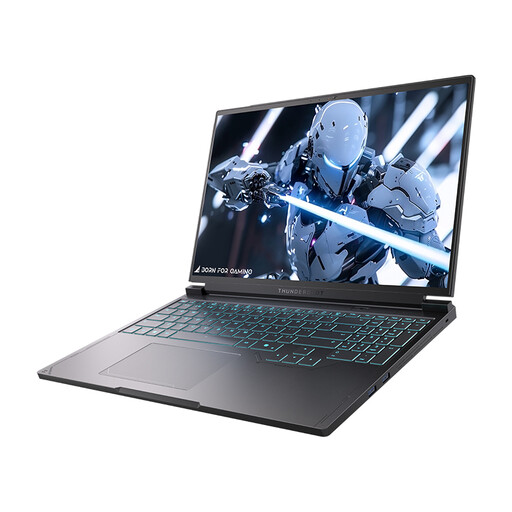 No image available
The 16-inch format is worth considering if you want more physical canvas space for character painting.
The listed configuration includes a QHD+ 240 Hz display, Core i7-13650HX, 16 GB DDR5 RAM and a 1 TB SSD. Check the exact panel’s colour specification, GPU memory and whether USB-C input charging is supported.
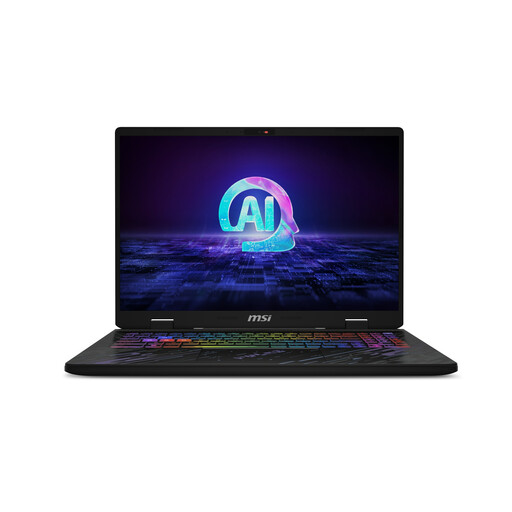 No image available
Consider the 16-inch screen if painting space matters alongside gaming and GPU-assisted work.
The listed configuration has a QHD+ 240 Hz display, Core Ultra 7 155H, 16 GB DDR5 RAM and a 1 TB SSD. Check graphics memory against your 3D projects, and confirm USB-C input charging before relying on a smaller charger.
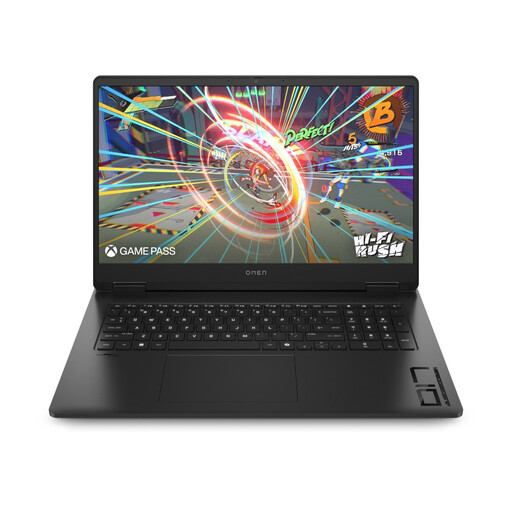 No image available
The 17-inch format suits a workspace where a larger laptop is acceptable and canvas area matters more than a compact footprint.
The listed configuration has a Full HD display, Ryzen AI 7 350, 16 GB RAM and a 1 TB SSD. Check the exact panel’s colour gamut and charging requirements for your painting setup.
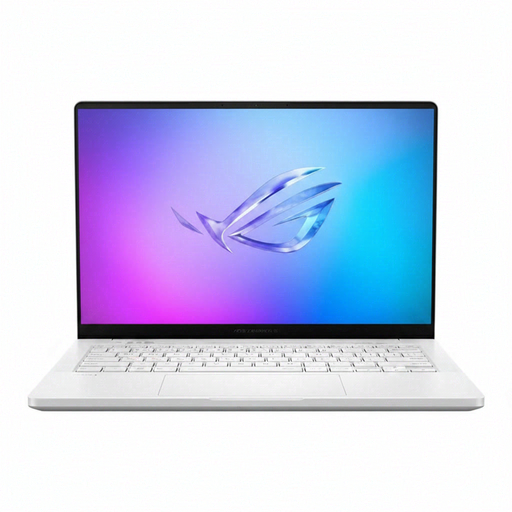 No image available
This 14-inch configuration is an option to examine if you move between painting spaces but also want discrete graphics.
The listed model has a WQXGA+ display, Ryzen AI 9 HX 370, 32 GB RAM and a 2 TB SSD. Confirm this exact variant’s panel gamut, graphics memory and USB-C input-charging requirements; do not assume every G14 family specification applies to it.
They can use one suitable extension device if the combined connected load stays within its marked current rating. Electrical Safety First advises against overloading adaptors or connecting extension leads to each other; keep the laptop on a hard, flat surface while it charges.
No: the exact laptop must support USB-C input charging, and the charger and cable must meet its requirements. Lenovo states that the Legion 7i Gen 9 supports 140 W USB-C charging, but that does not establish what another model accepts or whether USB-C power sustains demanding graphics work.
It meets Adobe’s recommended RAM specification for Photoshop, so it is a starting point for primarily 2D painting. For large projects or work spread across several applications, compare your workload with the exact laptop’s memory and upgrade options rather than assuming 16 GB will cover every project.
Not necessarily for Photoshop-based 2D painting: check Adobe’s supported-GPU requirements alongside RAM, display and storage. If the work also includes Blender GPU rendering, compare the exact graphics card and its memory; the Blender Foundation notes that complex scenes can run into GPU-memory limits.